Welcome to the Community forum, Ant. Thanks for informing us about your challenges with the invoicing process in QuickBooks. To help you navigate, you can create templates for recurring invoices within the program. I'll walk through the steps.
In QuickBooks Online (QBO) Essentials, Plus, and Advanced, you can design a reusable template that can be easily adjusted each week, allowing you to update the date, vehicle registration, and order number before sending out your invoices.
While this feature enables you to create prefilled sales forms, it only supports one statement per template. With this, you can set the template to Unschedule so you can easily reuse it, reducing the manual typing of 15 invoices each week.
First, create a recurring invoice template. Here's how:
- Go to the Gear menu, then pick Recurring transactions.
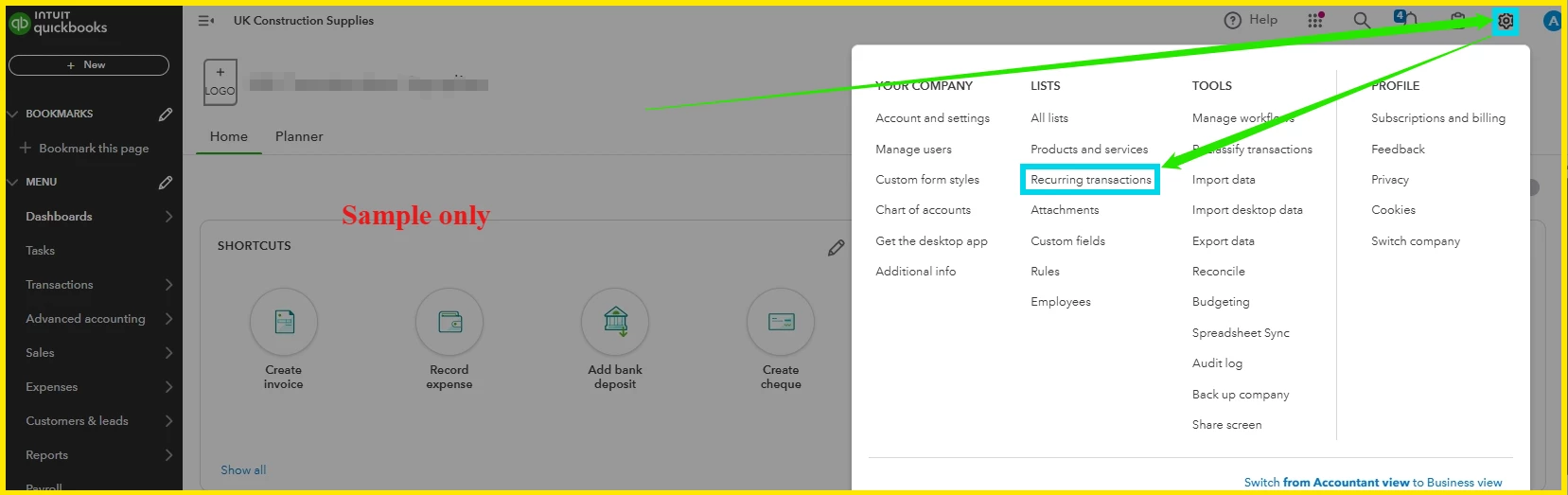
- Hit the New button.
- Choose Invoice and click OK.
- Enter a name for your template.
- Select Unscheduled and fill in all the required fields.
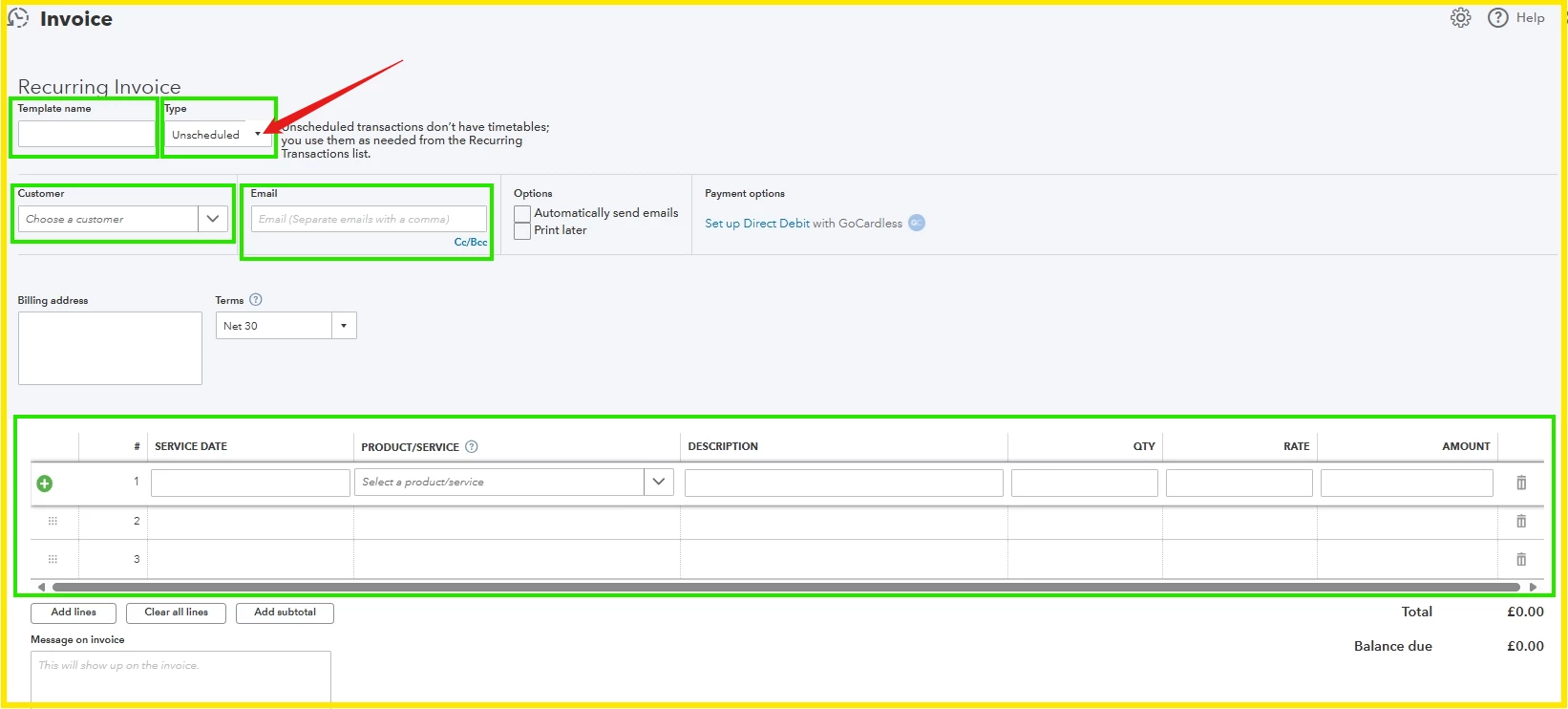
- Tap Save template.
You can also refer to this article to learn more about this process: Create and manage recurring transactions in QuickBooks.
When you're ready, follow these steps to access your recurring invoice template and send it to your customers:
- Go back to the Gear icon and then Recurring transactions.
- Choose the template you've created and press the Use option.
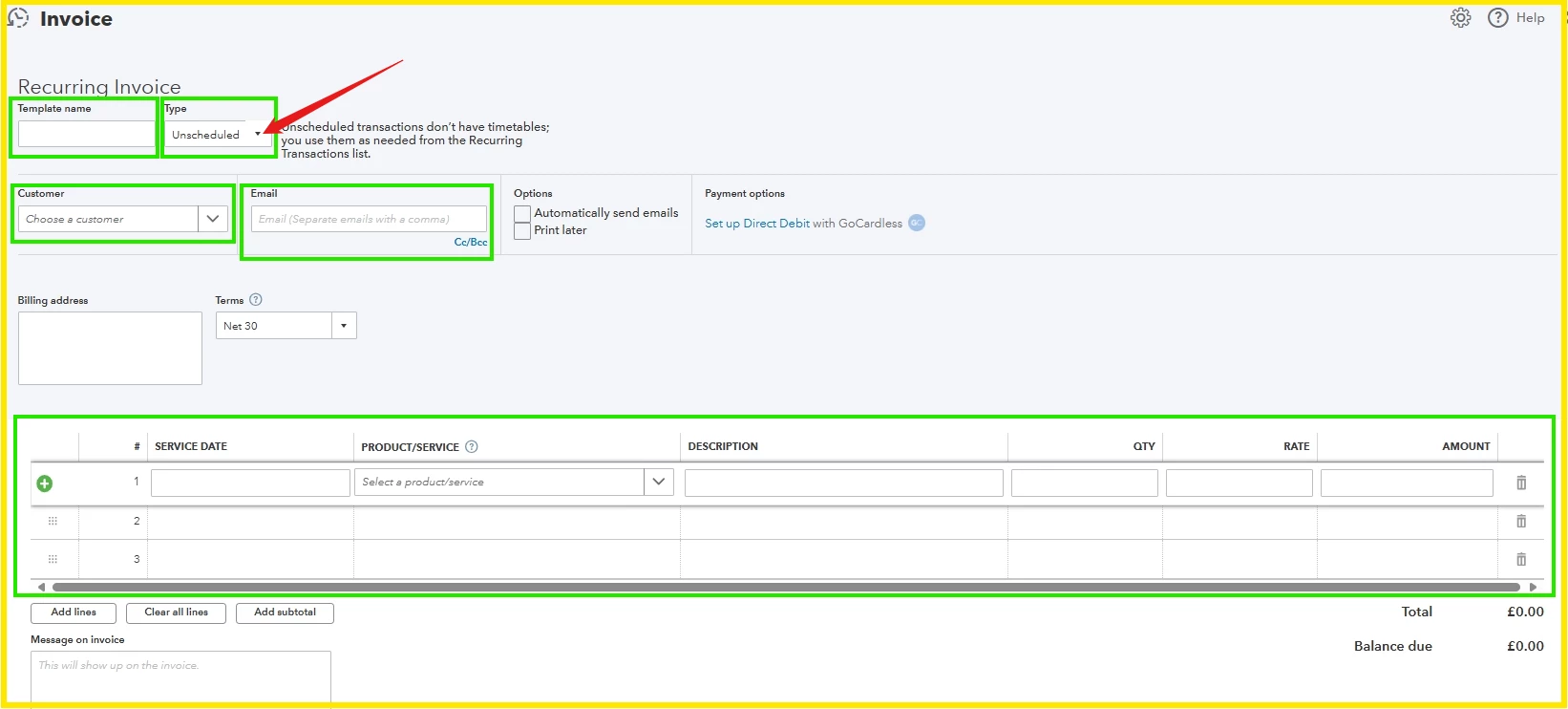
- Update the invoice date, vehicle registration, and the order number.
- Ensure all information is correct.
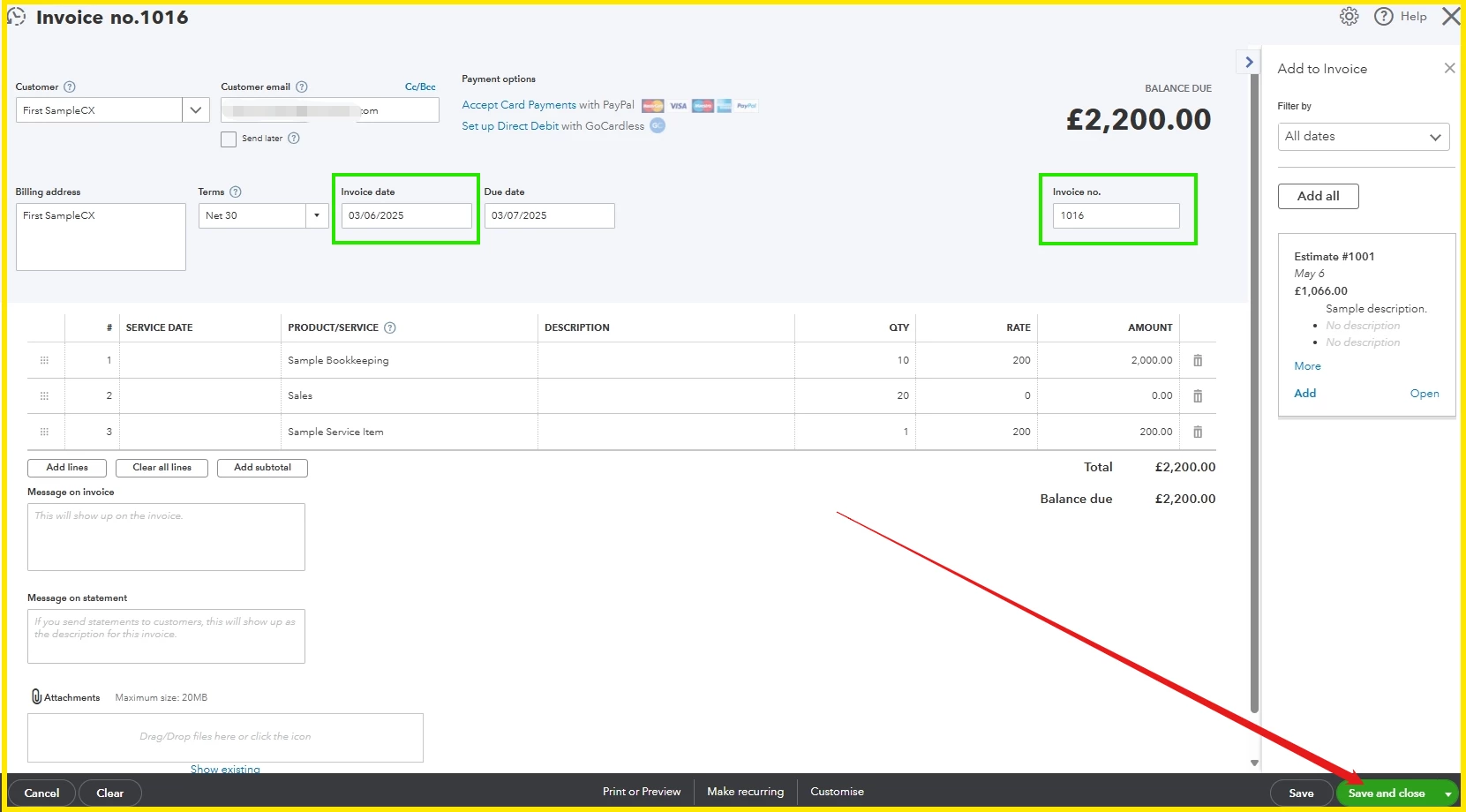
- Hit Save and Close.
- From step 2, continue repeating the process for your remaining invoices.
In addition, here's an article to help you create personalise sales forms and keep track of your invoices inside the program:
These approaches should help you manage your invoicing tasks, Ant. It will help you save time and minimise repetitive typing when sending invoices to the same customers. If you have any follow-up questions or need further clarification on invoice management, share them with us below. Goodbye!

