Hi, PDB77.
Welcome to the Community. I'd be glad to help and provide you with some information regarding paying and allocating VAT payments via QuickBooks Online.
If you paid the VAT overdue outside QuickBooks Online, you'll need to mark the VAT Return as Filed and record the payment in QuickBooks.
Here's how:
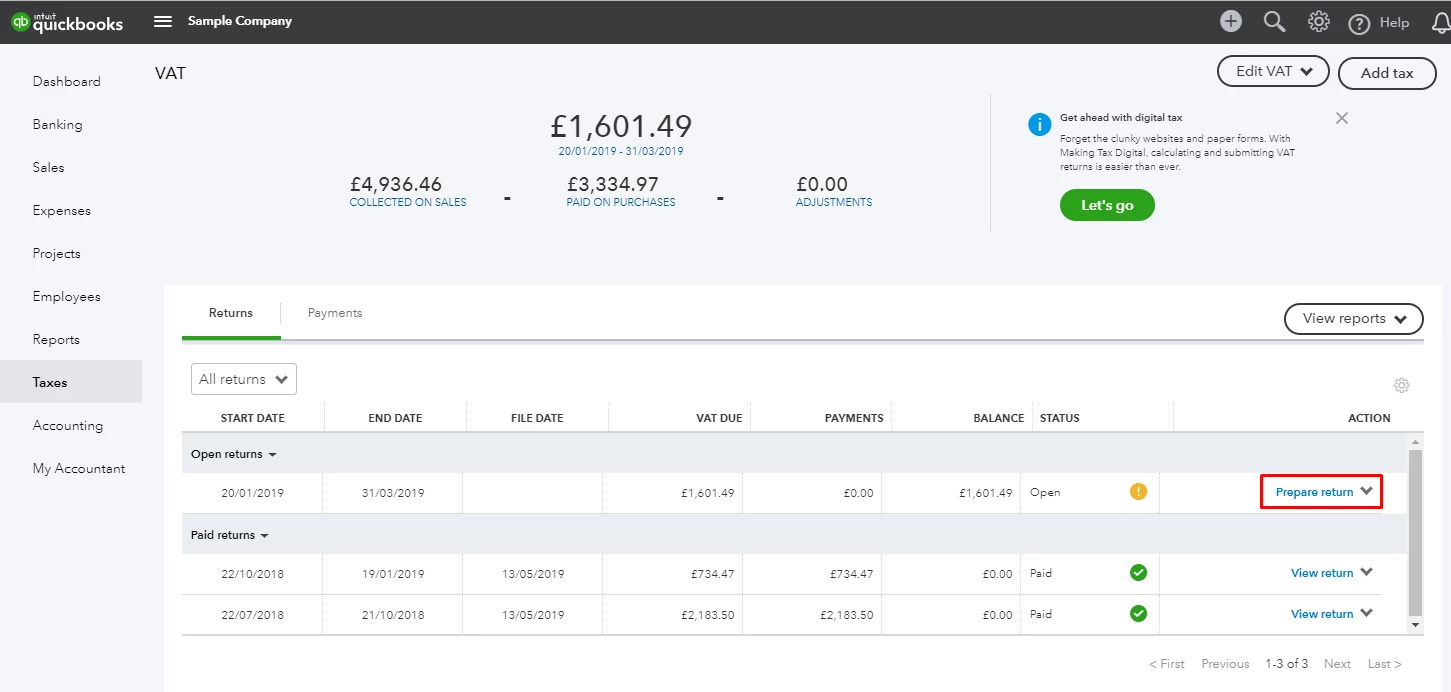
- Click Taxes in the left navigation menu.
- Choose the overdue VAT return and hit Prepare return.
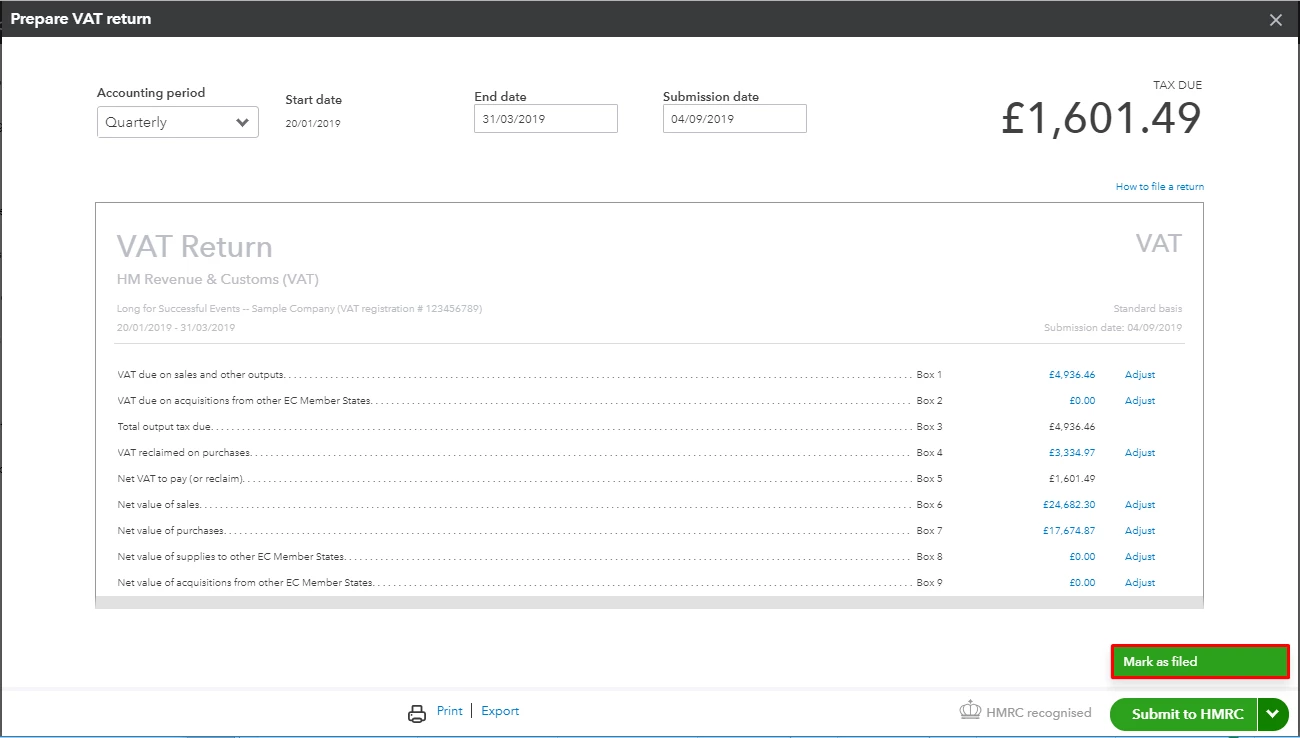
- Click the drop-down arrow beside Submit to HMRC and hit Mark as filed.
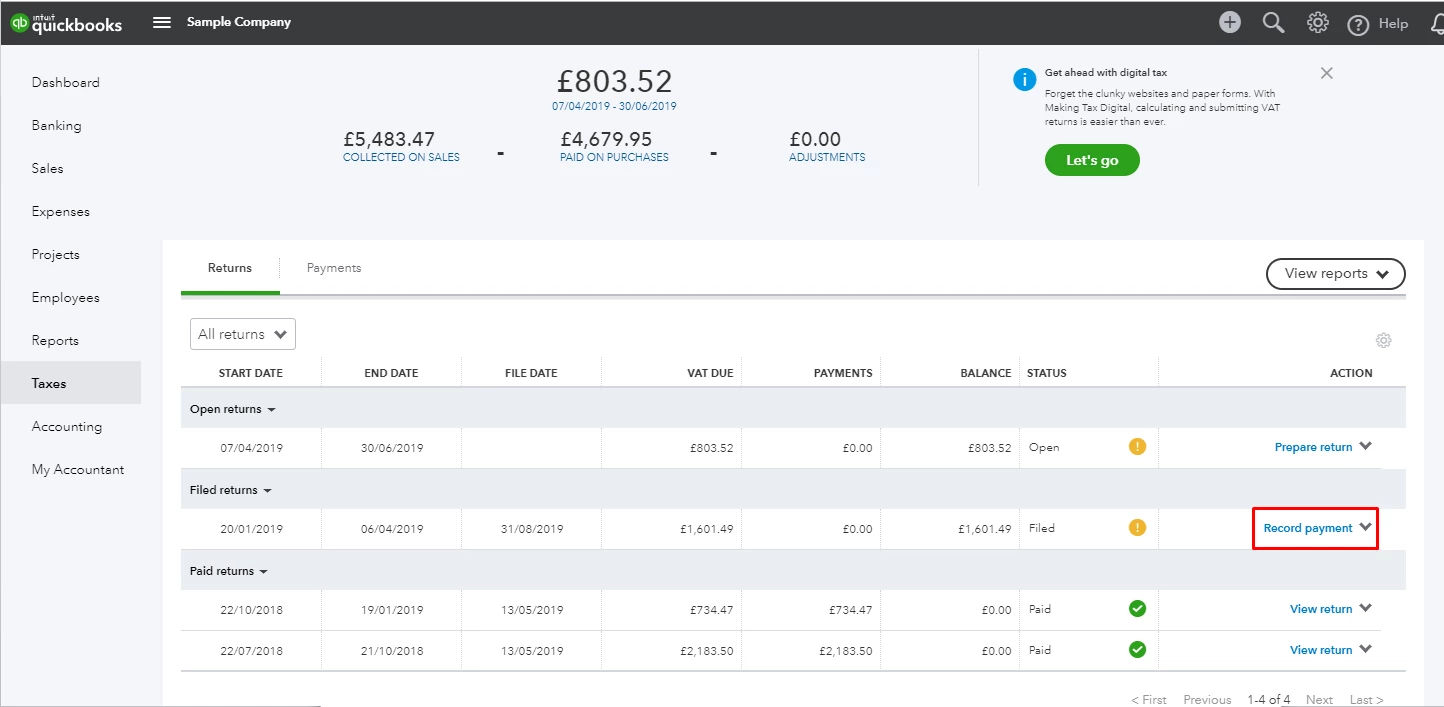
- After that, click Record Payment.
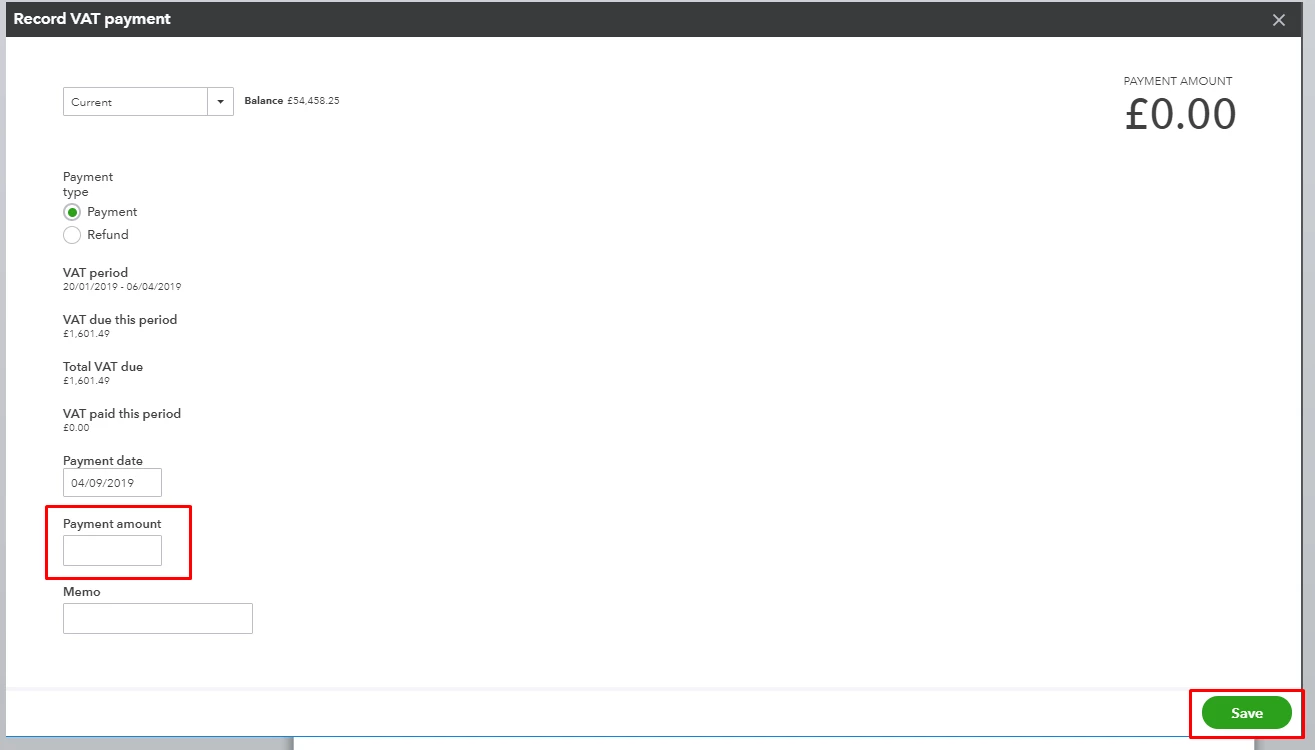
- Enter the Payment amount and click Save.
Once done, you can pull up and look for this payment on the report. You may find this article helpful: Submit a VAT return in QuickBooks.
Also, when you activate VAT in QuickBooks Online, this will automatically create a default holding accounts. These are VAT control and VAT Suspense accounts. The VAT control account and suspense accounts are both liability accounts.
When you create a transaction and allocate a vat code, apart from No VAT, it will be allocated to the VAT control account. When you mark as filed/submit to HMRC the VAT period from within the Taxes section, the transaction in the VAT control account for that period will be moved to the VAT suspense account and then when you record a VAT payment, from within the Taxes section, for the period you have just filed the transaction will be moved from the suspense account to the bank account.
To know about VAT codes and making tax digital, check out these articles:
For account-related discussion, feel free to reach out to our QuickBooks Online Support.
- Sign in to your QuickBooks Online Company.
- Click (?) Help at the upper right corner.
- Select Contact US on the pop-up.
- Enter a brief description of your concern then hit Continue.
- Click Get a callback.
- Enter your contact information.
- Select Call me.
Don't hesitate to drop a reply below if you still need help with paying VAT returns in QuickBooks. I'd love to help. Have a good one.

