Hello there, @Luke filmmaker. I appreciate you for posting and sharing your thoughts in the Community forum.
It has something to do with the settings. If you haven't tried setting up the Default tax rate selection to No VAT, you can follow the steps below.
- Go to the Gear icon.
- Select Account and Settings.
- In the Advanced tab, go to the Accounting section.
- Click the Default tax rate selection drop-down arrow and select No VAT.
- Select Save. Then, Done to reflect the changes.

Once done, you can go back and create a transaction without selecting for No VAT and other VAT options available. As we can see, there's no VAT column required for every transaction you'll create. This is how it looks like:

Also, you'll have to make sure that you choose the I don't need MTD option when you're asked to stay compliant with HMRC. You can take look at the sample screenshot below.

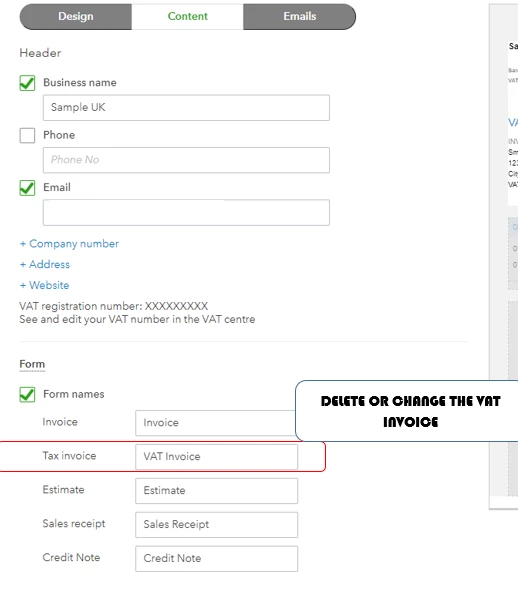
To stop your invoices from being titled as VAT Invoice, you can use the Custom form style feature in your QBO account and customise the invoice template. Here's how:
- Go to the Gear icon.
- Select Custom form style.
- Choose the template you want to edit.
- In the Content tab, click the hear part of the form.
- Remove or change the VAT invoice.
- Click Done to reflect the changes. Afterward, your invoices will not appear as VAT Invoices. Note: Make sure to apply this template to your invoices.
If you want to gather more details about handling sales forms in QBO, you can check the links below.
You can always visit here if you have other questions with QuickBooks or follow-up concerns with this matter. Stay safe always.

