You're always welcome here with the VAT category concern, @BridgesJnr. I'll walk you through the steps of setting up so you can select it when splitting bank transactions.
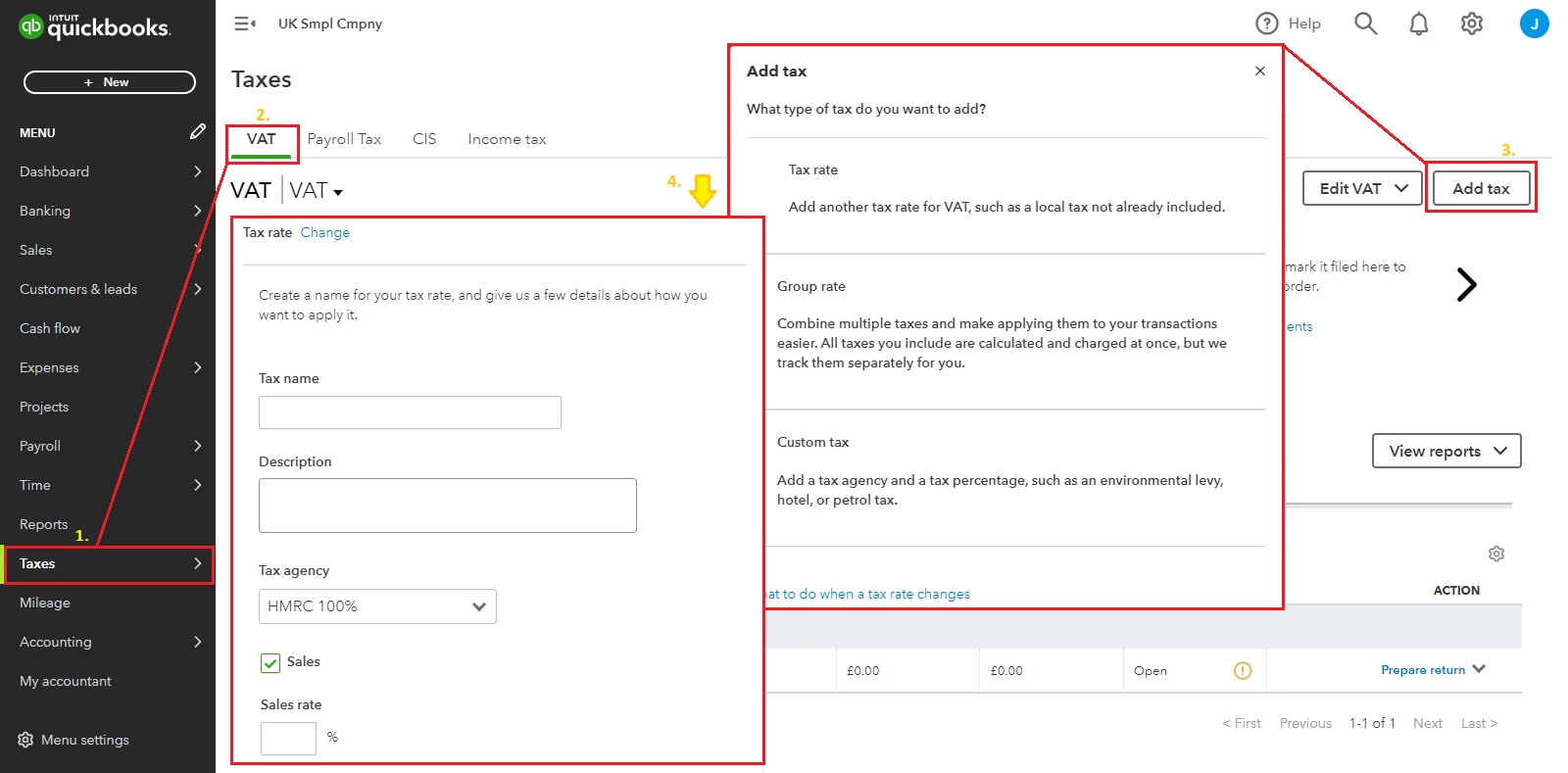
You'll need to set up the 100% VAT from the Taxes section to select it when categorising transactions on the Banking page. Please know that VAT rates will show according to Tax Agency and Sales or Purchases field you specify. To proceed, follow the steps below:
- On the left pane, select Taxes.
- Press VAT, then click Add Tax.
- Determine what type of tax you want.
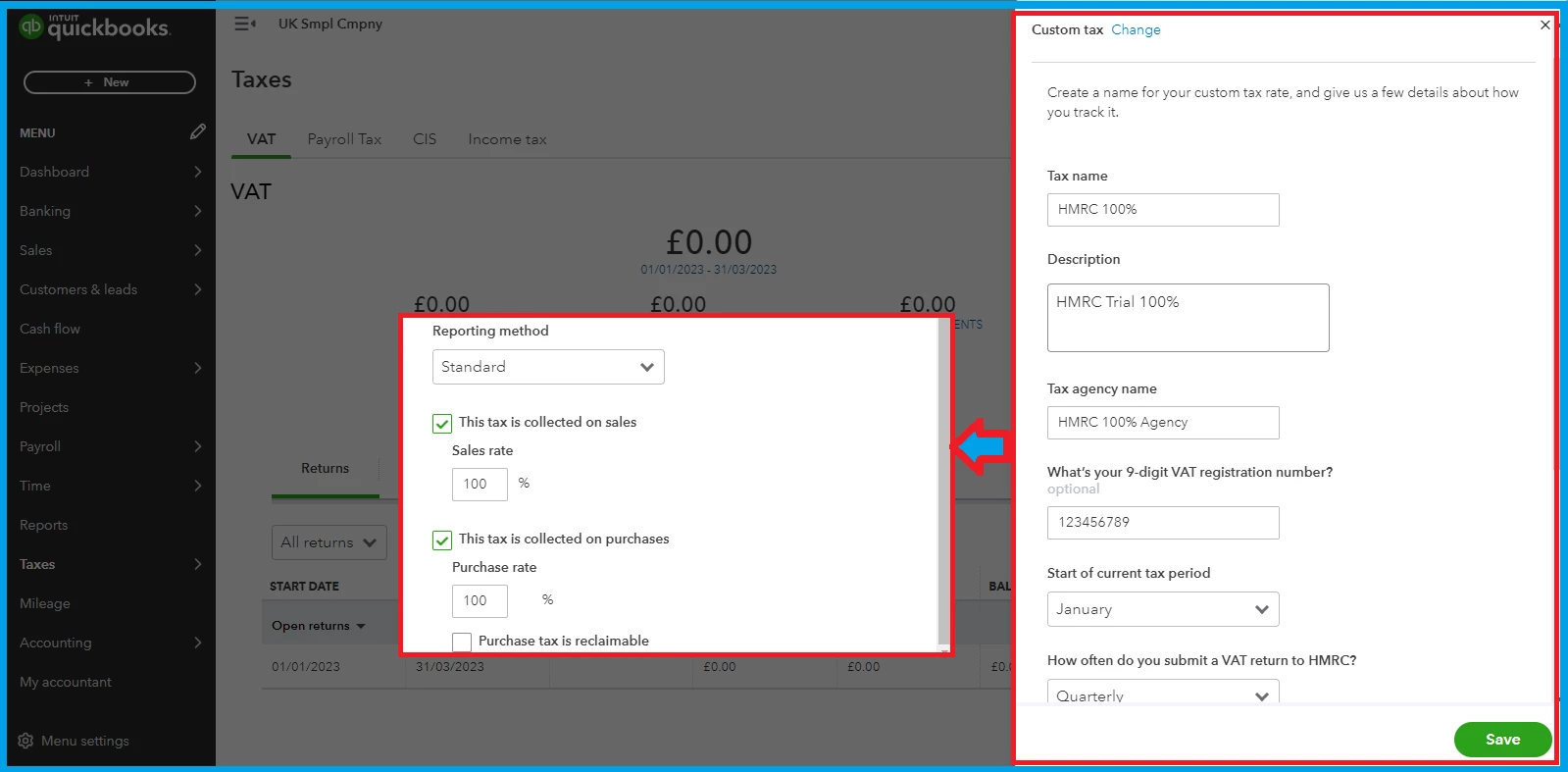
- Enter the necessary information on each field.
- Tap Save.
I'm adding some screenshots for reference:


See this article to learn more about adding VAT and its calculation: Set up and edit VAT settings, codes, and rates in QuickBooks Online.
Feel free to check out these resources for more tips about matching and reconciling transactions in the program:
This should help you select the 100% VAT rate on the banking page. If you need more help managing bank transactions, add a comment below. I'll be here to help you.