QuickBooks Online (QBO) identifies potential matches for transactions based on the transaction amount, suggesting matches that occurred on the same date or within a window of 90 days prior and 20 days following the date of the transaction. I'm here to assist you with this process, pianomonology.
Could you please provide more details about the method you used to match the transaction? Did you manually input the payment details into QuickBooks, or did you use the banking page to match the bill with the payment?
If it is done in QuickBooks Online (QBO), you can edit the bill payment to the correct amount by clicking the payment link and undo the match of the bill payment to prevent duplicates.
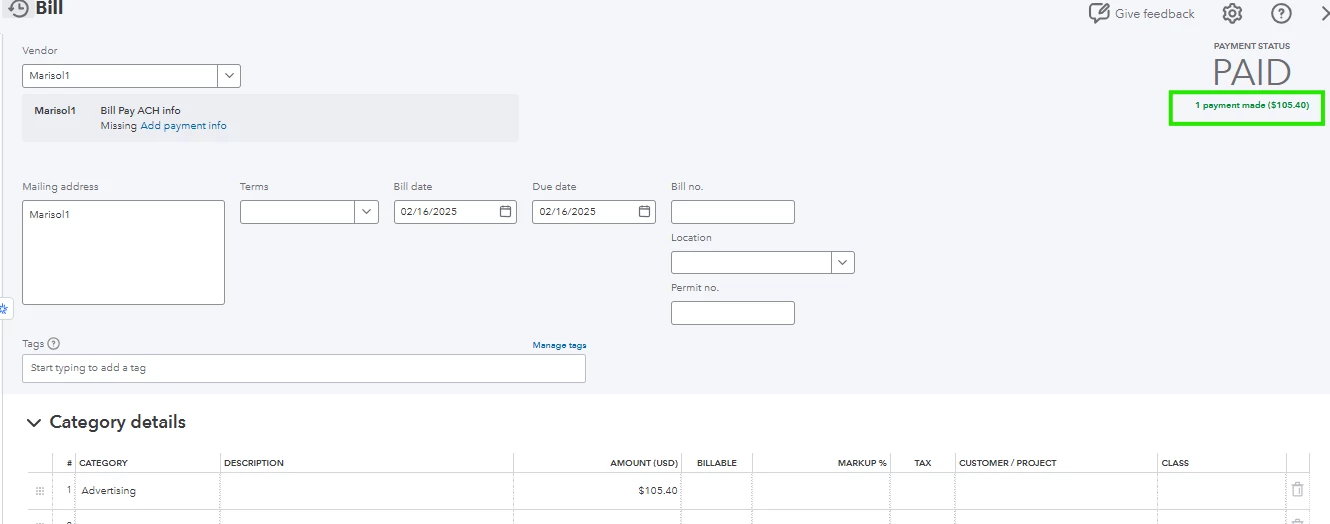
Once done, undo the match of the bill payment to prevent duplicates. On the other hand it this is done in the banking page, you can enter an adjustment to resolve the difference:
- On the Transactions menu, select Bank transactions.
- Find an item with an amount that doesn’t match with the transaction you entered for it.
- Select the item, and once the row expands, click Find Match.
- In the Match transactions page, select the transaction to match. If you don’t see it, enter search criteria above the table to find it.
- Once you select the transaction, scroll to the bottom of the table and click Resolve difference on the right.
- Click Add new expense for money spent; click Add new deposit for money received. A second table appears. (You might need to scroll down the page to see it.)
- Complete the fields in the table to add the adjustment.
- Click Save when you’re through.
But if you still wish to account for the $0.10 amount, you can create a vendor credit which can then be applied to a future bill. To do so follow the steps below:
- Select + New.
- Select Vendor credit.
- In the Vendor ▼ dropdown, select your vendor.
- Depending on how you record purchases with this vendor, enter the Category details or Item details. Usually, this is the category, product, or service you’re getting a credit for.
Note: If you choose an inventory item, QuickBooks will put it back into inventory. If the item is defective or if you don’t want it added back to inventory, you can make an inventory adjustment.
- Click Save and close.
For more information on how to record a refund or credit from a vendor check out this article: Enter Vendor Credits and Refunds in QuickBooks Online.
Additionally, learn how you can manage your business's overall financial health and maintain the integrity of the operation. Refer to this article on how to reconcile your account: Reconcile An Account in QuickBooks Online.
Did you know that our QuickBooks Live Expert team is also available to help you make the most of your customer, vendor, and bank transactions so you'll know how exactly how your business is doing? You can check them out now.
Let me know if you have further questions about overpayment. I'll be more than happy to assist you.

