

November 22, 2023
Solved

Exporting a List of ONLY Customers?

  • November 22, 2023
  • 1 reply
  • 0 views

Hello,

I'd like an isolated list of just my customers and no other info. Definitely not jobs associated with them, etc. Ideally I was hoping to export this to Excel. I have tried looking everywhere, in the Lists tab, Company tab, Excel Dropdown, and there is no way that I've found to get just that information simply and cleanly into a different program for quick reference. Is there a way to generate ONLY a list of Customers? I have Quickbooks Desktop 2020.

Thanks.
Best answer by Rea_M

Yes, there's a way to generate only a list of customers in QuickBooks Desktop (QBDT), Tristar12030. I'll guide you on how to do this below.


We can pull up and customize the Customer Contact List report to see an isolated list of just your customers (excluding associated jobs). Here's how:


  1. Go to the Reports menu.
  2. Select List, then Customer Contact List.
  3. Click the Customize Report button.
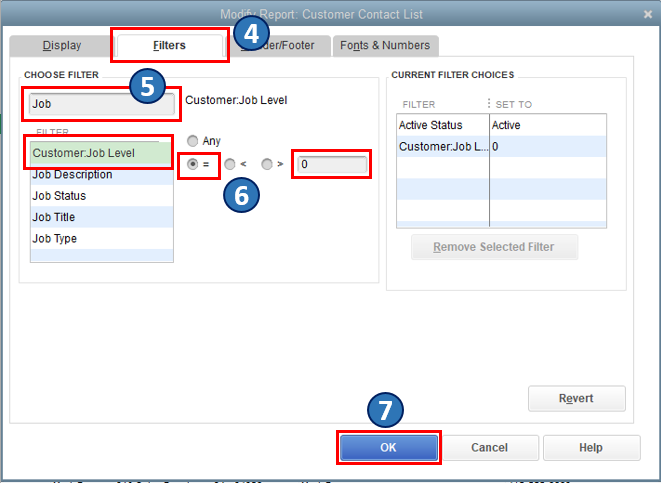
  4. Go to the Filters tab.
  5. In the Search Filter field, type in Job.
  6. Select Customer:Job Level and click the Equal (=) button. Make sure the quantity field is zero.
  7. Click OK.


Once you're done, export the report to Excel.


Additionally, you may want to memorize the report to see the same customized settings to be available for you in the future. To do so, please see this article: Create and access memorized reports.


If you have any other reporting questions or concerns about managing customer list, feel free to post them below, and I'll be happy to help you.

1 reply

Rea_MAnswer
November 22, 2023

Yes, there's a way to generate only a list of customers in QuickBooks Desktop (QBDT), Tristar12030. I'll guide you on how to do this below.


We can pull up and customize the Customer Contact List report to see an isolated list of just your customers (excluding associated jobs). Here's how:


  1. Go to the Reports menu.
  2. Select List, then Customer Contact List.
  3. Click the Customize Report button.
  4. Go to the Filters tab.
  5. In the Search Filter field, type in Job.
  6. Select Customer:Job Level and click the Equal (=) button. Make sure the quantity field is zero.
  7. Click OK.


Once you're done, export the report to Excel.


Additionally, you may want to memorize the report to see the same customized settings to be available for you in the future. To do so, please see this article: Create and access memorized reports.


If you have any other reporting questions or concerns about managing customer list, feel free to post them below, and I'll be happy to help you.

November 23, 2023

This is the answer! Thank you! 

November 23, 2023

You're always welcome, @TriStar. It's just so good to find out that my colleague was able to figure out the solution for you. 


Our dedicated team of experts has worked diligently to identify and address the root cause of the error and exact answer. Through our thorough analysis and troubleshooting suggestion, you are now able to proceed on your task in QuickBooks Desktop.