Solved
Get this message in QBO "Looks like your popup blocker is on" How do I get rid of this message?
Original commenter did not share additional details


We’re thrilled to welcome you back to the QuickBooks Community, Sue! I’m here to assist you in eliminating the popup blocker message so you can seamlessly focus on your tasks in QuickBooks Online (QBO) without interruptions.
Pop-up blockers are built into your browsers to prevent unwanted windows from interfering or showing up on your screen. Since QuickBooks has pop-ups, you can add an exception for the system to get rid of the message you encountered. Google Chrome is the browser most customers use, so I'm including the steps for it below:
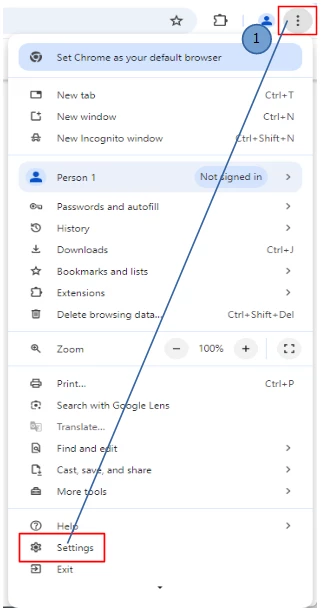
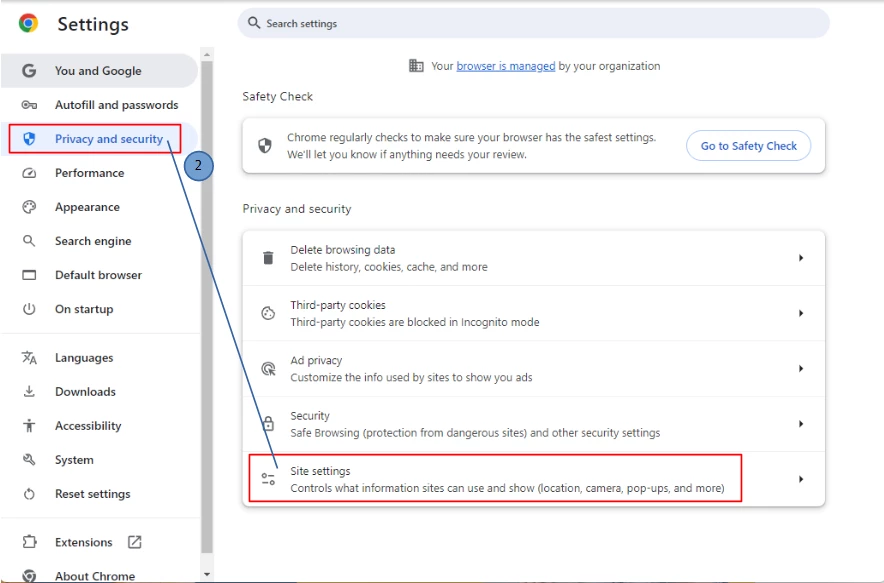
If you're utilizing other browsers, like Firefox and Safari, refer to this article for the step-by-step guide: Why doesn't anything happen when I select a button or link?
Additionally, QuickBooks offers a range of financial reports that can give you valuable insights into your business. If you need guidance with running, customizing, and printing one, check out this article: Pull up reports in QuickBooks Online.
Feel free to stop by the Community anytime you need support with your business growth and transactions in QBO, Sue! We're here to help you every step of the way and are always eager to share our insights and assistance.
Enter your E-mail address. We'll send you an e-mail with instructions to reset your password.