April 12, 2019
Solved

How do I re-activate inactive client?

  • April 12, 2019
  • 7 replies
  • 0 views
Original commenter did not share additional details

Best answer by MaryGraceS

Hello there, @bisic.


Thanks for taking the time to reach out here in the Community. I'd be happy to help you with reactivating your inactive client in QuickBooks Online.


If you're trying to remove a client's company in your QBOA account, please refer to the steps below:
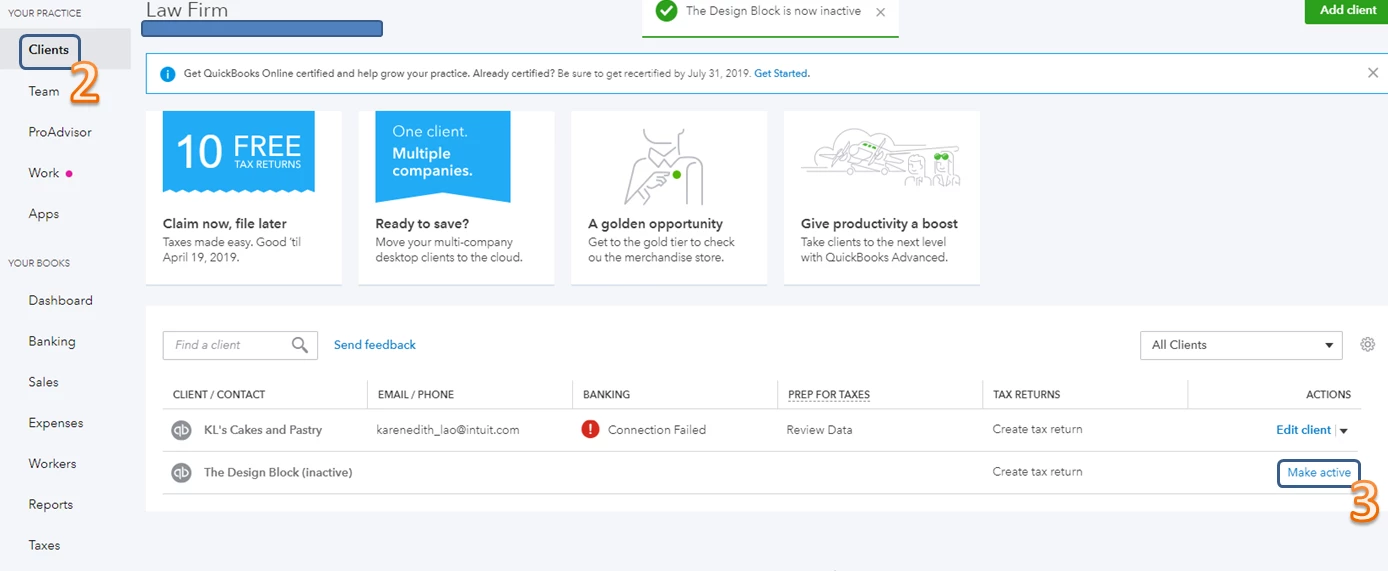
  1. Login to your QBOA account.
  2. Click Clients under YOUR PRACTICE on the left menu.
  3. Look for the client's company and click Make active under the ACTIONS column.

However, if you're referring to a customer in your QBO account, here's how to reactivate the client:
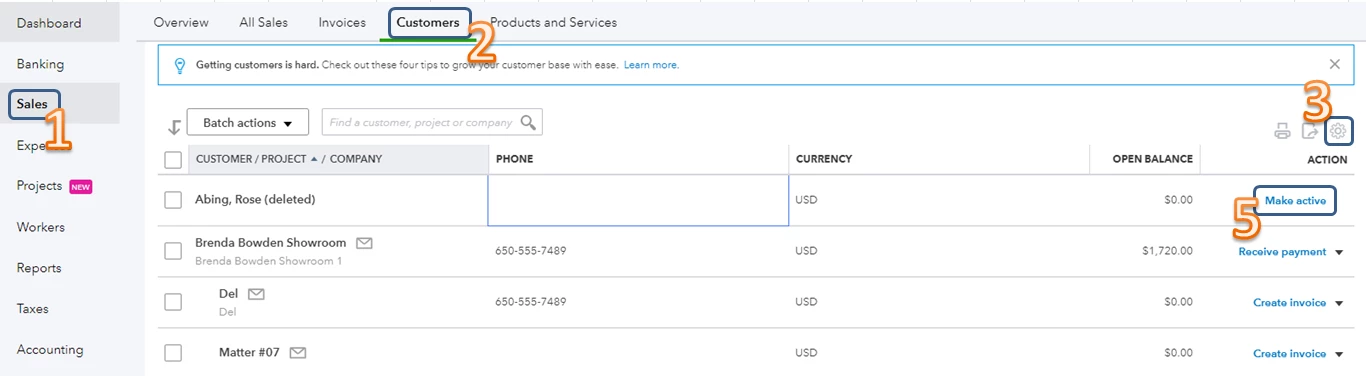
  1. On the left pane, click Sales.
  2. Select the Customers tab.
  3. Click the Gear icon above the ACTION icon.
  4. Put a mark next to Include inactive.
  5. Find the customer and click the Make active link in the ACTION column.

That should get you back on track. For future reference, you can also visit our Blog to learn what new updates are being rolled out, as well as additional references while working with QuickBooks.


Please know that I'm just a post away if you're referring to something else or if you have any other questions while working with QuickBooks. I'll be happy to help you out. Wishing you and your business success. 

7 replies

April 12, 2019

Hello there, @bisic.


Thanks for taking the time to reach out here in the Community. I'd be happy to help you with reactivating your inactive client in QuickBooks Online.


If you're trying to remove a client's company in your QBOA account, please refer to the steps below:

  1. Login to your QBOA account.
  2. Click Clients under YOUR PRACTICE on the left menu.
  3. Look for the client's company and click Make active under the ACTIONS column.

However, if you're referring to a customer in your QBO account, here's how to reactivate the client:

  1. On the left pane, click Sales.
  2. Select the Customers tab.
  3. Click the Gear icon above the ACTION icon.
  4. Put a mark next to Include inactive.
  5. Find the customer and click the Make active link in the ACTION column.

That should get you back on track. For future reference, you can also visit our Blog to learn what new updates are being rolled out, as well as additional references while working with QuickBooks.


Please know that I'm just a post away if you're referring to something else or if you have any other questions while working with QuickBooks. I'll be happy to help you out. Wishing you and your business success. 

bisicAuthor
April 14, 2019

Thank you.

May 8, 2019

I have inactived several clients.  I do not see any of my inactive clients in the customer list.  None of the answers provided are helpful.   Where does Quickbooks Online store the inactive client list?  

July 7, 2021

so how do i reactivate a client on the IOP?

KlentB
July 7, 2021

Hi there, Maria04.


Let me route you to the best support so this will be taken care of as soon as possible.


For Intuit Online Payroll for Accountants, you'll have to reach out to our Customer Care Team. This way, we'll be able to pull up your account and reactivate your client. You can connect with us through this link: Contact Intuit Online Payroll Support.


I also encourage checking out support hours below to ensure that we address your concerns on time:


  • Monday to Friday from 6 AM to 6 PM Standard Pacific Time
  • Saturday from 6 AM to 3 PM Standard Pacific Time

Additionally, here's an article that you can read to learn how to set up and organize your clients: IOP4A - Adding and managing clients.


If I can be of any additional assistance, please don't hesitate to tag me in your comments and posts. I'll always have your back.

July 29, 2021

How do I re-subscribe my account?

July 29, 2021

I'll ensure that you're able to re-subscribe your account, chaitraads.


In QuickBooks, you'll be prompted to resubscribe the moment you log in to your QuickBooks Online account. Let's ensure to use the correct username and password. If you're not prompted, you can follow these easy steps below.


  1. Sign in to your QBO account.
  2. Go to the Gear icon at the top upper part of the page.
  3. Select Account and Settings.
  4. Click Billing & Subscription, then Resubscribe.
  5. Enter your most updated billing information, then hit Subscribe.


I've included this article for more details: How to resubscribe or reactivate QuickBooks Online.


In addition, feel free to check out this resource to find more tips on managing your QBO account: Account management.


Please add any details below if you have further questions about managing your subscription. I'll be around to help you.

November 29, 2022

How do you batch reactivate customers?

DHeraV
November 29, 2022

Hi there, @OBO_Usering,

Allow me to share some insights about reactivating customers. Inactive customers can only be reactivated by doing it manually. As much as how hassle-free it is, however, it's unavailable in QuickBooks Online (QBO).

Let me guide you on how to reactivate customers.

Here's how:

1. Go to the Sales tab, then select Customers.
2. Click the Gear icon to filter, then tick the Include inactive.


3. Locate the customer you want to reactivate and select Make active.


For detailed information, please visit: Add and manage customers in QuickBooks Online.

You may also want to learn how to send statements to show customers summaries of their invoices, payments, credits, and balances: Create and send customer statements in QuickBooks Online.

Should you need further assistance with managing your customers, feel free to leave a reply. I'm here to help you anytime. Have a great day ahead!

March 13, 2023

Greetings,

How-to reactivate inactive customers / clients in a bulk or a batch action.

I took bad advice from a CRM that integrates with qbo and inactivated many clients for a specific need.

Now i need to reactive all those clients/ customers.


To reactivate a customer / contact is only possible by performing this task one at a time as described in this thread?


Please help!

March 13, 2023

Thanks for joining this thread, d00b1e.
 

You're correct, as DHeraV's post mentions, inactive customers can be reactivated one at a time. You can do so by following the steps in MaryGraceS's post.
 

I can certainly understand how an ability to reactivate multiple customers at the same time could be useful and have submitted a suggestion about it as of today.
 

You can also submit your own feature requests while signed in.
 

Here's how:


  1. Use the Gear () icon, then go to Feedback.
  2. Enter your suggestion(s) in the Have feedback? window.
  3. If necessary, attach a file with your Camera () icon.
  4. Select Next.


Your feedback's definitely valuable to Intuit. It will be reviewed by our Product Development team and considered in future updates. You can stay up-to-date with the latest news about your product by reviewing Intuit's Product Updates webpage.
 

I'll be here to help if there's any questions. Have a lovely day!

June 28, 2023

I am unable to select a deactivated/(deleted) customer to be able to re-activate the record.  This seems to have happened with the latest update. It worked a couple of weeks ago.


In my attached screenshot, I can click the red-underlined name, but it will never display on the right with the details of that customer. Therefore, I cannot reactivate the customer.

June 28, 2023

Thanks for getting involved with this thread, KWCOffice. I appreciate your detailed information and screenshot.


Since the screen isn't displaying your customer's profile after clicking to it, I'd recommend checking the browser you're using. It's possible this could have something to do with temporary internet files. Browsing applications store these types of records, but sometimes they can cause issues with certain webpages. You can open a private window and check to see if customer profiles display properly.


Here's how to access incognito mode in some of the most commonly used web browsers:


  • Google Chrome: Ctrl Shift N
  • Mozilla Firefox: Ctrl Shift P
  • Microsoft Edge: Ctrl Shift P
  • Safari: Command Option P


If pages are loading correctly while browsing privately, it's safe to say this problem's being caused by your browser. It can be fixed by clearing cached data and Intuit-specific cookies.


In the event screens continue not loading properly while browsing in incognito mode, you'll initially want to try switching to another browsing application.


Here's a list of supported browsers:


  • Google Chrome - version 78 or newer
  • Mozilla Firefox - version 76 or newer
  • Microsoft Edge - version 75 or newer
  • Opera - version 68 or newer
  • Samsung - version 10 or newer
  • Safari - version 12 or newer


You can also check a browser's compatibility with QuickBooks by utilizing our browser health checkup tool. QuickBooks supports the current and two previous versions of browsers. If you find that you're using an unsupported version, make sure to update it to its latest release. Steps for doing so can be found on the particular company's website.


In the event you've found no problems that could be causing this with your browser, you'll want to check the operating system and internet speed you're working with.


Here's our recommended operating systems and internet speeds:
 

  • Windows PC - Windows 10, Intel Core i3 or a comparable processor (2013 or newer) with at least 2 GB of RAM, or Windows 10, Intel Core i5 or comparable processor with at least 4 GB of RAM.
  • Mac - OS X El Capitan 10.11, OS X High Sierra 10.13, or newer.
  • Linux - QuickBooks works with Linux, but you'll want to make sure you're using a supported browser and our recommended internet speeds.
  • Internet connection - 1.5 Mbps to 3 Mbps or higher.


If you meet our system requirements, but are still encountering pages that aren't loading properly, I'd recommend using a different device and/or internet connection. If it continues happening on other devices and internet connections, you'll want to get in touch with our Customer Care team. They'll be able to pull up the account in a secure environment, conduct further research, and create an investigation ticket if necessary.


They can be reached while you're signed in.


Here's how:


  1. Use the Help (?) icon.


  2. Click Contact Us.


  3. Enter a description of your situation in the What can we help you with? field, then hit Let's talk.


  4. Select Start messaging or Get a call.


Be sure to review their support hours so you'll know when agents are available.


You also have the option to reactivate customer profiles from your Customers screen:
 

  1. In the left navigation bar, go to Customers & leads, then Customers.
  2. Find your inactive customer on the list. If necessary, use your list's Gear icon and tick Include inactive. This will make inactive customers display on the list.
  3. Select Make active under your ACTION column.


I've also included a detailed resource about managing customer profiles which may come in handy moving forward: Manage customers


Please don't hesitate to send a reply if there's any questions. Have a great day!

December 27, 2023

Is there anyway to export the list of clients INCLUDING Inactive Clients? In QBO, when I click the gear icon, click include inactive, & then export, only active clients show up in that xls sheet - even though they are visible in QBO.

I also tried to select all, but once you click the select all/name check mark box, the export option disappears & only gives 3 batch options (create statements, email, make inactive). The only option I see is making each active again & then making them inactive - which is ridiculous. Especially since I've learned from this thread you have to do this individually for every single inactive client. (It would be nice for those needing to reactivate clients, it if it were in the batch options just like "make inactive" is....... no sense). I personally prefer not to make inactive clients active again, just to export a past/present client list. This seems like a simple request, that once again QB has completely muddied. So frustrating. Any assistance would be appreciated. 

December 27, 2023

I understand how important it is for you to have the option to include inactive clients when exporting it, @AMech.


It would greatly simplify the navigation process and make the process more convenient. Since we can't do it in QuickBooks, I suggest you send your feedback directly to our product engineers. They will evaluate your idea. Here's how:


  1. Go to the Gear icon.
  2. Select Feedback under Profile.
  3. Enter your suggestion. Then, click Next.


If you want to track and manage your clients, you can review these articles moving forward:


Get back to me if you have other follow-up questions about clients. I'll be here to help. Have a nice day!
