Solved
how to add a date in an app transaction?
How do I add a date in the App Transactions when the date is missing?


I appreciate the efforts you've put in, Karin. Let's explore further options to address the transaction missing a date and no field for adding or modifying it in the Order details.
When you encounter a transaction in QuickBooks Online (QBO) that lacks a date, and there is no option to add or edit the date in the Order details, let's make a manual entry to address the issue.
Here's how:
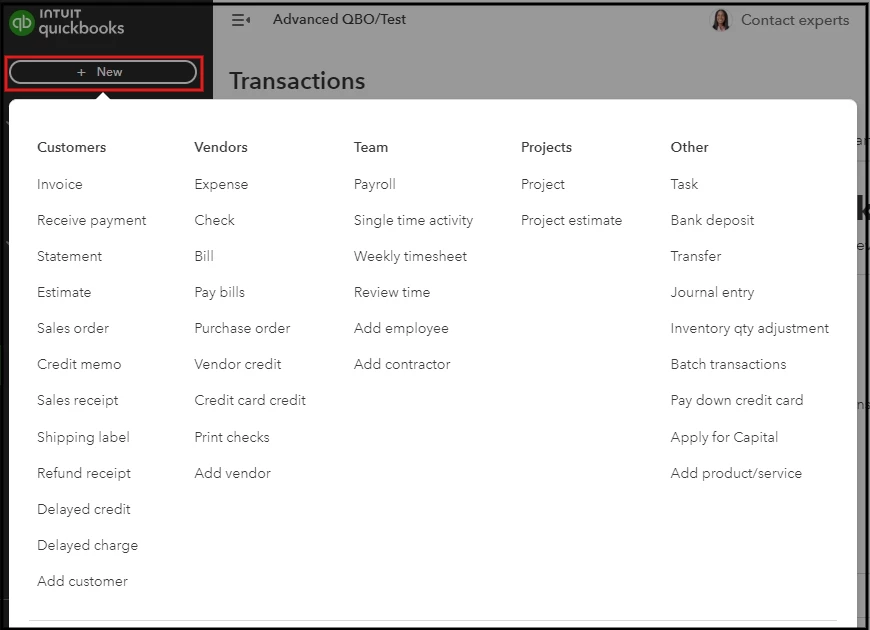
The ability to edit transaction details, such as dates, can vary depending on how the transaction was imported (e.g., from a bank feed or an app integration) and may have limitations.
It is essential to check the app settings and the original data source to understand how dates are managed, ensuring they are accurately recorded and communicated to QuickBooks Online.
Additionally, here are some QuickBooks resources that might help manage your transactions and overall financial management:
Thank you for your patience and efforts in managing your transactions. The steps outlined will guide you in updating your data smoothly and accurately. If you have any questions or need assistance, please reach out. We're here to ensure your QuickBooks Online experience is seamless.
Enter your E-mail address. We'll send you an e-mail with instructions to reset your password.