August 15, 2021
Solved

I have multiply bank accounts that I need to compile into 1 business report. I am doing online QB but thinking it will be better to go back to desktop??

  • August 15, 2021
  • 2 replies
  • 0 views
Original commenter did not share additional details

Best answer by Rubielyn_J

Let me help you compile multiple bank accounts into a single report in QuickBooks Online, @dawn991007


There's no need for you to go back to the desktop version of QuickBooks. You can generate a Transactions Detail by Account report in QuickBooks Online to collect all your bank accounts. 


To do this, here's how:
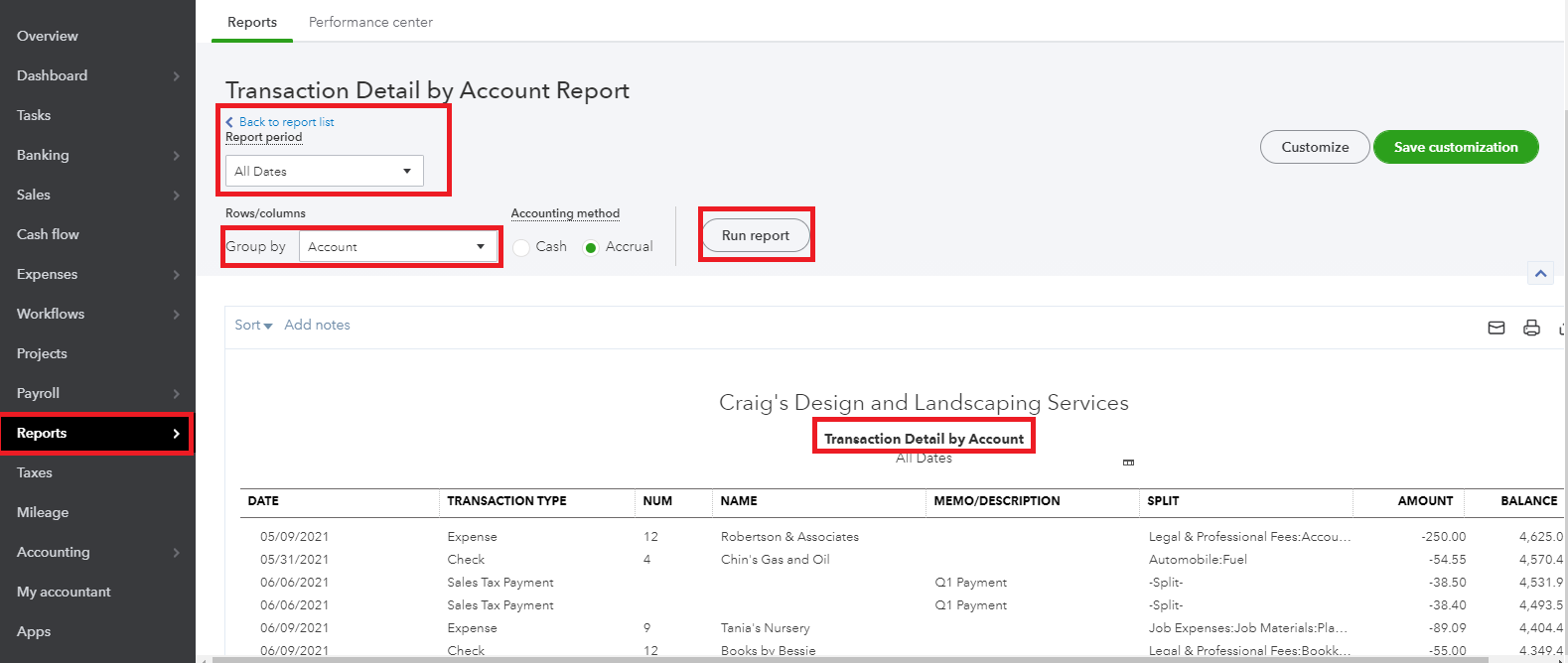
 

  1. Sign in to your QBO account.
  2. Go to the Reports menu at the left panel.
  3. In the Find report by name field, search for Transactions Detail by Account report.
  4. Choose the date of the report.
  5. Click Run report


You'll want to add some filters to your report. You can click the Customize button on the upper right side. For detailed information, please review this article: Personalize statement in QuickBooks Online.


I'm also adding some resources to help you manage your data in your account: 


Keep in touch if you have other questions about reports. I'll be happy to lend a helping hand again. Have a wonderful day ahead.

2 replies

Rubielyn_J
August 15, 2021

Let me help you compile multiple bank accounts into a single report in QuickBooks Online, @dawn991007


There's no need for you to go back to the desktop version of QuickBooks. You can generate a Transactions Detail by Account report in QuickBooks Online to collect all your bank accounts. 


To do this, here's how:


  1. Sign in to your QBO account.
  2. Go to the Reports menu at the left panel.
  3. In the Find report by name field, search for Transactions Detail by Account report.
  4. Choose the date of the report.
  5. Click Run report


You'll want to add some filters to your report. You can click the Customize button on the upper right side. For detailed information, please review this article: Personalize statement in QuickBooks Online.


I'm also adding some resources to help you manage your data in your account: 


Keep in touch if you have other questions about reports. I'll be happy to lend a helping hand again. Have a wonderful day ahead.

August 16, 2021

Thank you for your help.  How can I email you for more questions.  I am running multiple businesses and I am stressed to work this out. 
Thank you for your help 

Dawn

August 16, 2021

Thanks for coming back, dawn991007.


You can always get back to this thread or ask another question on the Community page. We are always open 24/7 to help you with your concern.


Also, we have easy-to-access articles, webinars, and video tutorials that will help you in familiarizing the different tasks, features, and functions of QBO.


Below are the following:

Of course, you're always welcome to visit us again if you need help while working with QuickBooks. It will be my pleasure. Stay safe and have a great day ahead!

May 20, 2022

Please how can I differentiate primary school form secondary school and their classes using QuickBooks.?

Our proprietor requested that the account should be separated

MariaSoledadG
May 20, 2022

I'm here to guide you on how you can differentiate primary school from secondary school, ojolo6584.


QuickBooks Online (QBO) has a feature that lets you track your income and expense, accounts,  line of detail of transactions, or even assign a location to the entire transaction. You'll want to turn on class tracking so you can start organizing or assigning transactions by class. To do this, follow the steps below:

  1. Go to the Gear ⚙ icon and select Account and Settings.
  2. Select Advanced, then select the Categories section to edit.
  3. Check Track classes.
  4. Check Warn me when a transaction isn't assigned a class. This is optional, but it's good to turn on, so when you look at reports, you know everything got classified.
  5. Under Assign classes, select One to entire transaction or One to each row in transaction.*
  6. Click Save, then Done.


Once done, you can now create classes for different parts of your business. To give you more details on how you can use the feature and specifically determine by getting deeper into your transactions, I've provided this article so you'll be guided: 


Moreover, to know more on how you can run reports and filter them to show the specific information you need. Learn from this article for your guide: Customize Reports In QuickBooks Online.


Let me know if you have additional questions about compiling bank accounts. I'll always be right here to further assist you.
