August 24, 2020
Solved

In QB Online, is there a way to run AR and AP aging reports by transaction (invoice) dates, instead of due dates? This was easy to do in QB Desktop.

  • August 24, 2020
  • 1 reply
  • 0 views
Original commenter did not share additional details

Best answer by Charies_M

Glad to have you here, Jimbozeubuen.


The Accounts receivable aging detail and Accounts payable aging detail reports are set to show transactions grouped by days of past due. Instead, you can run the Transaction Detail by Account report and customize the filters to group AR/AP transactions by invoice dates.


Here's how:


  1. Go to Reports.
  2. Enter Transaction Detail by Account in the search field.
  3. Click the Customize button.
  4. From the Filter drop-down, mark the following boxes:
    Transaction Type and choose Invoice.
    Account and choose All Accounts receivable.
    Service Date and choose the your preferred period date.
  5. Click Run report.

Here's a sample screenshot on how the report would look like after applying the customization above.
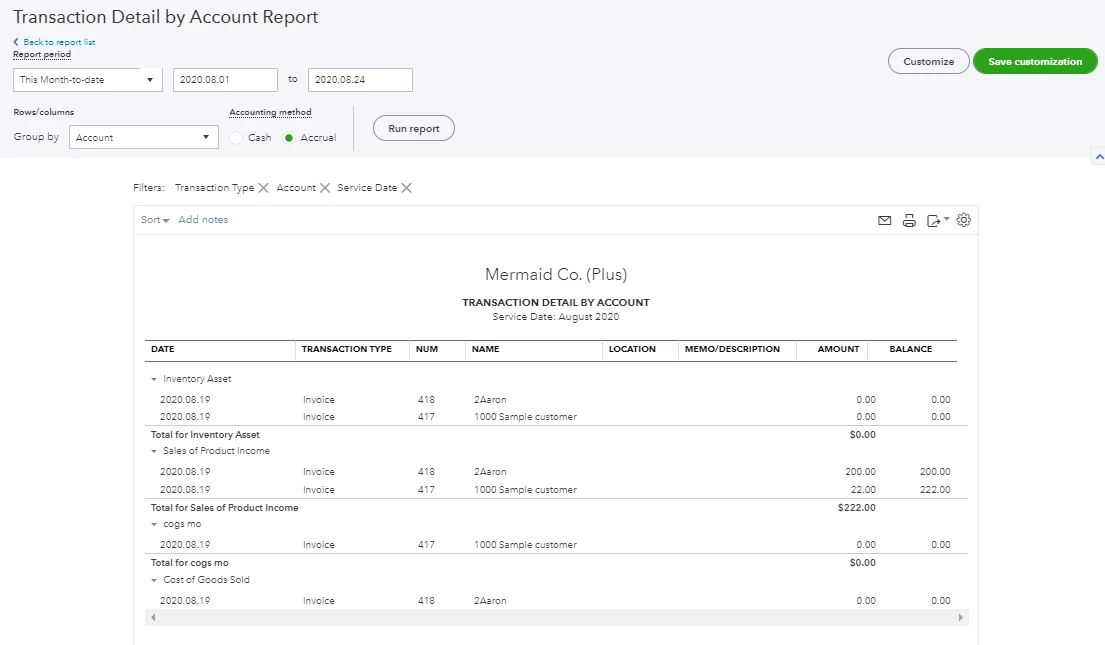
 

I'm also adding the following resources to learn more about customizing reports in QBO: Customize reports in QuickBooks Online.


Having the option to group the aging reports by invoice dates instead of due dates is a good idea. While we continue to work in making sure we meet our customers needs, please check out our QuickBooks Blog to be updated with our product's latest feature release.


Drop me a reply if you have additional queries. It would be my pleasure to help. Have a good one.

1 reply

Charies_MAnswer
August 24, 2020

Glad to have you here, Jimbozeubuen.


The Accounts receivable aging detail and Accounts payable aging detail reports are set to show transactions grouped by days of past due. Instead, you can run the Transaction Detail by Account report and customize the filters to group AR/AP transactions by invoice dates.


Here's how:


  1. Go to Reports.
  2. Enter Transaction Detail by Account in the search field.
  3. Click the Customize button.
  4. From the Filter drop-down, mark the following boxes:
    Transaction Type and choose Invoice.
    Account and choose All Accounts receivable.
    Service Date and choose the your preferred period date.
  5. Click Run report.

Here's a sample screenshot on how the report would look like after applying the customization above.


I'm also adding the following resources to learn more about customizing reports in QBO: Customize reports in QuickBooks Online.


Having the option to group the aging reports by invoice dates instead of due dates is a good idea. While we continue to work in making sure we meet our customers needs, please check out our QuickBooks Blog to be updated with our product's latest feature release.


Drop me a reply if you have additional queries. It would be my pleasure to help. Have a good one.

August 24, 2020

Thanks for the detailed response. This is a nice workaround, but it doesn't display the aging buckets (such as current, 1-30, 31-60, etc.) by transaction (invoice) date like QB Desktop does. It would definitely be great if QB Online can implement this feature in the future.

August 24, 2020

Thanks for your prompt response and for sharing more details, @Jimbozeubuen.


Currently, running AR and AP aging reports by invoices services dates is unavailable in QuickBooks Online.


I know how beneficial it is when we could run this kind of report in QBO. Please know that I'm taking note of this one. In the meantime, I encourage you to visit our QuickBooks blog site for updates such as feature release and product enhancements.


Also, you can try new features in our QuickBooks Labs like QuickBooks Themes and Community Reports shared by others. Just go to the Gear icon and then select QuickBooks labs under  Your Company section.


Feel free to place a comment or tag me (@Jovychris_A) if there's anything else. I'm always around to help. Take care!
