September 10, 2021
Solved

ReActivate a Job

  • September 10, 2021
  • 2 replies
  • 0 views

I am using QB Desktop Premier Manufacturing & Wholesale 2020 and am trying to re-activate a job that was accidentally marked as inactive. The customer is still active, it is just one job under this customer that I would like to change back to active. Can anyone help? Thanks!

Best answer by CharleneMaeF

Help has arrived, Doug88. I'll gladly show you the way to reactivate your job.


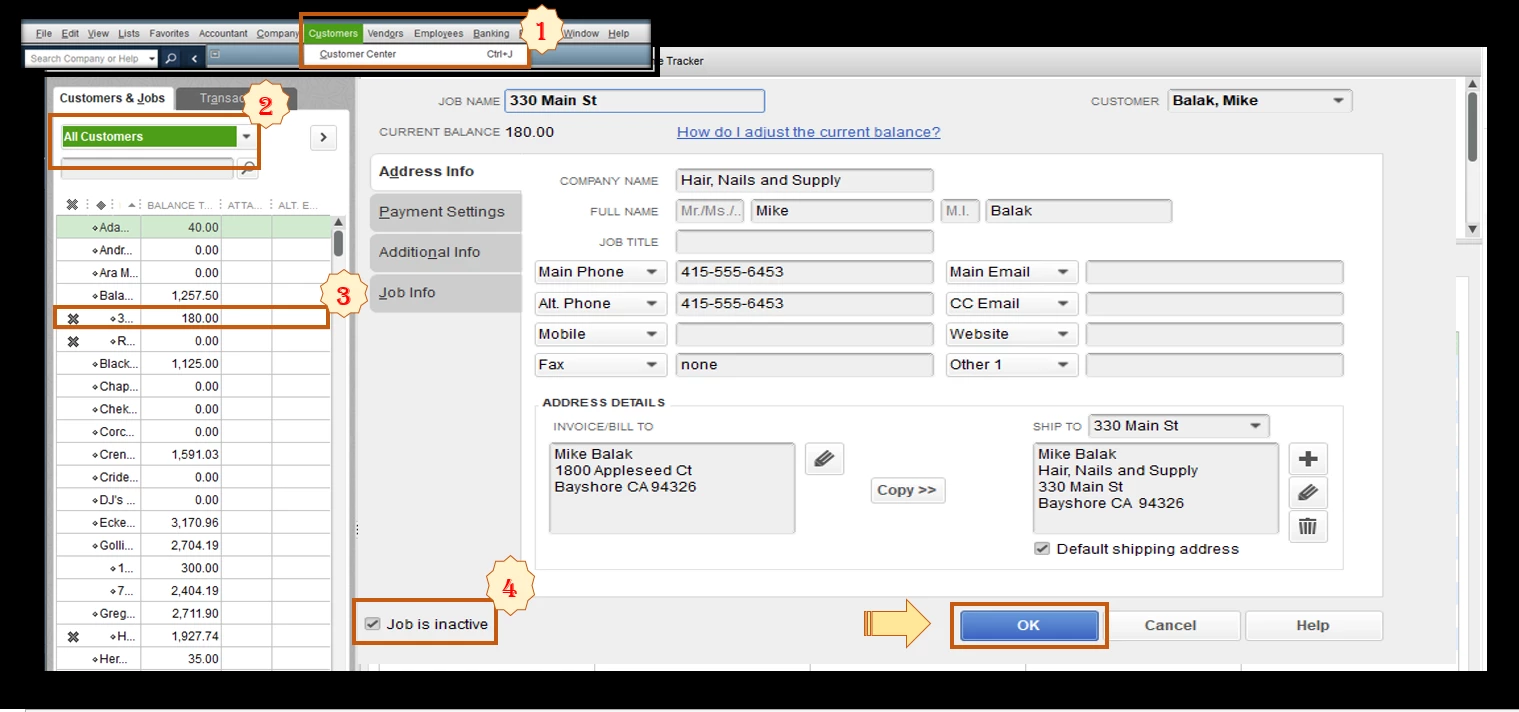
QuickBooks Desktop hides inactive jobs. To view them, we'll have to go to the Customer Center menu and then select All Customers. This way, we'll be able to see the customer lists, including the active and inactive ones.


Once you viewed the list, let's locate and reactivate the job. I'll show you the complete process.


  1. Go to Customers and then select Customer Center.
  2. Click the Active Customers drop-down menu, then choose All Customers.
  3. You'll see an X icon beside the inactive jobs. Double-click the name to open the profile.
  4. Uncheck the Job is inactive box, then click on OK.
 

Also, you can easily keep track of your sales in QuickBooks. To learn more, please see this article: Customize Customer, Job, and Sales Reports.


Additionally, I've added these articles that'll help you in managing customers in QuickBooks Desktop.


I'll be right here to help if you need more assistance in reactivating your job, Doug88. It's always my pleasure to help you succeed in this task.


2 replies

September 10, 2021

Help has arrived, Doug88. I'll gladly show you the way to reactivate your job.


QuickBooks Desktop hides inactive jobs. To view them, we'll have to go to the Customer Center menu and then select All Customers. This way, we'll be able to see the customer lists, including the active and inactive ones.


Once you viewed the list, let's locate and reactivate the job. I'll show you the complete process.


  1. Go to Customers and then select Customer Center.
  2. Click the Active Customers drop-down menu, then choose All Customers.
  3. You'll see an X icon beside the inactive jobs. Double-click the name to open the profile.
  4. Uncheck the Job is inactive box, then click on OK.


Also, you can easily keep track of your sales in QuickBooks. To learn more, please see this article: Customize Customer, Job, and Sales Reports.


Additionally, I've added these articles that'll help you in managing customers in QuickBooks Desktop.


I'll be right here to help if you need more assistance in reactivating your job, Doug88. It's always my pleasure to help you succeed in this task.

Doug88Author
September 10, 2021

Hello CharleneMae:

Perfect, easy to understand and solved my issue. Thank you very much!

September 12, 2022

I follow all this, but the X does not go away.  Can you help with that?