Effectively managing donations from donors who aren't listed yet in your QuickBooks Online (QBO) records can present some challenges, @Freda23. Based on your description, it seems like the issue arises when donations show up as Name not the specified and you get an error when trying to add a donor name to the sales receipt. I've added a screenshot as a visual reference:
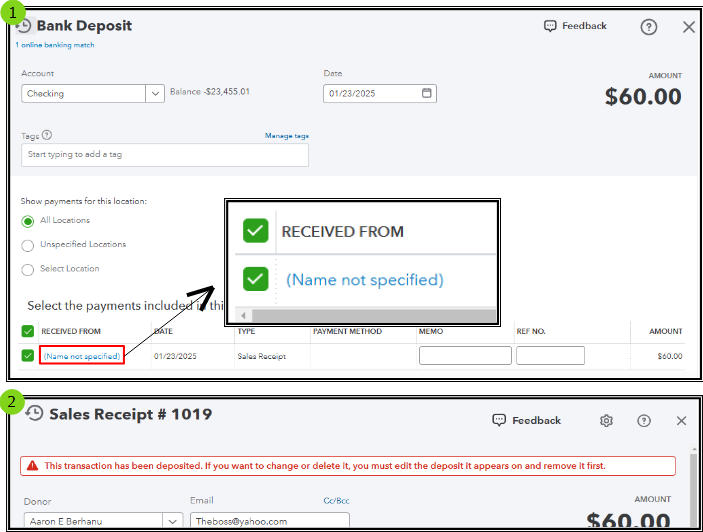
If you have encountered the same experience as in the image, there's a way for us to correct this and I want to ensure I can provide the correct details and steps.
To clarify, the Name not specified in the Bank Deposit screen isn't a separate donor profile, but rather an indication that there's no associated donor name for the Sales Receipt yet. Deleting the deposit can be the way to go to modify the sales receipt, but please know that the sales receipt remains in your QBO records since they are separate transactions.
I recommend modifying the existing sales receipt instead of creating a new one to correct this. When manually creating the deposit entry, you can link this receipt. The reason for this approach is that the existing receipt contains more detailed information about the donations made through the website. I'll outline the steps below.
First, pull up a Sales by Donor Detail report to track the sales receipts with no donor name so you can edit it. Here's how:
- Go to Reports. Then, Standard reports.
- Enter Sales by Donor Detail in the search field and select the report.
- Choose the Report period to include only the transactions at issue.
- Hit Run report.
- Click on the transaction to open the Sales Receipt window.
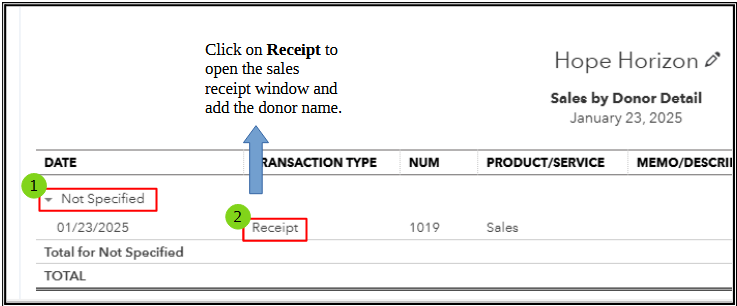
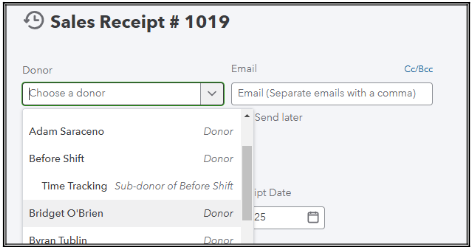
Next, edit the sales receipt to add the donor's name. Follow these steps:
- Select a name from the Donor field or pick Add new if the donor name isn't on the list.
- Review other details, to ensure everything is accurate.
- Select Save and close.
After this, recreate the bank deposit entry. Here's how:
- Go to the +New button. Then, choose Bank deposit.
- Choose the bank account from the Account dropdown.
- Ensure that the Date is correct.
- Place a checkmark for the sales receipt you've edited.
- If there are fees or other amounts for this deposit entry, scroll down and enter them under the Add funds to this deposit section.
- Review other details and ensure the amounts are correct.
- Hit Save and close.
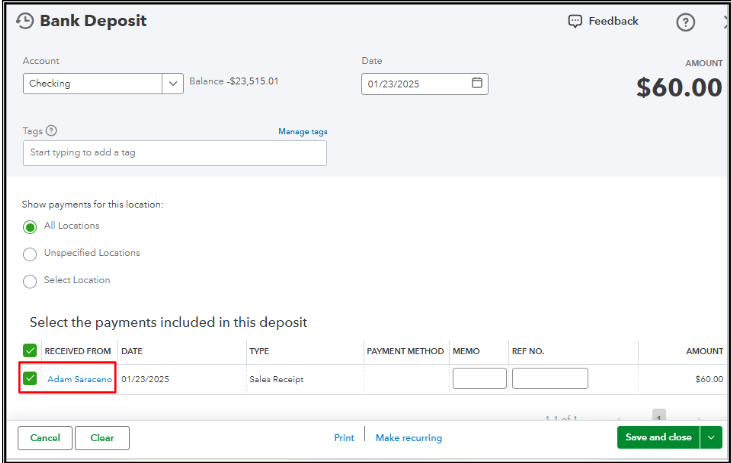
Once done, run a Statement of Activity by Donor report to ensure transactions are associated with the correct donor: Run a report in QuickBooks Online.
I hope the details above help you accurately document your donors' contributions. If you need more assistance or have further updates, feel free to click on the Reply button. We're committed to offering ongoing support.

