June 19, 2023
Solved

Extra pay for Federal Taxes

  • June 19, 2023
  • 1 reply
  • 0 views

The provided data for an employee was not up to date, resulting in the incorrect amount of taxes paid.
Now we need to adjust withdrawals to ensure the employee pays enough taxes. 
We use QBO Payroll. 
How can we apply an extra $70 to each payroll for this employee in QBO PR? 

Best answer by JessT

Hi emaa!


I notice that this is your second time posting a question in the Community. Thank you for coming back! Let’s work together in adding an extra withholding to your employee’s Federal tax.


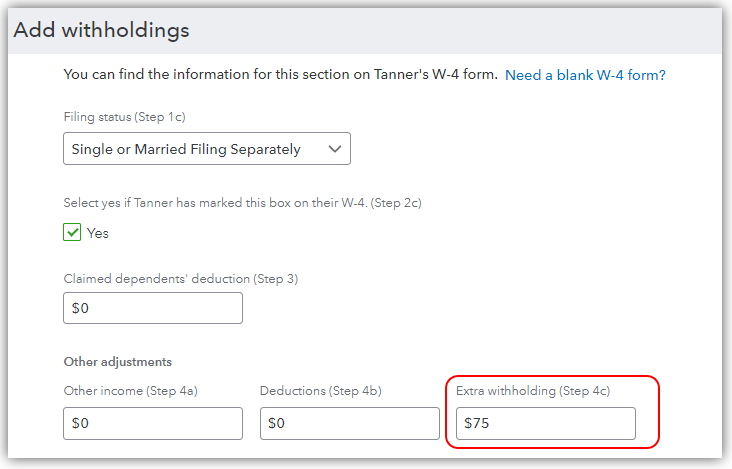
To add an extra withholding, we’ll edit the employee’s profile and change his Tax withholding information. From there, there’s a field called Extra withholding (Step 4c), where we can put the $75 amount. Check out the steps below.


  1. Go to Payroll on the left navigation bar.
  2. Choose Employees.
  3. Click the name of the employee that needs adjustment.
  4. Go to the Tax withholding section and click Edit.
  5. Enter 75 in the Extra withholding (Step 4c) field.
  6. Click Save.


Please don’t hesitate to go back to this thread if you have other questions about modifying your employee’s deductions. We’ll be sure to help you again. Enjoy the rest of the day!


1 reply

JessT
JessTAnswer
June 19, 2023

Hi emaa!


I notice that this is your second time posting a question in the Community. Thank you for coming back! Let’s work together in adding an extra withholding to your employee’s Federal tax.


To add an extra withholding, we’ll edit the employee’s profile and change his Tax withholding information. From there, there’s a field called Extra withholding (Step 4c), where we can put the $75 amount. Check out the steps below.


  1. Go to Payroll on the left navigation bar.
  2. Choose Employees.
  3. Click the name of the employee that needs adjustment.
  4. Go to the Tax withholding section and click Edit.
  5. Enter 75 in the Extra withholding (Step 4c) field.
  6. Click Save.


Please don’t hesitate to go back to this thread if you have other questions about modifying your employee’s deductions. We’ll be sure to help you again. Enjoy the rest of the day!

June 28, 2023

HI! I have entered the information in the correct field and see it every time I run payroll, but it is NOT coming out of the check or showing up on the paystub/check detail. Help!? 

June 28, 2023

I'll help you check this in your employee's tax withholding setup, Stacey.


The employee's paycheck may be affected by some known factors like the ones listed below:


  • How much do you pay an employee
  • How often do you pay them
  • Marital status
  • Number of dependents
  • Other sources of income


To learn more about the minimum threshold for federal withholding, check out IRS Publication 15-T. For state withholding, you can visit your state withholding agency's website.


In addition, make sure that the employee's federal withholding isn't set to Exempt or state to Do not withheld (exempt) status. You can also request to review their W-4 to see if it matches the QuickBooks Online Payroll setup. Please check this article for important info about filling out a worker's W-4: Enter federal Form W-4 in QuickBooks Payroll.


Here's how to change or check an employee's QuickBooks W-4 info:

  1. Go to Payroll and then select Employees.
  2. Click the worker's name.
  3. From the Profile tab, click Edit on the Tax withholding section.
  4. Review or update federal or state withholding status.
  5. Hit Save.


The Exempt or Do not Withhold filing status prevents the system from withholding employees' paychecks, regardless of their gross wages. I also suggest running a tax and wage summary report to verify if the worker reached the limit to withhold for a certain period.


I like to add this article for more guidance about correcting withheld taxes: Troubleshoot paychecks calculating incorrectly.


Please get back here if you need more assistance with withholding taxes. Anytime I can help. Keep safe, and more power to your business!