March 19, 2024
Solved

How can I log time worked to a customer job?

  • March 19, 2024
  • 1 reply
  • 0 views

Hi all!


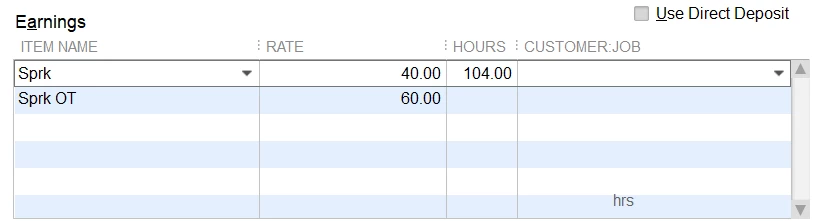
On QB desktop you had the functionality of tagging a customer job to the hours an employee worked. I cannot see the same functionality on QB Online.

Can someone tell me how can I do that? Thank you!

Best answer by Rea_M

In QuickBooks Online (QBO), we'll have to create a time activity or timesheet so you can tag a customer job to the hours an employee worked, Durbiano. We'll guide you on how to do this below.


We can enter a single or weekly timesheet to enter the total hours worked by your employee and bill the activity to the customer or track their expenses. Before doing so, ensure you turn on and set up time tracking in QBO.


If you want to log time worked for a customer job using a single-time activity timesheet functionality, follow these steps:


  1. Go to + New.
  2. Select Single time activity.
  3. Enter the date the activity occurred in the Date field. Note: The current date is automatically entered, but you can change it if necessary.
  4. From the Name dropdown, select the name of the employee or vendor.
  5. For each type of activity, enter an activity line. Choose a customer/project from the Customer/Project dropdown to bill the activity to the customer or track expenses for the customer.
  6. Enter the number of hours and minutes worked in the Time field. Note: Select the Enter Start and End Times checkbox to enter the work started, ended, and the time taken for Break.
  7. Select Save.


If you need to enter a weekly timesheet in QBO, please see this article for the complete guide: Weekly timesheet in QuickBooks Online.


When everything is all set, you might want to add your time sheets to a project or run your payroll to record your employees' time accordingly. 


You're always welcome to get back to us here in the Community if you need further assistance managing employee time worked to a customer job in QBO. We're always ready to lend a helping hand.


1 reply

Rea_MAnswer
March 19, 2024

In QuickBooks Online (QBO), we'll have to create a time activity or timesheet so you can tag a customer job to the hours an employee worked, Durbiano. We'll guide you on how to do this below.


We can enter a single or weekly timesheet to enter the total hours worked by your employee and bill the activity to the customer or track their expenses. Before doing so, ensure you turn on and set up time tracking in QBO.


If you want to log time worked for a customer job using a single-time activity timesheet functionality, follow these steps:


  1. Go to + New.
  2. Select Single time activity.
  3. Enter the date the activity occurred in the Date field. Note: The current date is automatically entered, but you can change it if necessary.
  4. From the Name dropdown, select the name of the employee or vendor.
  5. For each type of activity, enter an activity line. Choose a customer/project from the Customer/Project dropdown to bill the activity to the customer or track expenses for the customer.
  6. Enter the number of hours and minutes worked in the Time field. Note: Select the Enter Start and End Times checkbox to enter the work started, ended, and the time taken for Break.
  7. Select Save.


If you need to enter a weekly timesheet in QBO, please see this article for the complete guide: Weekly timesheet in QuickBooks Online.


When everything is all set, you might want to add your time sheets to a project or run your payroll to record your employees' time accordingly. 


You're always welcome to get back to us here in the Community if you need further assistance managing employee time worked to a customer job in QBO. We're always ready to lend a helping hand.