May 27, 2020
Solved

How to correct a payroll/paycheck error

  • May 27, 2020
  • 1 reply
  • 0 views

Our business is based in Florida but we have an office in Georgia.  As of 1/1/2020 one of our employees became a resident of Florida, he had been a resident of Georgia.  We neglected to reflect this change in his paycheck.  He is paid once a month on the first.  So from 1/1 to 5/1/2020 we have withheld $656.45 that we should not have.  In addition we deposited with the GA Department of Revenue our first quarter withholding which was $393.87 more than it should have been. 


As I seen it I need to:


Pay the employee the $656.45 that was withheld in error.

File an amended 1st quarter return to the GA Department of Revenue


How do I do this in Quickbooks?  I am using Quickbooks Desktop 2020 Professional Services edition on a PC with Windows 10 Pro 64 bit.  I also use the payroll subscription service.

Send an amended return to the GA Department of Revenue for the 1st quarter.


Best answer by Mark_R

I appreciate you getting back to us, @uwphotonut.


QuickBooks depends on the information entered. Let's first check the employee's information and update it. This way, the calculation of taxes will be accurate moving forward.


Here's how:


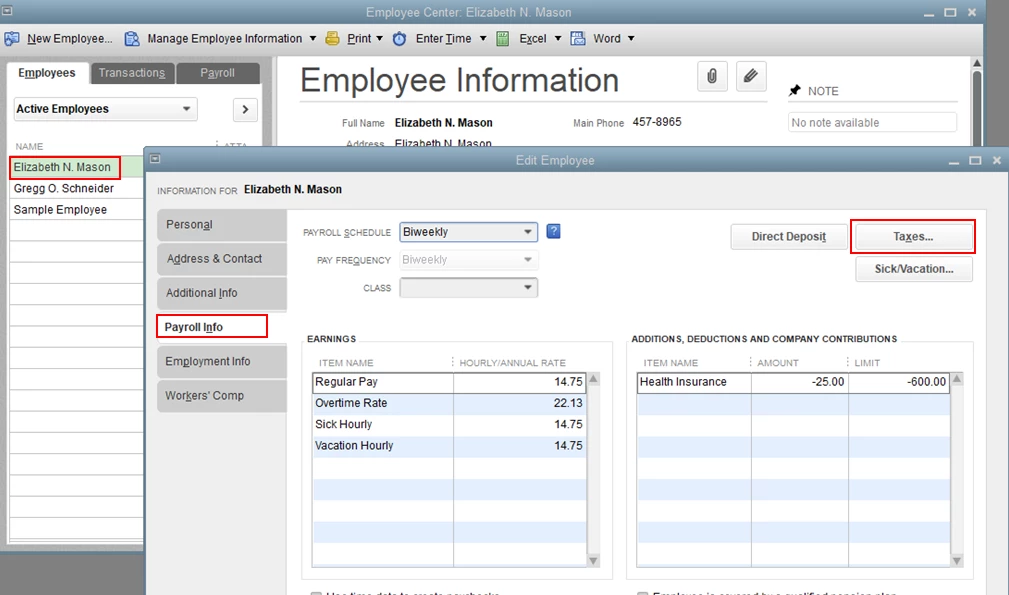
  1. Go to the Employees menu, then select Employee Center.
  2. Select the employee from the list.
  3. Go to the Payroll Info tab, then select Taxes.
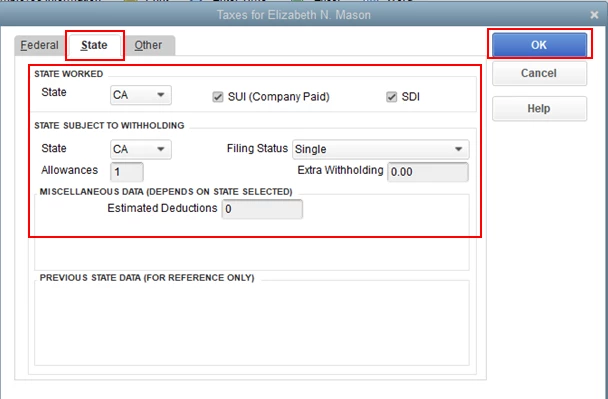
  4. In the State tab, make sure the State Worked and State Subject to Withholding are correctly set up.
  5. Click OK.

I'm adding this article for more details: Update employee info.


Once done, you'll have to create an additional item for non-taxable to refund the $656.45 back to your employee.


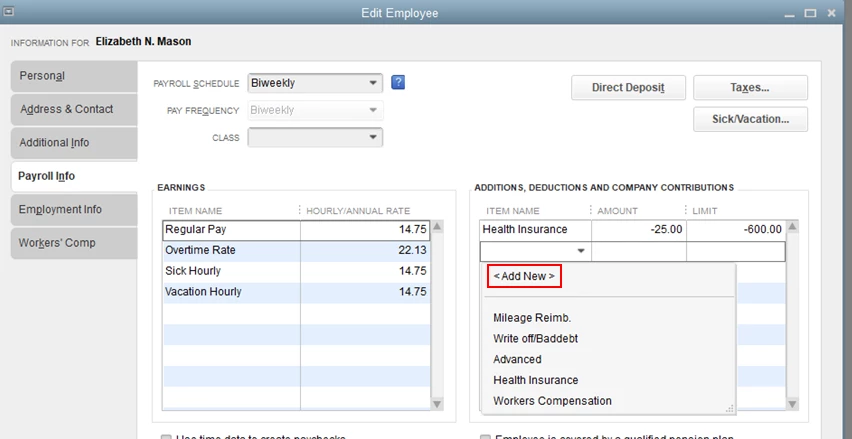
  1. On the Payroll Info page, go to the Additions, Deductions, and Company Contributions section.
  2. Click the drop-down from the Item Name field, then select Add New.
  3. Then, follow the onscreen instruction to create the item.

After adding the item, you have the option to apply the $656.45 on the next payout of your employee. You just need to select the item and enter the amount to add it to his/her paycheck.


For more information about processing payroll in QuickBooks Desktop, feel free to check out this article: Create paychecks to pay your employees.


Please let me know if you need clarification about this, or there's anything else I can do for you. I'll be standing by for your response. Have a great day and stay safe.

1 reply

MJoy_D
May 27, 2020

Thank you for posting, @uwphotonut.


There are reciprocal agreements between states that would require an employer to only pay income tax to one of the two states. I'd suggest you consult your state agency to determine what income taxes you may be subject to.


Check this fix an error on my filed form or request and amendment article. Our Customer Support will help in reviewing the issue with you and start the amendment process. 


To ensure compliance with state payroll tax regulations, go to the Payroll Tax Compliance page and select your state.


Please reach out if there's anything else I can do to help. I'm always here to assist. Have a great rest of the day!

May 27, 2020

I have already jumped through those hoops.  What I need to know is HOW to fix the error in Quickbooks.  Where do I make the correcting entries and so forth and in what order so that Quickbooks will properly reflect the changes made.

Mark_RAnswer
May 27, 2020

I appreciate you getting back to us, @uwphotonut.


QuickBooks depends on the information entered. Let's first check the employee's information and update it. This way, the calculation of taxes will be accurate moving forward.


Here's how:


  1. Go to the Employees menu, then select Employee Center.
  2. Select the employee from the list.
  3. Go to the Payroll Info tab, then select Taxes.
  4. In the State tab, make sure the State Worked and State Subject to Withholding are correctly set up.
  5. Click OK.

I'm adding this article for more details: Update employee info.


Once done, you'll have to create an additional item for non-taxable to refund the $656.45 back to your employee.


  1. On the Payroll Info page, go to the Additions, Deductions, and Company Contributions section.
  2. Click the drop-down from the Item Name field, then select Add New.
  3. Then, follow the onscreen instruction to create the item.

After adding the item, you have the option to apply the $656.45 on the next payout of your employee. You just need to select the item and enter the amount to add it to his/her paycheck.


For more information about processing payroll in QuickBooks Desktop, feel free to check out this article: Create paychecks to pay your employees.


Please let me know if you need clarification about this, or there's anything else I can do for you. I'll be standing by for your response. Have a great day and stay safe.