September 24, 2020
Solved

How to move an employee from inactive to active. I am using QB Online 4.2.1

  • September 24, 2020
  • 1 reply
  • 0 views
Original commenter did not share additional details

Best answer by Jen_D

Thanks for joining our forum and letting us know about your concern, @Addis,


Making an inactive employee active in QUickBooks Online is made easier for you. Follow the steps below:
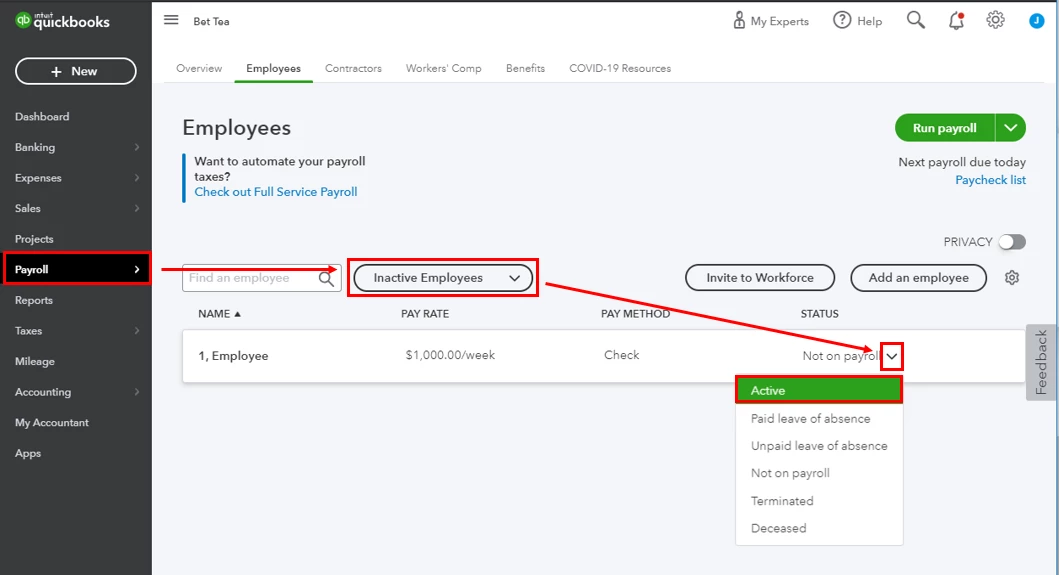
 

  1. Go to the Payroll menu and go to the Employees tab.
  2. Beside the name search box, choose Inactive Employees.
  3. When you see the employee name there, go to the Status column.
  4. From the list, choose Active.

To learn more about the processes on how to manage employees and other guides to help you with QuickBooks, see the following links below:

Feel free to contact me again if you need anything else. I'll be right here to help you anytime. Have a lovely week!

1 reply

Jen_D
Jen_DAnswer
September 24, 2020

Thanks for joining our forum and letting us know about your concern, @Addis,


Making an inactive employee active in QUickBooks Online is made easier for you. Follow the steps below:


  1. Go to the Payroll menu and go to the Employees tab.
  2. Beside the name search box, choose Inactive Employees.
  3. When you see the employee name there, go to the Status column.
  4. From the list, choose Active.

To learn more about the processes on how to manage employees and other guides to help you with QuickBooks, see the following links below:

Feel free to contact me again if you need anything else. I'll be right here to help you anytime. Have a lovely week!

October 12, 2020

I see the status line in my list of inactive employees but it is not allowing me to change the status, there is no drop down box.  How do I activate a drop box?

IamjuViel
October 12, 2020

Hello, @Melanie68.


I can walk you through in updating the employment status of your employee. 

  1. Go to the Payroll or Workers menu.
  2. Choose the Employees tab.
  3. Click the drop-down list showing Active employees, select All employees.
  4. Locate and double-click the inactive employee's name.
  5. From the Employment section, select the Pencil icon. 
  6. In the Status drop-down, click Active
  7. Click Done.

You can browse these articles to help you manage your employee's information:

Keep me posted if you have other questions about updating your employee's information. I'm always here to help.
