January 23, 2019
Solved

how to send W-2 to ViewMyPaycheck after filed

  • January 23, 2019
  • 3 replies
  • 0 views

I just Turned on ViewMyPaycheck and want to send the W-2 I already created 

how do I do it?

the regular option is to check the box while filing/printing

but now is already filed, how can I go back to this level


Thanks

Best answer by KhimG

Thanks for getting back to the Community, @Ramapoiron.


I’m here to lend a hand in making sure your employees will see their W-2s in QuickBooks Workforce (formerly known as ViewMyPaycheck).


With or without the copy of the W-2s you’ve filed, you can still enable the option by following the steps below:
1.    Go to Employees on the top menu and select Payroll Center.
2.    Click the File Forms tab.
3.    Under the File Forms section, double-click Annual Form W-2/W-3.
4.    Select Employees and Filing period, then hit OK.
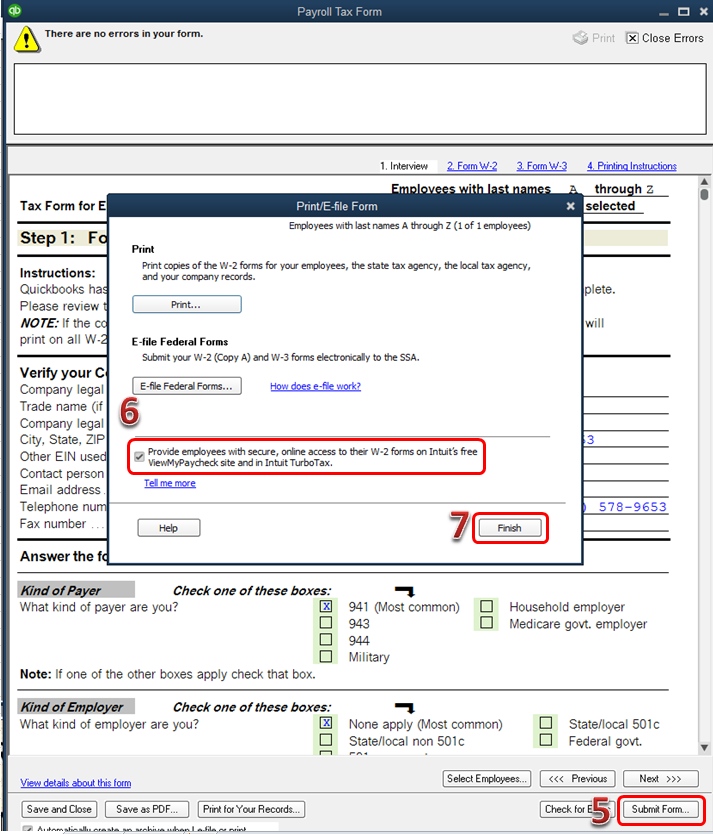
5.    On the Payroll Tax Form screen, click Submit Form.
6.    Place a check mark on the box next to Provide employees with secure, online access to their W-2 forms on Intuit’s free ViewMyPaycheck site and in Intuit Turbo Tax.
7.    Once done, hit Finish.


I have added screenshots for your reference.


That should answer your concern for today. Leave a reply below if you need anything else. I’ll be here to help. Thanks for reaching out and take care!

3 replies

AlcaeusF
January 23, 2019

Hello there, Ramapoiron.


Thank you for posting in the Community. It would be my pleasure to assist you with uploading the W-2 forms from QuickBooks Desktop.


You can open the W-2s within the QuickBooks program and enable the option to submit data to ViewMyPaycheck website.


Here's how:


  1. Click the Employees tab at the top menu bar.
  2. Click Payroll Center.
  3. Double-click the W-2 form.
  4. Select employees.
  5. Select a filing period.
  6. Click OK.
  7. Click Submit Form.
  8. Put a check mark on the box to submit data to VMP.
  9. Click Finish.


For additional reference on the checkbox, I'm adding a screenshot below:


Keep in touch with me here should you need further assistance. The Community is always here to help.
 

January 23, 2019

Hi

where do I find step 3?

see snapshot attached, there is no link to existing W-2 created.

Thanks

KhimGAnswer
January 23, 2019

Thanks for getting back to the Community, @Ramapoiron.


I’m here to lend a hand in making sure your employees will see their W-2s in QuickBooks Workforce (formerly known as ViewMyPaycheck).


With or without the copy of the W-2s you’ve filed, you can still enable the option by following the steps below:
1.    Go to Employees on the top menu and select Payroll Center.
2.    Click the File Forms tab.
3.    Under the File Forms section, double-click Annual Form W-2/W-3.
4.    Select Employees and Filing period, then hit OK.
5.    On the Payroll Tax Form screen, click Submit Form.
6.    Place a check mark on the box next to Provide employees with secure, online access to their W-2 forms on Intuit’s free ViewMyPaycheck site and in Intuit Turbo Tax.
7.    Once done, hit Finish.


I have added screenshots for your reference.


That should answer your concern for today. Leave a reply below if you need anything else. I’ll be here to help. Thanks for reaching out and take care!


January 27, 2023

I'd want to give you some information regarding submitting W-2 forms to your staff, DesireeL.


Yes, will need to submit your W-2s in January for the Provide employees with secure, online access to their W-2 forms on Intuit’s free ViewMyPaycheck site and in Intuit Turbo Tax option to be available. This is for inviting your employees to QuickBooks Workforce to see pay stubs and W-2s if you use QuickBooks Desktop Payroll. If you need to print and send W-2s to your employees postmarked by January 31, we recommend ordering W-2 paper through us. This ensures your W-2s will print correctly and your employees won’t have any issues when filing. You can print the employee copies on:


  • Blank 3-part perforated paper
  • Pre-printed 4-part perforated paper


To order your W-2 kit (includes envelopes):


  1. Go to QuickBooks Checks & Supplies.
  2. Select Tax Products.
  3. Select either Pre-Printed W-2 kits or Blank W-2 kits.
  4. Follow the on-screen steps to complete your order.


To create and print your W-2s and W3, just follow the steps below: 


  1. From the Employees dropdown menu, select Payroll Tax Forms & W-2s, then Process Payroll Forms.
  2. From the File Forms tab, scroll down and choose Annual Form W-2/W-3 - Wage and Tax Statement/ Transmittal.
  3. Tap Create Form.
  4. Choose all or individual employees to file.
  5. Enter the year, then OK.
  6. Select all or individual employees to print.
  7. Click Review/Edit to review each W-2. Reviewed W-2s have a checkmark in the Reviewed column.
  8. Once you’re done, press Submit Form and follow the steps to print and file the forms.


If you are reprinting because your employee lost or didn’t get the original W-2, write REISSUED STATEMENT on the top and include a copy of the W-2 instructions. Here's an article you can refer to for more details about printing your W-2 and W-3 forms


For future reference, check out our year-end resources to learn more about completing necessary tasks in QuickBooks. 


Please post your questions here if you still have payroll concerns. I’m always here to help in any way I can. Take care always.

January 25, 2024

Hi!  I have done all of this as instructed by your diagrams (thank you for that), and the W-2's are still not uploading into Workforce for employees.  I have re-started Quickbooks, checked to make sure I am current on all updates, and rebooted my computer.  Still not working.  I do not have any problems sending paystubs to Workforce.  Am I missing something?  Thank you so much for your help!  

January 25, 2024

Allow me to chime in and share information on when your employees get their W-2s online, @KC03.


Before anything else, I appreciate you for joining this thread and performing all the provided recommendations.


The W-2 copies B, C, and 2 are available by January 31 for your employees. When the time comes, they can start accessing, downloading, and printing their forms right within QuickBooks Workforce.


These illuminating guides give you insights into how your W-2s are filed and sent to your employees and when you and your workers can view and print them if needed:


I’m also adding this reference to help access your payroll tax payments and forms in QuickBooks: View your previously filed tax forms and payments.


If you need further assistance managing your payroll tax forms, you can inform me by leaving comments below. I’ll be here to answer them for you, @KC03.

January 30, 2024

I filed my W-2's last week and they still are not showing up in the employee's Work Force accounts. Will they show up on January 31st or should they already be there since they were filed/sent last week?