
Solved
I switched from handwritten checks to direct deposit today for our payroll. How do I make sure the direct deposits went through
Original commenter did not share additional details

Hi there, freedomservice. Let me share details on how you can review your employees direct deposit status in QuickBooks Online (QBO).
If you have already set up direct deposit for your employees and you have sufficient funds in your company's bank account, then it will go through.
Furthermore, after running your employees' payrolls, you can view their direct deposit statuses by navigating to the Paycheck list.
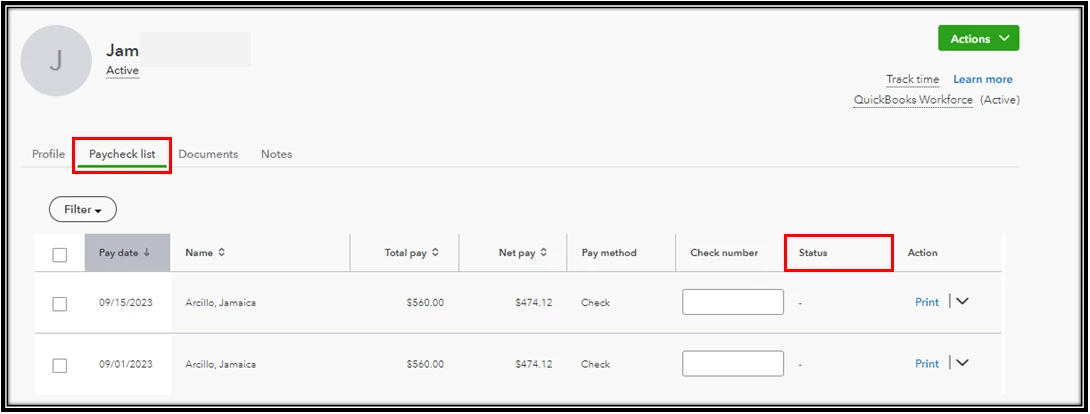
Moreover, make sure to check out this article to learn when to send your direct deposit payroll to pay your employees on time. You can submit your payroll based on your direct deposit lead time.
Also, you can check out this article to learn more about direct deposit limit amounts and how to request an increase in your security limit: Get help if you’re over a direct deposit limit.
If you have other concerns or inquiries about direct deposits in QBO Payroll, I'm just around to help. Stay safe.
Enter your E-mail address. We'll send you an e-mail with instructions to reset your password.