July 22, 2021
Solved

Missing "Pay Employees" option in QuickBooks Desktop Pro 2019

  • July 22, 2021
  • 2 replies
  • 0 views

We have QuickBooks Desktop Pro 2019 for a PC. We only have a couple of employees and have manually generated paychecks for years. Today the "Pay Employees" option is not there. I did a search, details said, "This operation is not available because a QuickBooks feature, known to me as 'CDS_Payroll.MenuStateNone', is not available right now."  How do I get it back?

Best answer by Maybelle_S

I want to ensure this is taken care of, @JMD13.


We can perform a few troubleshooting steps to get rid of the unexpected behavior. First, let's make sure QuickBooks Desktop is at its latest release. The system provides maintenance release and product updates to patch and fix unexpected behavior other issues.


The user should be an admin to update QuickBooks Desktop. However, you can set up QuickBooks to automatically download the updates.


Let me show you how:


1. Click the Help menu at the top, select Update QuickBooks.
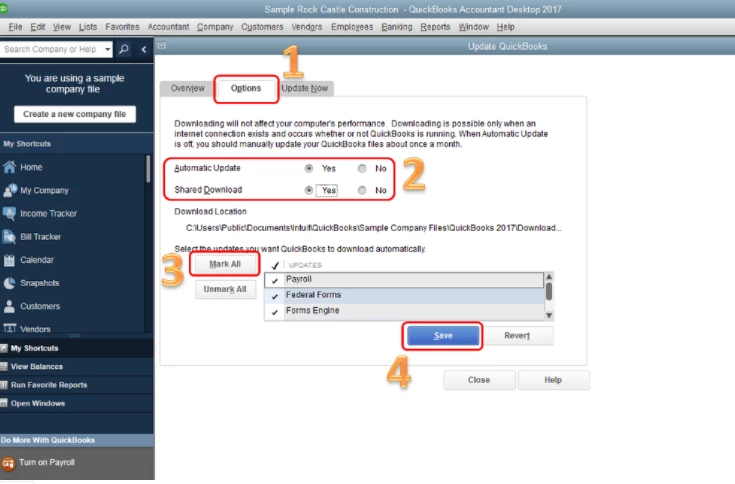
2. On the Update QuickBooks window, go to the Options tab.
3. To turn on Automatic Updates, select the radio button for Yes (see the first screenshot).
4. To share automatic downloads with other computers on your network, select the radio button for Yes.
5. Select Mark All, then click Save.
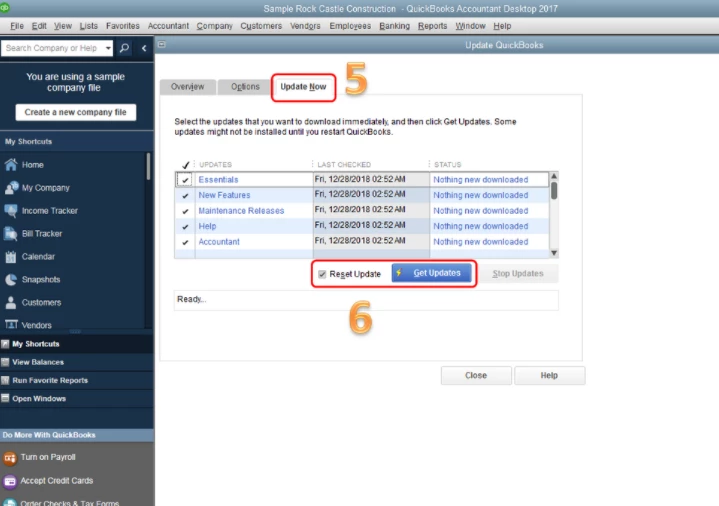
6. Click the Update Now tab.
7. Tick the Reset Update button.
8. Click Get Updates (see the second screenshot).
9. Restart QuickBooks. When prompted, accept the option to install the new release.
 

Once done, close and reopen QuickBooks. Let's also run the payroll tax table update.


Here's how:


1. Click Employees.
2. Choose Get Payroll Updates.
3. Select the Download entire payroll update radio button.
4. Click Update.
5. Wait until the update is complete.


However, if the issue persists, we can run the Verify/Rebuild tool utility to detect the data damage: Verify and Rebuild Data in QuickBooks Desktop.


You may check out this article about payroll: Payroll 101.


If you need additional assistance with payroll, please let me know so that I can help.

2 replies

July 22, 2021

I want to ensure this is taken care of, @JMD13.


We can perform a few troubleshooting steps to get rid of the unexpected behavior. First, let's make sure QuickBooks Desktop is at its latest release. The system provides maintenance release and product updates to patch and fix unexpected behavior other issues.


The user should be an admin to update QuickBooks Desktop. However, you can set up QuickBooks to automatically download the updates.


Let me show you how:


1. Click the Help menu at the top, select Update QuickBooks.
2. On the Update QuickBooks window, go to the Options tab.
3. To turn on Automatic Updates, select the radio button for Yes (see the first screenshot).
4. To share automatic downloads with other computers on your network, select the radio button for Yes.
5. Select Mark All, then click Save.
6. Click the Update Now tab.
7. Tick the Reset Update button.
8. Click Get Updates (see the second screenshot).
9. Restart QuickBooks. When prompted, accept the option to install the new release.


Once done, close and reopen QuickBooks. Let's also run the payroll tax table update.


Here's how:


1. Click Employees.
2. Choose Get Payroll Updates.
3. Select the Download entire payroll update radio button.
4. Click Update.
5. Wait until the update is complete.


However, if the issue persists, we can run the Verify/Rebuild tool utility to detect the data damage: Verify and Rebuild Data in QuickBooks Desktop.


You may check out this article about payroll: Payroll 101.


If you need additional assistance with payroll, please let me know so that I can help.

July 23, 2021

Hi, @JMD13.

Hope you’re doing great. I wanted to see how everything is going about the missing Pay employees option you had the other day. Was it resolved? Do you need any additional help or clarification? If you do, just let me know. I’d be happy to help you at any time.

Looking forward to your reply. Have a pleasant day ahead!

JMD13Author
July 29, 2021

I'm all set, thanks! When I came back from time off and opened QuickBooks, the "Pay Employees" option was back! Guess we both needed time off, lol. I am on automatic update, I don't know if that played into the reappearance or if it was just a glitch. Thank you for checking in! 

April 2, 2024

I am having this same issue.  I logged in yesterday to process payroll, and I saw that the "Pay employees" tab was no longer showing.  I went through the steps suggested, and I noticed that there was an update early yesterday before I logged in, and this is obviously what caused the issue.  Because of this, I couldn't process payroll yesterday.  I went through all of the steps listed, and no problems were noted or detected.  At this point, I'm not sure how to correct this issue without installing my backup copy from March 3rd.  I hate to do that because a lot of changes were made in the last two weeks when we reconciled and did our annual return.  I was planning to backup again on the 3rd.  Do you have another solution?

April 2, 2024

@RP23192 

Which QB Desktop year version?

Login to your CAMPS and check the license status of your Enhanced Payroll subscription.

https://camps.intuit.com


April 2, 2024

Thanks for the reply. I don't use the payroll tables through Quickbooks.  For more than 5 years I have always done my payroll calculations manually.  I would click "pay employees" and enter my own data/amounts for deductions.  Then I could still run reports. This method is still working on one of my company files, but the other company file doesn't have that option.  I rechecked and both had automatic updates turned on.  Not sure what would cause this.