

December 17, 2019
Solved

New Employee start date is 12/9 but paycheck being created as if employee worked from 12/1

  • December 17, 2019
  • 1 reply
  • 0 views

I am running my payroll in desktop-pro for the first time and that too for the first employee who started on 12/9.  However, paycheck for 12/1-12/15 period being generated as if the employee worked full two weeks. I have of course entered the start date in the employee record and the timesheet is there for the week of 12/9 to 12/15 for 40 hours; I also added another timesheet for 0 hours from 12/1 to 12/8.  This is a salaried employee.


Please advise how to fix this.
Best answer by Mark_R

I appreciate you getting back to us and updating the pay period, @newbee2.


Yes, you'll have to manually update the salary amount to get this fixed. As mentioned by my colleague above, QuickBooks will automatically default the pay period depends on the payroll schedule you've created.


Also, when you set up a salaried employee, hours recorded for the week won't matter. Thus, QuickBooks will depend on the salary amount you've set up for that employee.


Here's how to update the salary amount:


  1. Select the employee from the Employee Center.
  2. Find and choose the paycheck.
  3. Hit the Paycheck Details.
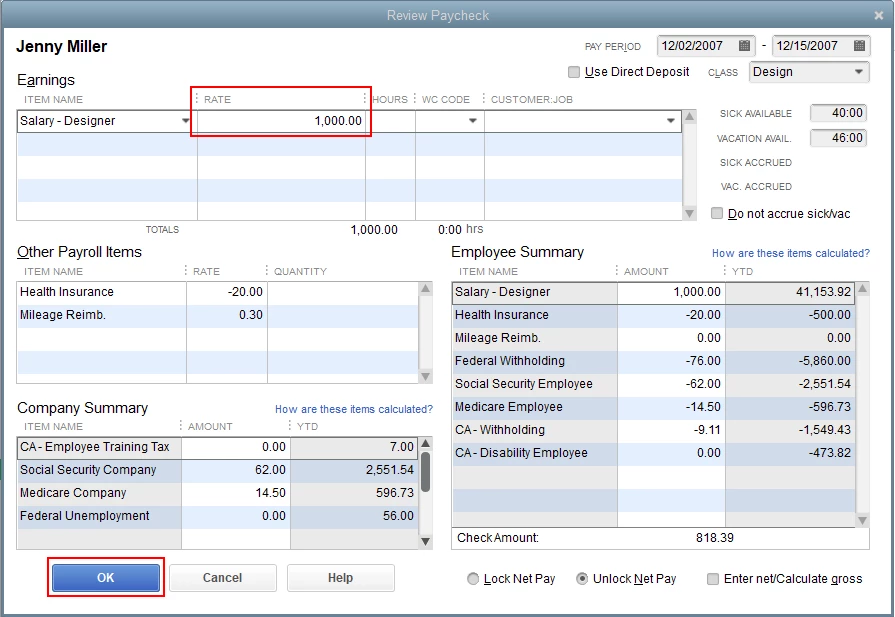
  4. In the Review Paycheck window, edit the Rate to update the salary amount.
  5. Review the details, then click OK once done.

In case you want to set up a scheduled payment or liability, you can check out this article for your future reference: Set up and Pay Scheduled or Custom (unscheduled) Liabilities.


Fill me in if you have additional questions with QuickBooks Payroll. The Community team and I are always here to help.

1 reply

December 17, 2019

I'm glad you came here for support, newbee2.


Looks like you've setup this new employee's Payroll Schedule as Biweekly. QuickBooks automatically sets a default pay period for biweekly schedule.


For this specific paycheck, you can manually edit the pay period dates from the new employees Paycheck Detail.


Here's how:

  1. Go to Employees menu at the top and choose Employee Center.
  2. Select the new employee from the Employees list.
  3. Locate the paycheck and double-click it.
  4. Click the Paycheck Detail.
  5. Change the Pay Period dates to the correct one.
  6. Review the information and hit OK to save changes.

In the future, if you wish to edit payroll schedules, you can have this article handy: Set up and manage payroll schedules.


If you have any other questions, be sure to let us know. I’m here to help. You have a wonderful day ahead!

newbee2Author
December 17, 2019

Thanks - I did update the pay period and saved it but it didn't fix the amount.  Do I need to manually update the salary amount too? I have to be honest - quite disappointed with QuickBooks that it can't do all that automatically given I have entered the hire-date in the employee profile.

Mark_RAnswer
December 17, 2019

I appreciate you getting back to us and updating the pay period, @newbee2.


Yes, you'll have to manually update the salary amount to get this fixed. As mentioned by my colleague above, QuickBooks will automatically default the pay period depends on the payroll schedule you've created.


Also, when you set up a salaried employee, hours recorded for the week won't matter. Thus, QuickBooks will depend on the salary amount you've set up for that employee.


Here's how to update the salary amount:


  1. Select the employee from the Employee Center.
  2. Find and choose the paycheck.
  3. Hit the Paycheck Details.
  4. In the Review Paycheck window, edit the Rate to update the salary amount.
  5. Review the details, then click OK once done.

In case you want to set up a scheduled payment or liability, you can check out this article for your future reference: Set up and Pay Scheduled or Custom (unscheduled) Liabilities.


Fill me in if you have additional questions with QuickBooks Payroll. The Community team and I are always here to help.