

July 3, 2021
Question

Old stagnant accidentally created paycheck item stuck in "Create Paychecks" queue

  • July 3, 2021
  • 1 reply
  • 0 views

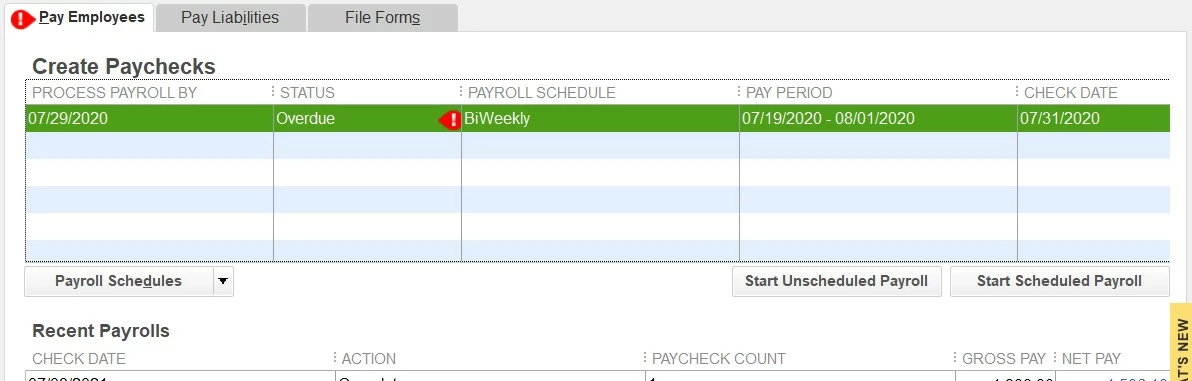
Hello, about a year ago, I accidentally started to create a paycheck on the wrong pay period (I have never figured out how to advance the Scheduled Payroll dates to match my actual pay period). Anyway, zero active employees were on the roll at the time, and no hours were entered. Is there any way to remove this draft item from the "Create Paychecks" queue? Thanks!!!
1 reply

July 3, 2021

Yes, there is a way, MikeinBlack. I'll be glad to show you how.


Once you ensure that there are no zero active employees assigned to the item. We can easily delete it in QuickBooks. Here's how:


  1. From the Employees menu, go to the Payroll Center.
  2. Select the Pay Employees tab.
  3. Under the Create Paychecks table, select the schedule that you want to delete.
  4. Choose the Payroll Schedules drop-down menu.
  5. Click Delete Schedule
  6. Once done, hit OK.

For more details about this process, please see this articleSet up and Manage Payroll Schedules.


Additionally, I've added these articles about managing paychecks in QuickBooks Desktop for your future reference:


Please come back and keep us posted on your progress in deleting the paycheck item. I'm here to ensure this gets resolved. Keep safe always!

July 3, 2021

Thank you for the response. Somehow I have this associated with my CURRENT employee (hired two months ago). I can't seem to remove them from this item. If I uncheck their name, it says I have to choose someone to pay and won't allow any modifications. Thanks!

katherinejoyceO
July 3, 2021

Thanks for actively responding, @MikeinBlack. The reason for this warning message is that there's a payroll schedule in your payroll info section. 


If you don't want to use the schedule, you can delete the employee's profile. Here's how: 


  1. Go to the Employees menu and select Employee Center.
  2. Right-click on the name of the employee. If the employee isn't on the list, select All employees from the Active Employees dropdown.
  3. Select Delete Employee, then OK to confirm.


Once done, follow the steps shared by my peer CharleneMae_F to delete the said payroll schedule. 


However, if the employee is associated with that payroll schedule, you'll have to select a name because you can't run payroll without an employee.


For future reference, read through this article: Set up and pay scheduled or custom (unscheduled) liabilities. It also helps you learn about setting reminders for scheduled and unscheduled liabilities in QuickBooks Desktop. 


Feel free to message again if you have additional concerns. You always have us around here in the Community.