Hello there, @bookkeepingclean.
I'll explain how you can manage your employee's different pay rates in QuickBooks Time.
Yes, you can create multiple shifts and let your employees' clock in on them depending on their shifts assigned in the program. However, this won't affect the rates as this can't populate a pay rate field.
Since your hourly employees are paid differently based on the type of work, you can map a payroll item by customers, service items, or classes. First, you need to allow QuickBooks to map payroll items by following these steps:
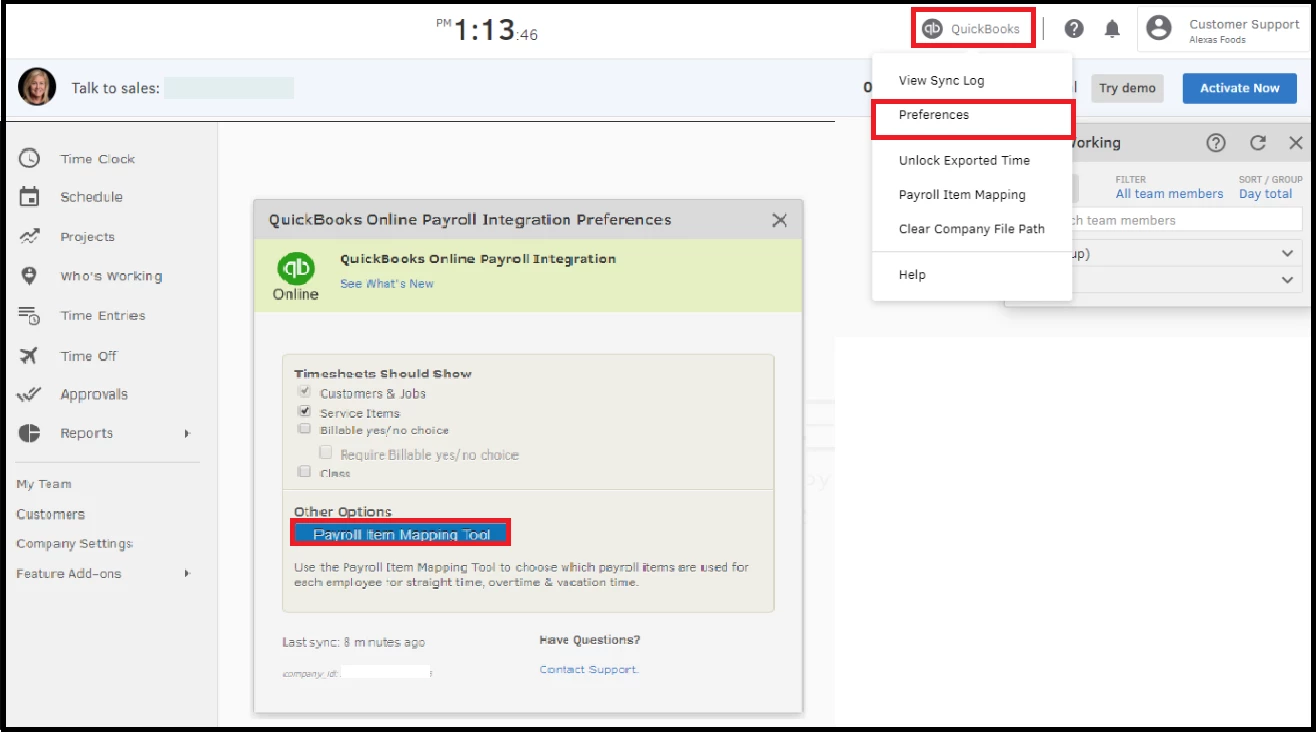
- Click the QuickBooks dropdown at the top right corner, then select Preferences.
- Choose the Payroll Item Mapping Tool under Other Options.
- Select an employee on the Map Employees tab.
- In each hour type column, select one payroll item for each.
Afterward, here are the steps to set up the override settings:
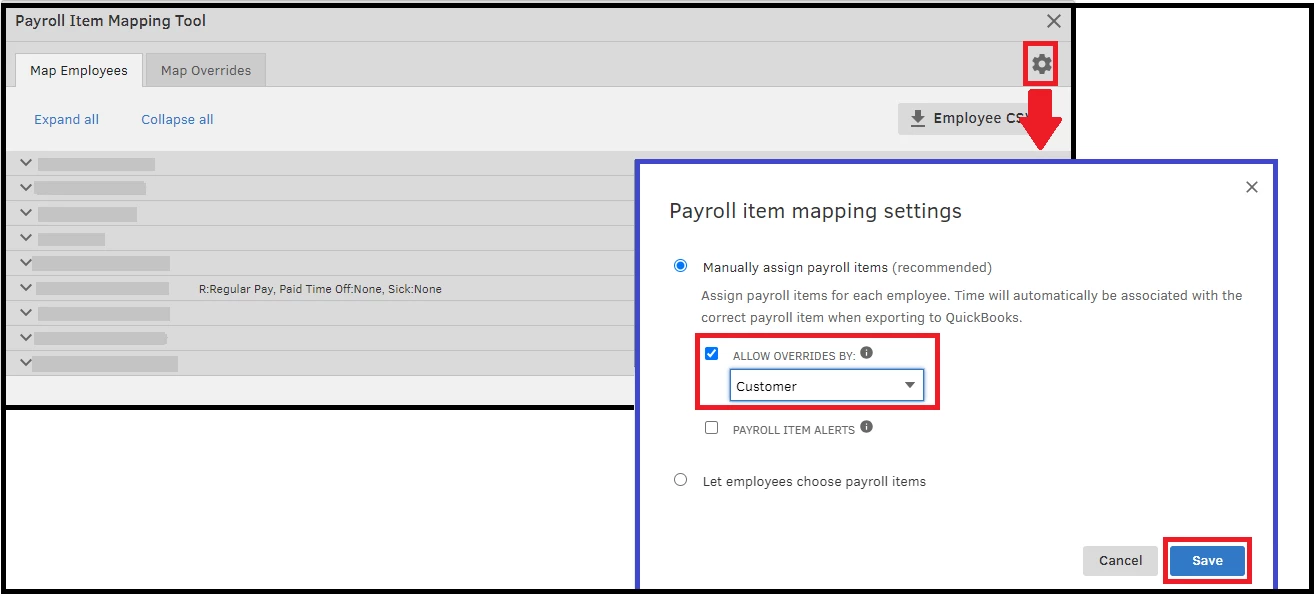
- In the Payroll Item Mapping Tool, select Settings.
- Select the Allow overrides by box, and choose either Customer, Service Item, or Class.
- Select Save.
- On the Map Customers, Map Service Items, or Map Classes tab, click + Add Override.

- Choose a customer, service item, or class, then expand the new override option.
- Select a payroll item under each hour type column (e.g., regular and training). Repeat until each Customer, Service Item, or Class is appropriately mapped.
- Once the mapping is complete, you can close the window.
You can find the steps and elaborate details about the setup in this article: Map QuickBooks payroll items in QuickBooks Time.
Furthermore, you can save these helpful articles for managing your employee's time off in the program:
I'll be right here if you need other help. Keep me posted with the result, so I can help you further if necessary. You can count on me. Have a good day!

