September 21, 2022
Question

QBO Payroll Export to Desktop

  • September 21, 2022
  • 1 reply
  • 0 views

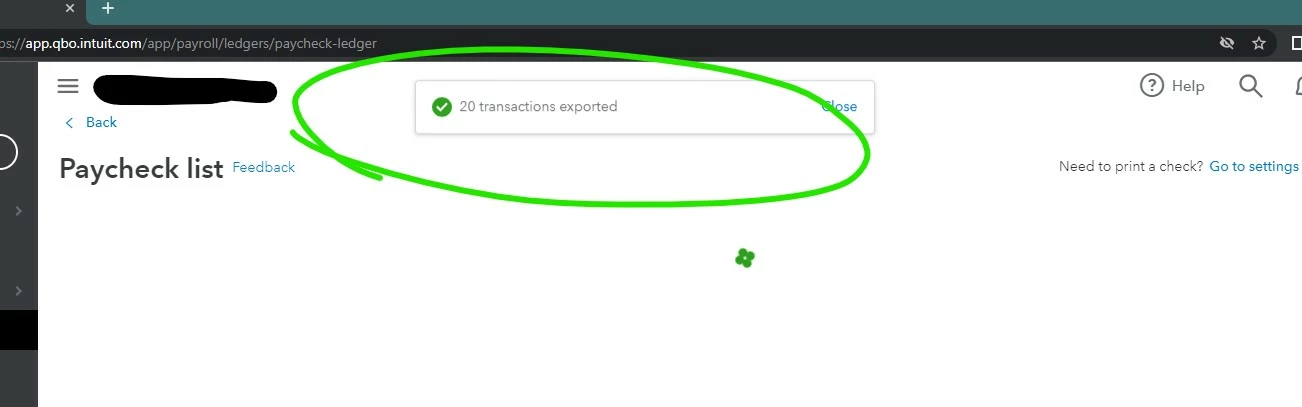
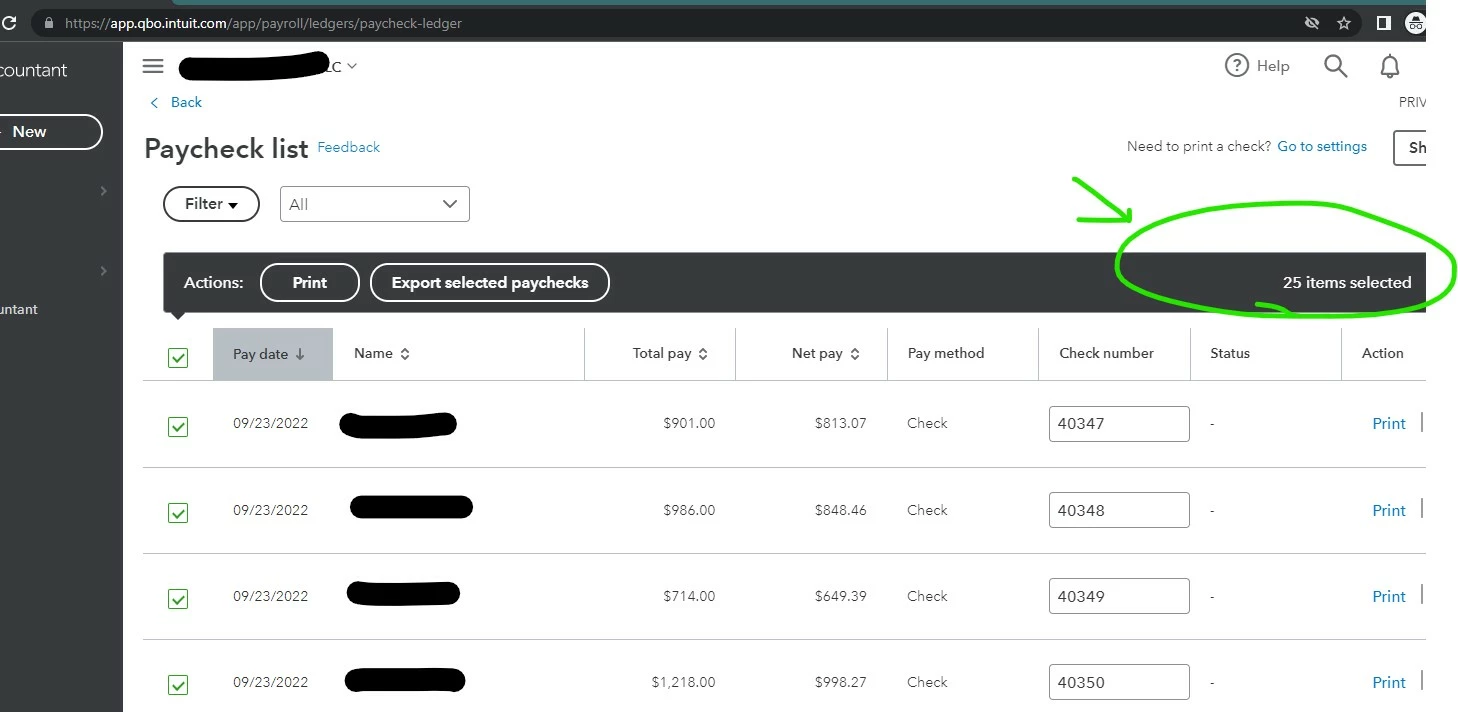
We export QBO Payroll (standalone) to QB Desktop (QB Pro 2022), but have always had issues with the data exporting/importing smoothly. First, in the QBO Online it shows 25 check items selected (which is the actual total of payroll checks) however, when we hit the export button, the system only exports 20 payroll checks. Then the second issue is when we import it to the QB Desktop the import only accepts 9 transactions. We have had such a hard time with these transactions, it gets tedious when we are talking about 100 paychecks per month. Is there something that we are doing wrong? or is there a system compatibility issue? Has anyone else run across this issue? 
 

1 reply

MichelleBh
September 21, 2022

Exporting all your paychecks into QuickBooks Desktop (QBDT) is my focus here, @luxeladyempress.


Technically, you should be able to export the 25 paychecks to QBDT without any issues. No worries, I'll lead you through some troubleshooting procedures to assist in solving the problem.


It sounds like your server was interrupted or corrupted. Sometimes, too much cache build-up in your regular browser can cause unexpected behavior in the product. With this, I'd recommend logging your account through incognito. This way, we can check if it's a browser-related issue.


Refer to the keyboard shortcuts below:


  • Ctrl + Shift + N (Google Chrome)
  • Ctrl + Shift + P (Firefox)
  •  Control + Option + P (Safari)
  •  Ctrl + Shift + P (Microsoft Edge)


Once in, re-export the missing payroll transactions to verify if it's already performing well. If it's solved, return to your regular browser and press the CTRL+ Shift and Delete keys on the keyboard to clear the cache.


If the issue remains, I'd recommend running the Verify and Rebuild tool to help fix the issue. Complete the following procedures:


  1. Go to the File menu and select Utilities.
  2. Click Verify Data and hit OK to close all windows. 
  3. If there are no problems with your data, you're done. 
  4. If you see Your data has failed the integrity check, go back to Utilities and select Rebuild Data
  5. Click OK to make a backup to prevent data loss along the process.
  6. Hit OK to continue the rebuild process.


For more information, see this link: Verify and Rebuild Data in QuickBooks Desktop.


Additionally, check out these articles below on how to update or delete pay schedule, payroll preferences, and other related topics: 


Please ping me if you require additional assistance managing your payroll transaction in QBDT and QBO. I'd be delighted to impart to you my years of experience. I hope you get to have a good time today!