January 11, 2021
Solved

Safe Harbor 401k ER Match

  • January 11, 2021
  • 1 reply
  • 0 views

Hello, 


New QB user! I've ran through this topic on a couple threads and I'm still not seeing a well explained solution - at least not for a newbie like me :) We currently have a simple IRA ER match up to 3%. We are moving to a 401k, safe harbor QACA match with the following compensation match rules:


  • Basic match – 100% of salary deferrals up to 1% of compensation, 1, plus 50% on the next 5% of compensation (3.5% of compensation total).

My question. How would I go about setting this up correctly? I understand once I've created a payroll item I just assign it to each EE. I'm struggling how to actually create the payroll item so it reflects the different contribution rates based on EE contribution %. 


Thanks!

Best answer by ReymondO

Thanks for posting your concern here in the Community, @jerbaldw.


Before we start, let me thank you for choosing QuickBooks Desktop in managing your business.


Let me help you in setting up benefits for the 401(k) payroll item in your company file. You can use the Custom Setup method when creating the item. This way, it would be easy for you to edit it once need to create certain changes.


Here's how:


  1. Go to List and select the Payroll Item List.
  2. Click the Payroll Item button and select New.
  3. Choose Custom Setup and click Next.
  4. Select Deduction and click Next.
  5. Enter the name of the item and continue by clicking Next.
  6. In the Liability account drop-down list at the bottom, select the liability account that will be used to track this deduction and click Next
  7. From the Tax tracking type window, select the tax tracking-type classification that matches your plan type and click Next.
  8. Place a checkmark next to any item(s) in the Payroll Item column that will be calculated after this deduction is taken.
  9. Choose Neither in the Calculate Based on Quantity window and click Next.
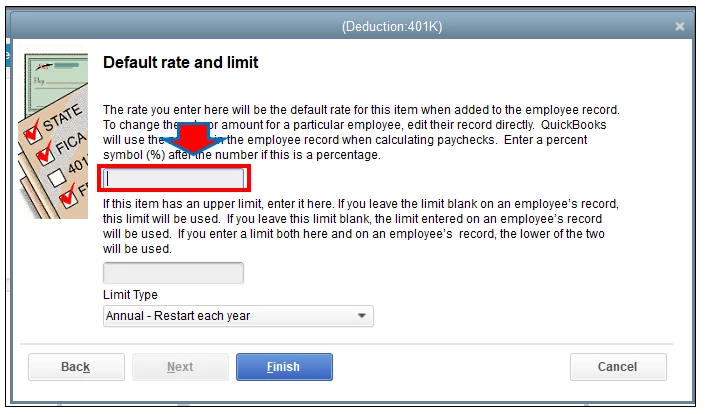
  10. Enter the rate and select Finish to complete the process.
 

For more details, you can check out this article: How to set up the 401 (K) retirement benefits in QuickBooks. This will also include the process on how to add the new payroll items to your employee record.


You can also run the payroll summary report to see what you've paid out.

This will show a quick view of your payroll totals, including employee taxes and contributions.


Additionally, you can check our QuickBooks Desktop user guide. This will provide you the resources that you needed in managing your account.  


I'm still here if you have other questions regarding your payroll service. Just post your questions here, I'll respond as soon as possible. 

1 reply

ReymondOAnswer
January 11, 2021

Thanks for posting your concern here in the Community, @jerbaldw.


Before we start, let me thank you for choosing QuickBooks Desktop in managing your business.


Let me help you in setting up benefits for the 401(k) payroll item in your company file. You can use the Custom Setup method when creating the item. This way, it would be easy for you to edit it once need to create certain changes.


Here's how:


  1. Go to List and select the Payroll Item List.
  2. Click the Payroll Item button and select New.
  3. Choose Custom Setup and click Next.
  4. Select Deduction and click Next.
  5. Enter the name of the item and continue by clicking Next.
  6. In the Liability account drop-down list at the bottom, select the liability account that will be used to track this deduction and click Next
  7. From the Tax tracking type window, select the tax tracking-type classification that matches your plan type and click Next.
  8. Place a checkmark next to any item(s) in the Payroll Item column that will be calculated after this deduction is taken.
  9. Choose Neither in the Calculate Based on Quantity window and click Next.
  10. Enter the rate and select Finish to complete the process.


For more details, you can check out this article: How to set up the 401 (K) retirement benefits in QuickBooks. This will also include the process on how to add the new payroll items to your employee record.


You can also run the payroll summary report to see what you've paid out.

This will show a quick view of your payroll totals, including employee taxes and contributions.


Additionally, you can check our QuickBooks Desktop user guide. This will provide you the resources that you needed in managing your account.  


I'm still here if you have other questions regarding your payroll service. Just post your questions here, I'll respond as soon as possible. 

jerbaldwAuthor
January 13, 2021

Thank you!