January 31, 2019
Solved

Salaried employee with billable hours

  • January 31, 2019
  • 1 reply
  • 0 views

A salaried employee has billable hours to various customers.  Within payroll we've set them up with a fixed  monthly salary, but when we go to process monthly payroll, all of the billable hours show up in the payroll window.  Is there a way to turn off the billable hours from carrying over, so that the fixed salary amount will save as the default?

Best answer by PreciousB

Thanks for the complete details of your concern, carrie88.


If an employee is setup to Use time data to create paycheck, the billable hours will show once you run a payroll for them regardless if they are salaried. If you prefer not to use the timesheet for them, please uncheck the time data option in the employee's profile.


Let me show you how:

  1. Select Employees at the top.
  2. Choose Employees Center.
  3. Double-click the employee's name.
  4. Uncheck the Use time data to create paychecks button, under the Payroll Info tab.
  5. Click OK.

I've provided a screenshot below so you can easily follow the steps.
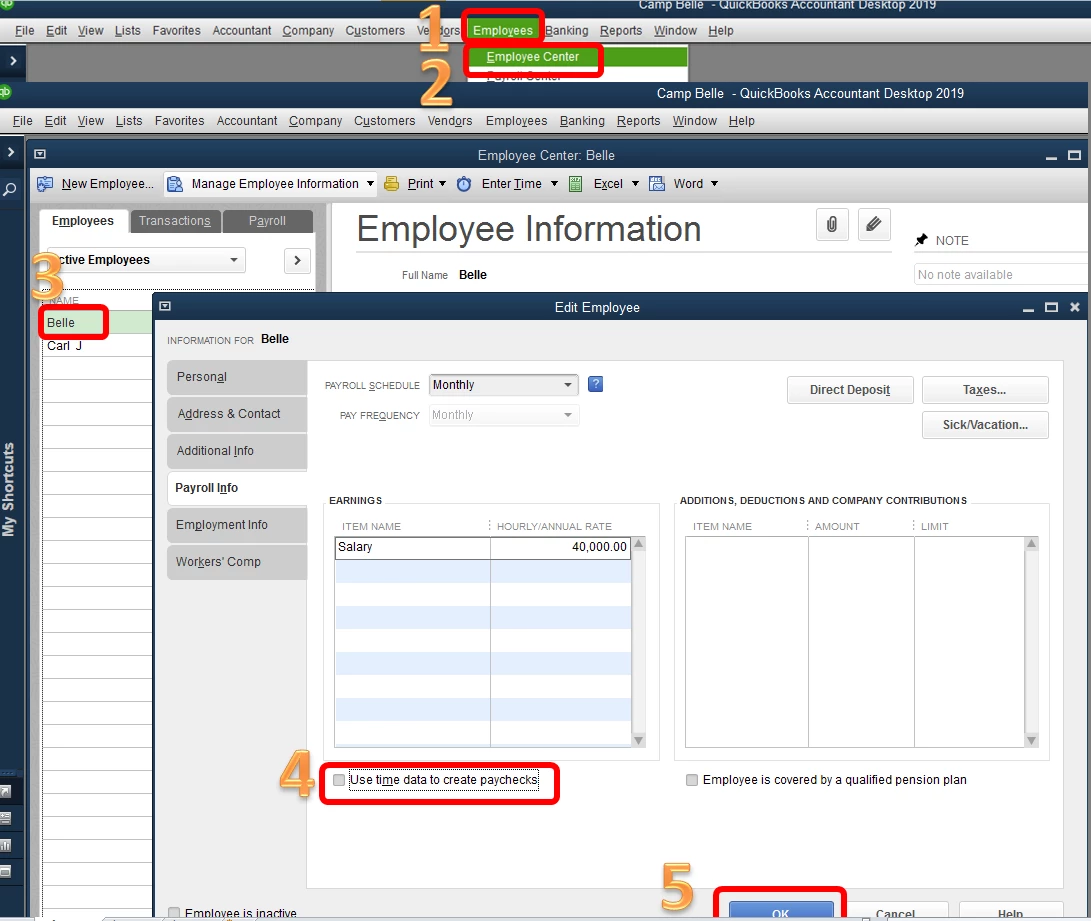


Once done, create a paycheck for the salaried employee and the billable hours should no longer show up.


This article might come in handy: Create paychecks based on timesheet hours.


That should get you back on track.


Please keep me posted. I’ll be here if you have any questions about QuickBooks Desktop. Enjoy your week.


1 reply

PreciousB
PreciousBAnswer
February 1, 2019

Thanks for the complete details of your concern, carrie88.


If an employee is setup to Use time data to create paycheck, the billable hours will show once you run a payroll for them regardless if they are salaried. If you prefer not to use the timesheet for them, please uncheck the time data option in the employee's profile.


Let me show you how:

  1. Select Employees at the top.
  2. Choose Employees Center.
  3. Double-click the employee's name.
  4. Uncheck the Use time data to create paychecks button, under the Payroll Info tab.
  5. Click OK.

I've provided a screenshot below so you can easily follow the steps.


Once done, create a paycheck for the salaried employee and the billable hours should no longer show up.


This article might come in handy: Create paychecks based on timesheet hours.


That should get you back on track.


Please keep me posted. I’ll be here if you have any questions about QuickBooks Desktop. Enjoy your week.

May 21, 2019

Precious B

What if I need the hours to populate to the job costing but still pay them the fixed salary amount? If I uncheck the use time data - none of their time populates to the job costs, but if I check the use time data, their salary amount doesn't work.

PreciousB
May 21, 2019

Thanks for joining this conversation, mccombserv.


I can add some clarification on how time data in QuickBooks Desktop works.


For salaried employees, once you check the Use time data to create paychecks button on their profile, QuickBooks Desktop will populate the billable hours on the paycheck and use their salary rate. However, if you have multiple items on the timesheet, QuickBooks will spread out the salary amount according to their number of hours on each item. If this isn't working for you, uncheck the Use time data to create paychecks button and manually enter them on the employee's paycheck.


Please follow the steps above on how to uncheck the time data option on the employee's profile. Then, manually enter the hours on the paycheck.


Here's how:

  1. Click Employees at the top.
  2. Choose Pay Employees.
  3. Select Scheduled or Unscheduled Payroll from the list.
  4. Choose the employee you want to create a paycheck.
  5. Click the Open Paycheck Detail button.
  6. Enter the hours and customer or job.
  7. Click Save & close.

You can always go back to the article I provided above for further guidance.


Following these steps should get you back in line.


I'd appreciate if you can update me about the results after trying the steps above, so I can assist if there's anything else you need. I'm cheering you to continued prosperity.