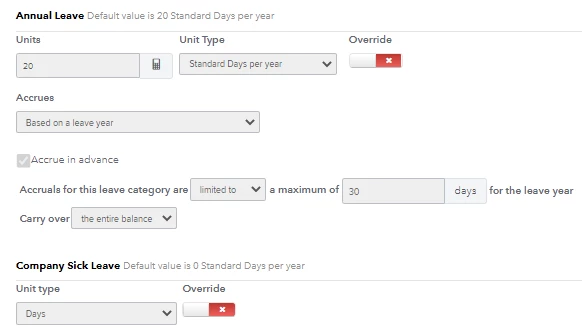
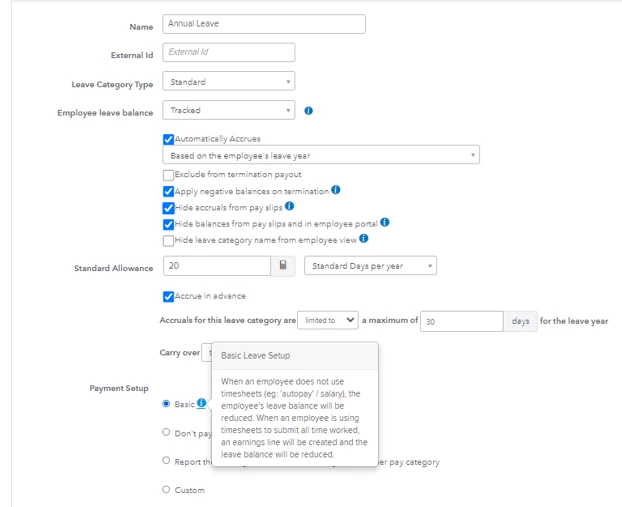
Thanks for updating us, @csacs100.
Since the annual leave balance still isn't reduced, I recommend contacting our Payroll Support team. They have tools that can help resolve this issue.
Here’s how:
- Go to the Help menu.
- Type in/click Talk to a human.
- Enter your brief concern in the field.
- Select I need a human until you see a Get help from a human option.
- Choose a way to connect with our representatives.
Here are some QuickBooks Online Payroll resources that you can read to learn more about leave accrual and its categories:
Don’t hesitate to let us know if you have other payroll concerns or questions. We’re always here to help. Have a good one!
Thank you Madelyn,
I had a Chat with Support as suggested.
The way to get this to work properly (i.e. enter Leave days, show Annual Leave Income and get the Annual Leave days balance correct) is as follows:
Payroll settings
Leave Categories
Annual Leave - and then adjust the Payment Setup from Basic to the below:
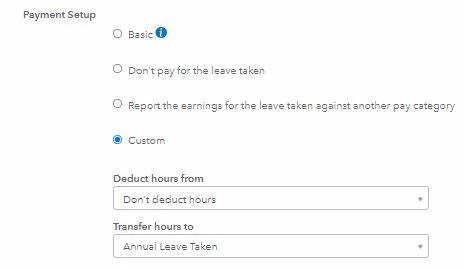
When you want to pay annual leave, go to the pay run, select the relevant employee, click the Action button on the right, select Take Leave, select Annual Leave from the drop down, then enter the units (days/hours) and select Save. With the above setting you will still need to adjust Hourly pay or Salary pay hours downwards for the holiday days/hours to get the correct total pay.
This will automatically add Earnings, Annual Leave Taken and the relevant pay, as well as reducing the Annual Leave days balance.
If you only have hourly paid workers you can adjust the setting to the below, which would automatically adjust the hourly pay hours, but that wouldn't work for salaried employees.
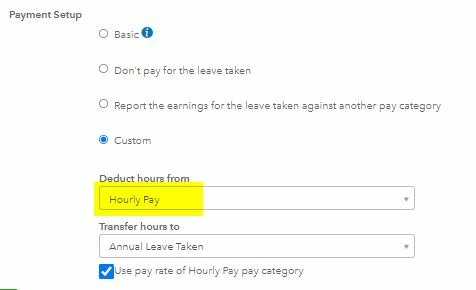
If you only have Salaried employees, you could change the Hourly Pay above to Salary and that would work.
It is possible that setting up different Annual Leave categories for Salaried and Hourly paid staff might work, but I haven't tried that (yet).