April 17, 2020
Solved

How do I take out the leave details section that appears on an employee payslip in payroll advanced? I've unticked the box in the settings but it is still there?

  • April 17, 2020
  • 1 reply
  • 0 views
Original commenter did not share additional details

Best answer by RaymondJayO

Hi

I have tried what you suggested but the leave heading and details are still appearing at the bottom of the payslips.  Any other suggestions?

Thanks Jemma


I appreciate you for performing all the troubleshooting steps provided by my peers above, @jemmab1734. Rest assured that I have the suggestions you need to remove the Leave Details section on the payslips. 


I've reviewed your original question above. It looks like the box may have unticked in the settings. That's why the leave heading and their details are still appearing on the payslips. 


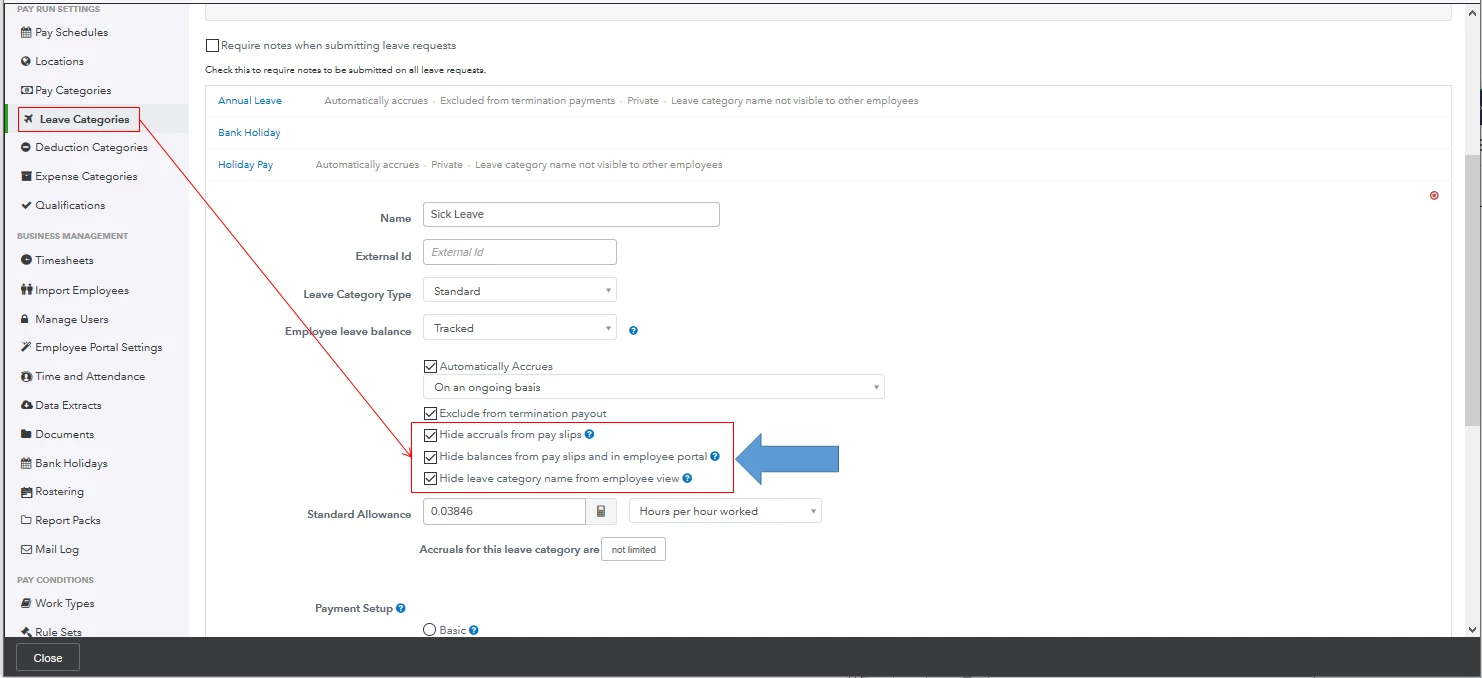
To help fix this, let's go back to the Leave Categories page. Then, tick the three boxes so the system will hide the Leave Details section on the payslips. I've attached a screenshot below to determine the three specific boxes you'll have to tick. Please make sure to click Save to refresh the changes. After that, create a pay run and view the payslips again.
 

However, if the issue persists, I'd suggest contacting our Customer Care Team. They have the specialized tools to pull up your account and determine the root cause of this issue. They can also help you resolve this so the system won't display the Leave Details section on the payslips. Here's how: 

  1. Go to the Help menu at the upper right. 
  2. Choose Contact Us
  3. Enter Remove The Leave Heading and Details At The Bottom Of The Payslips in the What can we help you with? box. 
  4. Select Let's talk
  5. Choose a way to connect with a live support agent.


Additionally, there are five examples of how leave is applied based on the setup scenarios in the program. For more information, visit this website: Leave Settings Overview.


I'm always here to lend you a helping hand if you need anything else. Keep safe and stay healthy, @jemmab1734.

1 reply

April 17, 2020

Hi jemmab1734


Did you delete an re-run the payroll after de-selecting the option within the settings?


April 17, 2020

Hi John


Yes I deleted the payrun and re ran it and it still showed the headings.  I tried using the Z-format and this didn't show the leave details but the employee name and address and right in the middle of the page making it very difficult to fold it for posting to employees as the address should be on the left.  Is this something I can change aswell?

AlcaeusF
April 17, 2020

Thanks for getting back to us, @jemmab1734.


Since it's still showing, try logging into your QuickBooks Online (QBO) account using a private browser (incognito). There are times that the browser is full of frequently accessed page resources, causing some unusual responses.


Here's how:


  • Press Ctrl Shift (Google Chrome).
  • Ctrl Shift (Firefox).
  • Control Option (Safari).


Once signed in, re-run the payroll again to double-check.


If it works, return to your default browser and perform a clear cache. Every so often the cache becomes overwhelmed with older data which can potentially cause viewing and performance issues. Clearing it will refresh the system, and you'll be able to work with a clean slate. However, if the issue persists, try using other supported browsers.


Just in case, I'll add these articles for future reference:


Reach out to me in the comment below if you have any other issues or concerns. I'm always here to help. Enjoy the rest of the day!
