April 15, 2020
Solved

I am doing my first pay run on advanced payroll. I can enter the hours but how do i enter the salary amount on the monthly payroll. it used to default on the old payroll

  • April 15, 2020
  • 1 reply
  • 0 views
on the monthly pay roll it just has spaces for hours worked. Where do i enter the salary amount and not the hours worked on the monthly pay roll. i have set the employee up as salaried
Best answer by RaymondJayO

Thank you for choosing QuickBooks Online Advanced Payroll (QBOAP) as your payroll partner, 

@accounts270. I'm here to ensure you're able to enter the employee's salary amount on the monthly payroll. 


You're on the right track in setting up your employee as salaried. The salary amount may haven't been entered in the Pay Rate box from the Default Pay Run Settings page. That's why you're only seeing spaces for the hours worked on the pay run. 


To help fix this, let's go to the Default Pay Run Settings page to enter the salary amount. From there, we can also check the Pay Schedule and Primary Location information if these are following the employee's pay category. I'll guide you how.

  1. Go to Employees from the left menu. 
  2. Select the salaried employee. 
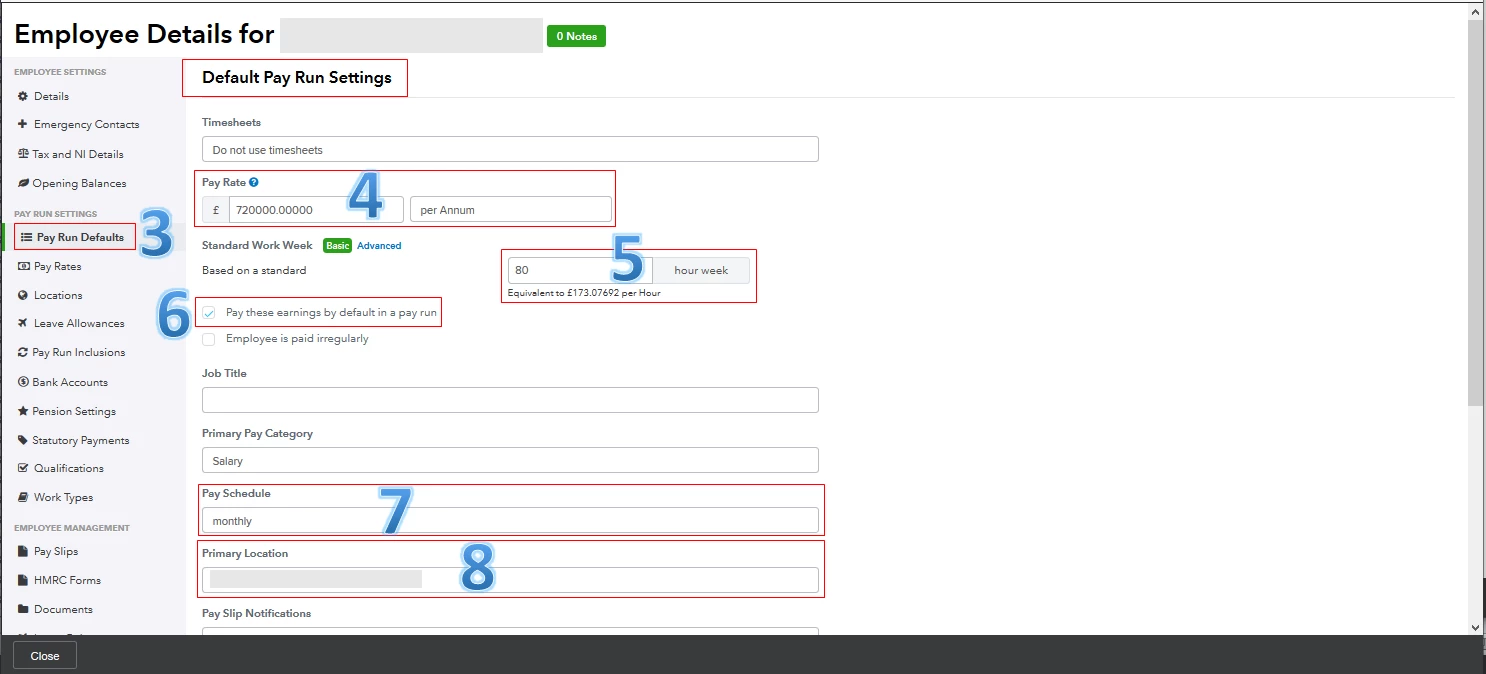
  3. Choose Pay Run Defaults
  4. Enter the appropriate Pay Rate as the salary amount and choose its frequency.  
  5. Review the hours worked. 
  6. Check the Pay these earnings by default in a pay run box. 
  7. Confirm the Pay Schedule
  8. Verify the Primary Location
  9. Click Save


The screenshot below shows you the third to eight steps. 
 

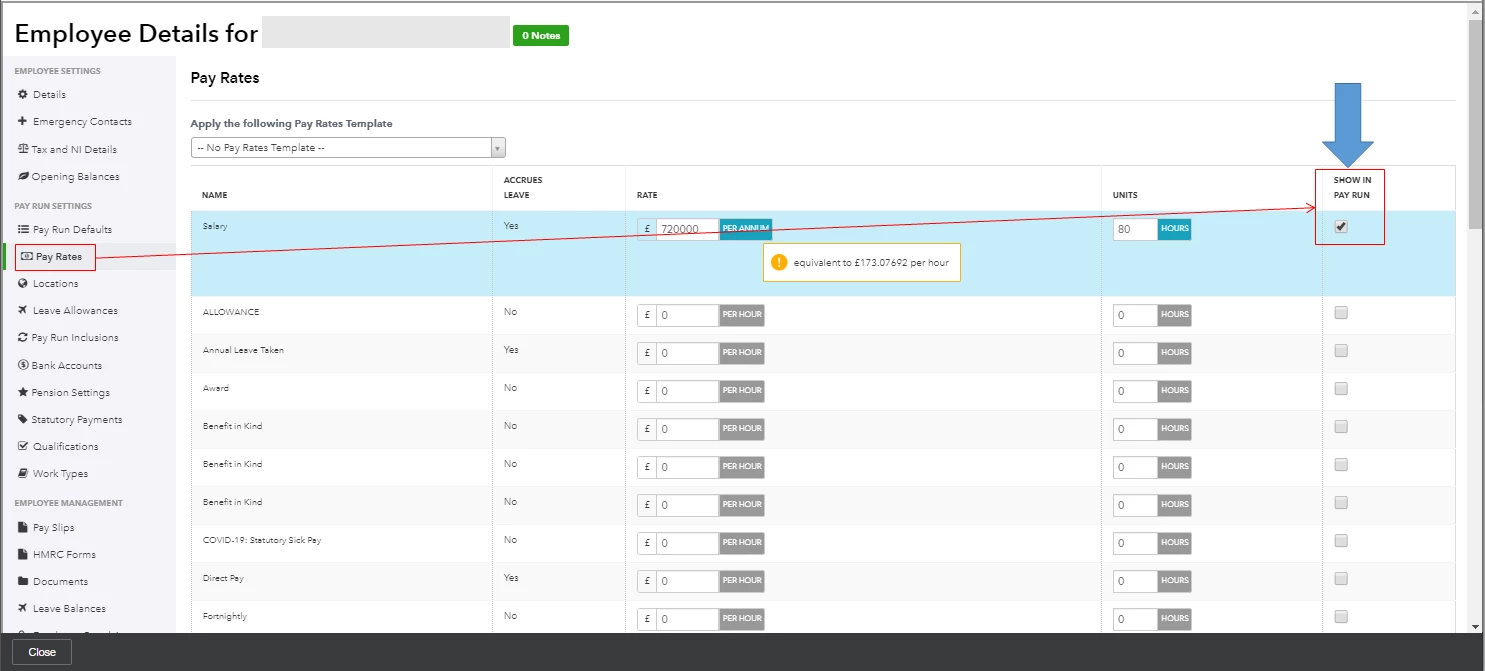
Once done, let's go to the Pay Rates tab to make sure the Show In Pay Run is enabled. This way, the system will automatically use the salaried employee's earnings when creating a pay run. View the screenshot below for your visual reference. 
 

Moreover, I recommend visiting this resource hub: QBOAP. It has in-depth details about managing your payroll settings, employees, processing pay runs, viewing payslips, and submitting reports. 


Feel free to leave a comment below if you need further assistance. Keep safe always, @accounts270

1 reply

April 15, 2020

Thank you for choosing QuickBooks Online Advanced Payroll (QBOAP) as your payroll partner, 

@accounts270. I'm here to ensure you're able to enter the employee's salary amount on the monthly payroll. 


You're on the right track in setting up your employee as salaried. The salary amount may haven't been entered in the Pay Rate box from the Default Pay Run Settings page. That's why you're only seeing spaces for the hours worked on the pay run. 


To help fix this, let's go to the Default Pay Run Settings page to enter the salary amount. From there, we can also check the Pay Schedule and Primary Location information if these are following the employee's pay category. I'll guide you how.

  1. Go to Employees from the left menu. 
  2. Select the salaried employee. 
  3. Choose Pay Run Defaults
  4. Enter the appropriate Pay Rate as the salary amount and choose its frequency.  
  5. Review the hours worked. 
  6. Check the Pay these earnings by default in a pay run box. 
  7. Confirm the Pay Schedule
  8. Verify the Primary Location
  9. Click Save


The screenshot below shows you the third to eight steps. 


Once done, let's go to the Pay Rates tab to make sure the Show In Pay Run is enabled. This way, the system will automatically use the salaried employee's earnings when creating a pay run. View the screenshot below for your visual reference. 


Moreover, I recommend visiting this resource hub: QBOAP. It has in-depth details about managing your payroll settings, employees, processing pay runs, viewing payslips, and submitting reports. 


Feel free to leave a comment below if you need further assistance. Keep safe always, @accounts270

