August 29, 2019
Solved

I have recently started using QB payroll. I have added a new Staff member and auto enrolled them onto the pension (nest). They have opted out but can’t reflect this in QB

  • August 29, 2019
  • 1 reply
  • 0 views
Original commenter did not share additional details

Best answer by Angelyn_T

Hello there, @info413.


I'm happy to share the steps on how to opt-out the pension nest in QuickBooks Online (QBO).


To opt-out the pension for the new staff member added, you can simply follow these steps:


  1. Log in to your QBO account.
  2. Click on Employees at the left pane.
  3. Select Employees.
  4. Look for the employee/staff name.
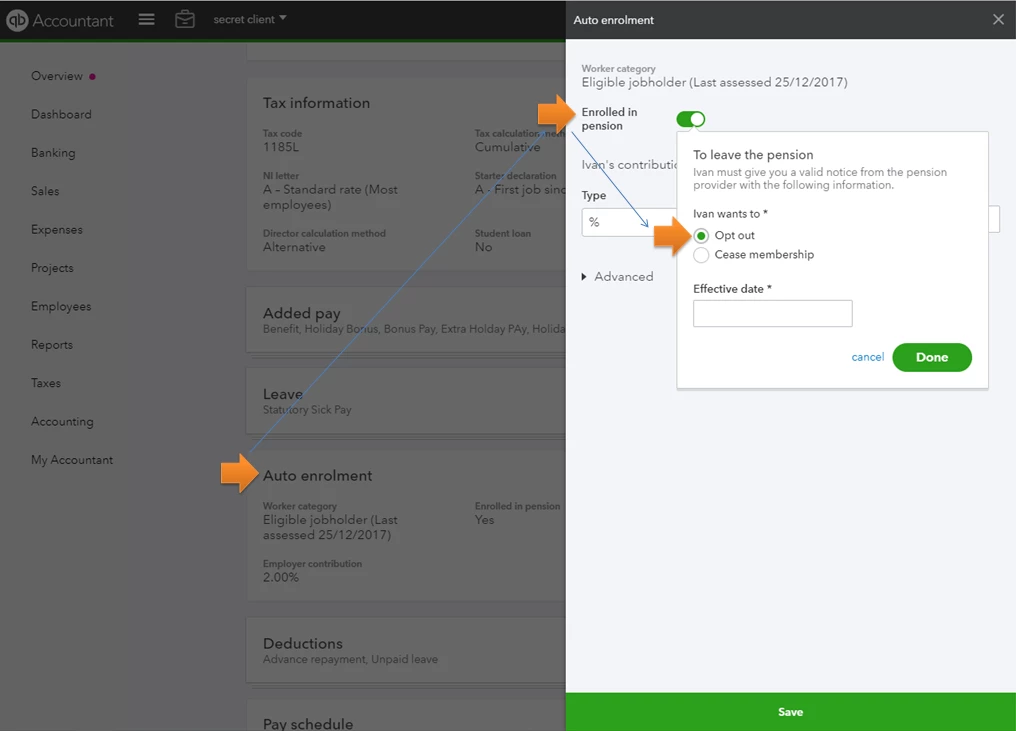
  5. Go to the Auto enrolment section and click on the pencil icon beside it.
  6. Click on the radio button beside Enrolled in pension.
  7. Select Opt out.
  8. Click on Done to save the changes.

I've added this screenshot for additional reference.
You can also check our help articles in case you have any other QuickBooks concerns in the future: Help articles for QuickBooks Online.


Stay posted if you have any other QuickBooks or payroll questions. I'm always available to help!

1 reply

Angelyn_T
Angelyn_TAnswer
August 29, 2019

Hello there, @info413.


I'm happy to share the steps on how to opt-out the pension nest in QuickBooks Online (QBO).


To opt-out the pension for the new staff member added, you can simply follow these steps:


  1. Log in to your QBO account.
  2. Click on Employees at the left pane.
  3. Select Employees.
  4. Look for the employee/staff name.
  5. Go to the Auto enrolment section and click on the pencil icon beside it.
  6. Click on the radio button beside Enrolled in pension.
  7. Select Opt out.
  8. Click on Done to save the changes.

I've added this screenshot for additional reference.

You can also check our help articles in case you have any other QuickBooks concerns in the future: Help articles for QuickBooks Online.


Stay posted if you have any other QuickBooks or payroll questions. I'm always available to help!
