May 17, 2019
Solved

Share files with accountant

  • May 17, 2019
  • 5 replies
  • 0 views

How do I share files with my accountant?

I look forward to hearing from you. 

Warm wishes,

Zoë

Best answer by kwood1

I agree. Years ago the client could initiate the sharing. Now the accountant bills time for setting this up by uploading a blank document. My cpa never shares docs, i just upload them as the client.


The answer I was looking for...and pieced and parted the feed together to come up with this!  

It took me a while, but I did eventually find the "Upload" button using my accountant user access.  From QBOnline Accountant, select Clients.  All clients that have added you as an accountant should be displayed.  Search for your client that you want to share a document with.  Do NOT select them from the drop down menu and do not click on the QB icon as it by-passes the screen you need. 

Click the actual name of the client in your list, in the example "Client Company Na.." is what you need to click on.
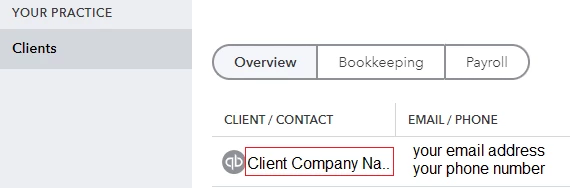


That will take you to the client information screen.
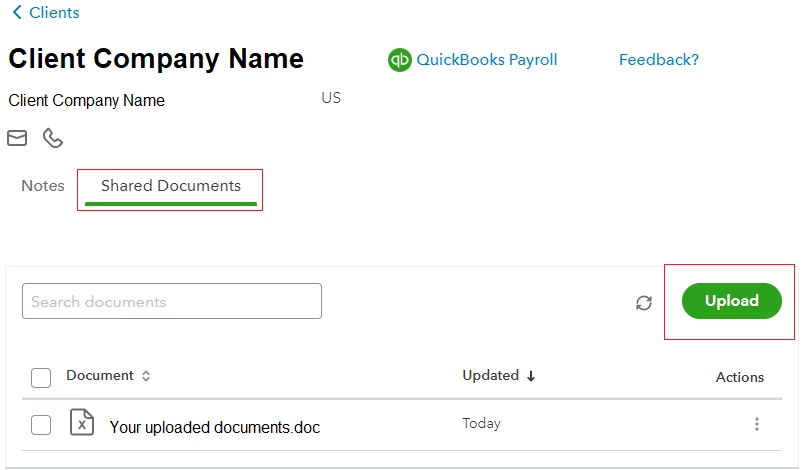


From there, click on the Shared Documents tab and the Upload button will be available.  It is not available IF you are in the clients books.  Once you have shared something, then yes, you can see it from the clients books and it mirrors this screen now.  As an accountant though, you have to upload something first for it to be available.

5 replies

Rustler
May 17, 2019

In QBO and QBSE there are no files to share

you invite the accountant to log in and use your account

May 17, 2019

Hello Zom


Welcome to the Community!


On QuickBooks Self Employed there is not a file sharing option.


However it is available in QuickBooks Online. As long as you have your accountant added as accountant user and the accountant has an accountant portal as well as being able to view your QuickBooks Online file you can also upload files to share with them.


If you go to my accountant on the left hand side>shared documents>upload

When you upload this will appear in the accountants profile under work and they can view and reply and send a request back to you or send a file to you and it will show in your my accountant section


Any questions let us know


Thanks

Emma

zomAuthor
May 17, 2019

So if I want to share files via email it would be best to switch to Quickbooks online? Is that right?


Many thanks,

Zoë

May 17, 2019


Hello Zoe,


You can email the reports directly to your accountant by selecting the drop down arrow next to View/Download. My colleague was referring to the function of sharing documents within the product - this is only available in Online.


Thanks,


Talia

KlentB
October 21, 2020

Yes, you can definitely send documents to your clients, atsdeeann.


You can go to the Shared documents tab and upload the files from there. This way, you'll be able to easily share important documents with your client. I'll show you how to do it:


  1. Select Clients from the sidebar menu.
  2. Choose then click the appropriate client.
  3. Go to the Shared documents tab.
  4. Click the Upload button.
  5. Select the document you want to share, then click Open (see below).


Once done, please have your client head to the Shared documents tab from the My Accountant menu to view and download the file.


I also encourage reading this guide to help manage and track your client requests, projects, and tasks.


Feel free to leave a comment below if I can be of any other assistance. Have a pleasant day ahead.

November 17, 2020

On Mac. I’ve saved files for Accountant. How do I get them to accountant on a PC via internet

November 18, 2020

I'm here to share some information when sending an accountant's copy, hugh7.  


When sending an accountant's copy in QuickBooks for Mac, you have to convert the file to QuickBooks Desktop for Windows. 


Just a heads up, make sure both have the updated QuickBooks Desktop version so you can send an accountant's copy. 


  1. Click the File menu.
  2. Press Export and then select To QuickBooks for Windows.
  3. If prompted, select Verify.
  4. Name the file and then select Save.
  5. Enter and confirm your password and tap OK.
  6. Select OK on the confirmation window.
  7. Move the file to your Windows computer.
  8. Restore the file in QuickBooks for Windows. 

Once done, let your client convert the file back to QuickBooks Desktop for Mac


Then, you're good to send the accountant's copy


Let me know if you need more help when sending accountant copy. The QuickBooks Team and the Community is always here to help. Have a great day!

April 5, 2022

This is really annoying.


1.  I want to share files with the accountant without them having to jump through hoops by creating a request and uploading a file.


2.  The UI does not make it at all clear the accountant needs to perform any actions before you can upload a file.   It says "Add some files to get started" when there is no way of doing this!"


Rubielyn_J
April 5, 2022

I would feel the same way if there isn't a manner to perform a specific task within a software, @c-edwards.


In QuickBooks Online, if you invite your accountant and they already have a QuickBooks Online for Accountants (QBOA) subscription, they'll get a link to access your QBO company and do the necessary tasks in your account. 


If you invite your accountant and they don't have a QBOA subscription, they'll have a chance to sign up when you send them this invitation. Signing up is free and allows them access to your QBO company at no cost to you.


Currently, the option to create a request and upload a file for your accountant is unavailable. At times, we roll out enhancements based on our customer's requests. That being said, I suggest sending a recommendation to our product developers. They'll review this idea and might consider updating it in the future.


Here's how:


  1. Go to the Gear located at the top.
  2. Under Profile, click Feedback.
  3. Enter your recommendation and select Submit.


You can also utilize this link to check the status and keep you in the loop on our progress of your request: Customer Feedback for QuickBooks Online.


I also encourage you to visit these links to help manage your accountant user: 


As always, add a comment below if you have any other concerns managing files in QuickBooks. I'm here to help always. Take care!
