Allow me to provide you with insightful guidance on how to identify where all transaction default accounts are located in QuickBooks Online, @LadyAg.
You can find the table where all the transaction default accounts are set in the Chart of Accounts. The default accounts are generated either upon the initial setup of QuickBooks or when prompted by particular events, such as the activation of the sales tax feature.
Additionally, yes, @LadyAg some accounts can be edited, but not deactivated or merged. To edit, here are the steps:
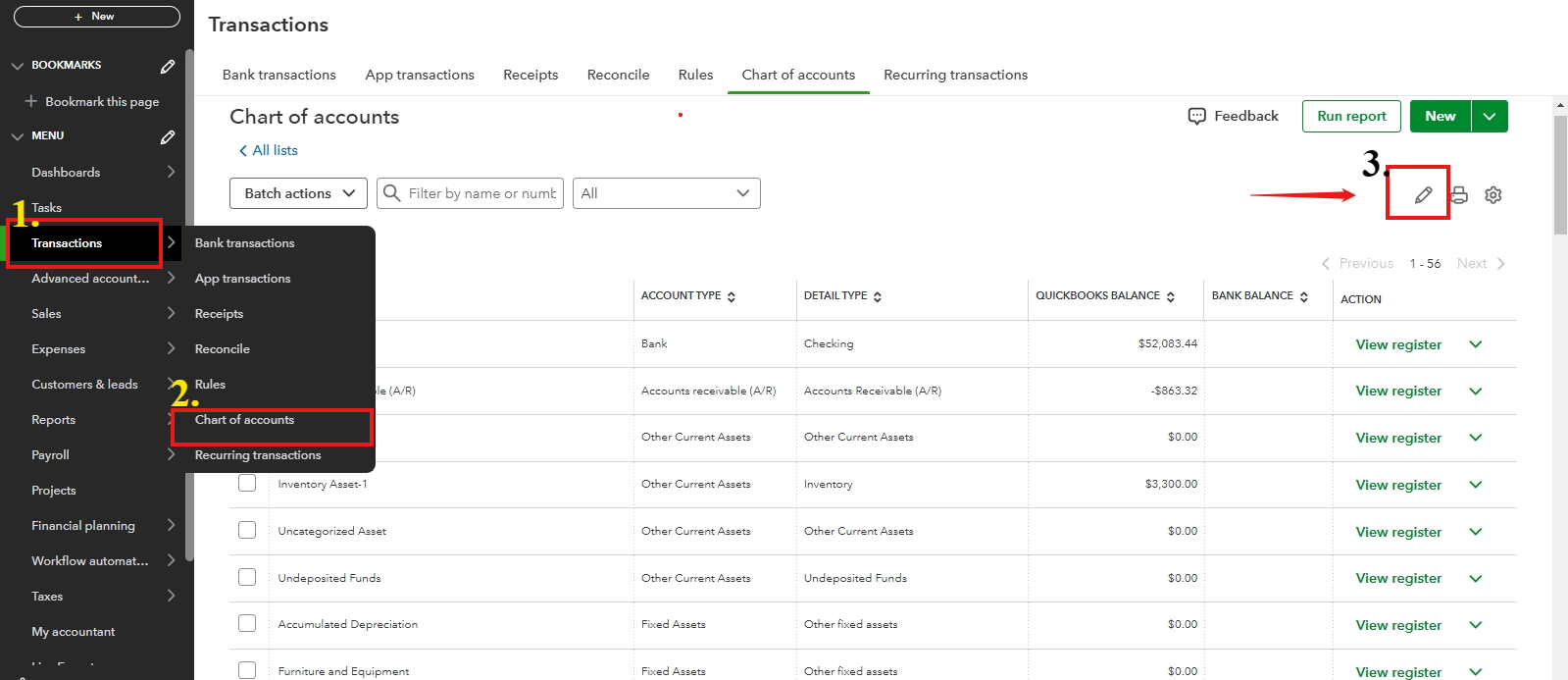
- Go to the Transactions at the left pane.
- Select Chart of Accounts.
- Click the pencil icon in the right corner, then you can edit or change accounts.
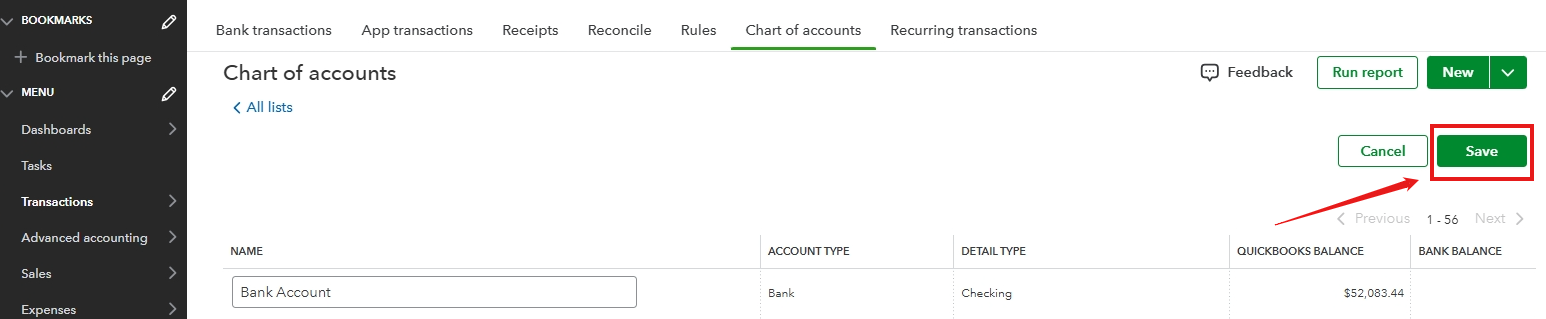
4. Once done, click Save.
For further understanding of what accounts can be changed or customized, you can access this article to learn more: Manage default and special accounts in your QuickBooks Online chart of accounts.
For future reference, should you wish to make accounts inactive or add an account to your chart of accounts, please consult the article below for educational and instructional guidance on how to proceed.
Make an account inactive on your chart of accounts in QuickBooks Online.
Add an account to your chart of accounts in QuickBooks Online.
Finally, if you require more assistance managing a chart of accounts, and properly organize each account, our QuickBooks Live Assisted is available to offer guidance and share best practices for helping customers like you.
Having followed the steps, education, and articles provided, you can now have a good understanding of how to alter or customize your chart of accounts. However, if any inquiries arise, I am here to assist you whenever you need.

