October 25, 2018
Solved

Accounts Receivable by Class

  • October 25, 2018
  • 1 reply
  • 0 views

Is there a way to run the A/R Aging by Class?  I am using QB online for Contractors.

Best answer by vpcontroller

Currently, such an option to run the A/R Aging by Class report is not available in QBO yet.
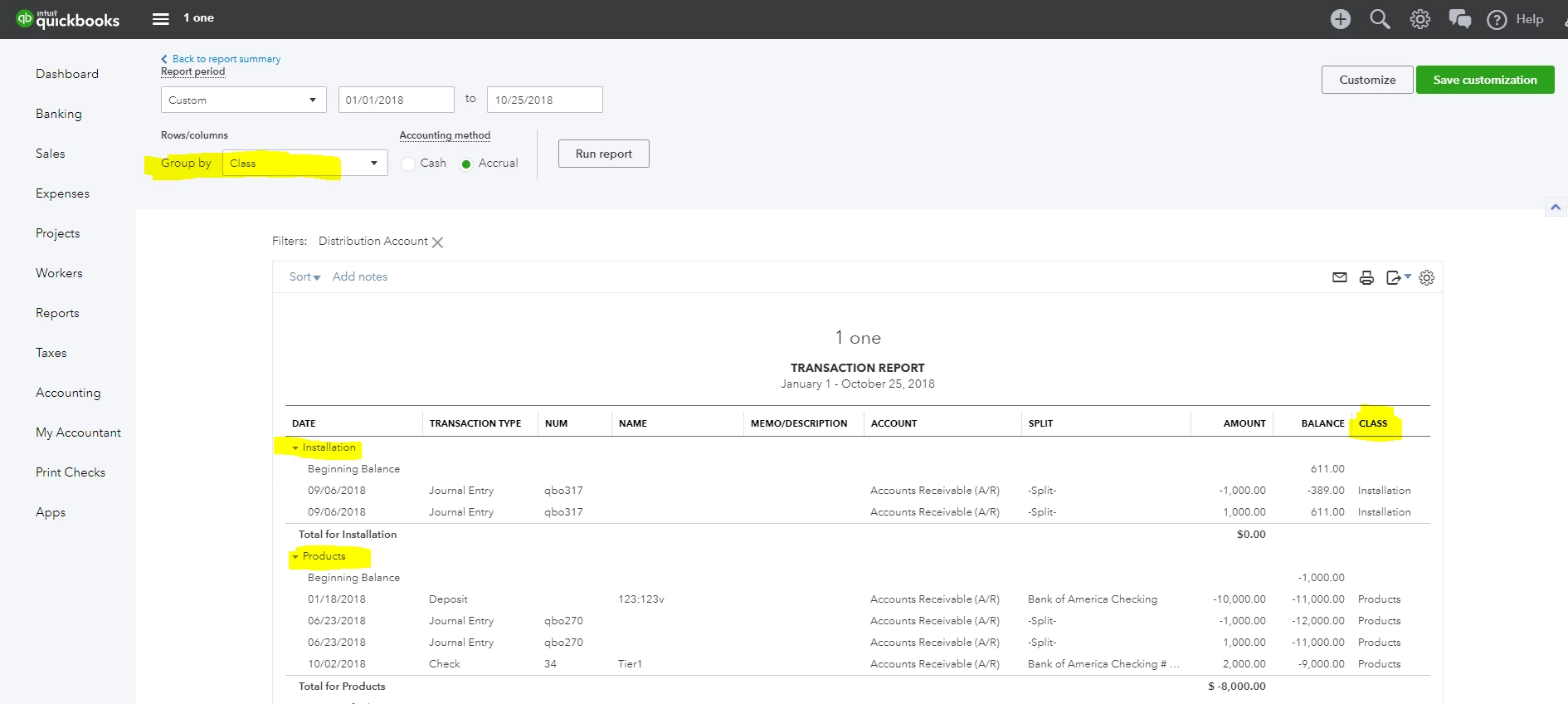
The workaround is to run the Account Receivable transaction report from the Balance Sheet (Run the Balance Sheet report and click the Account Receivable balance amount link). You can Group this report by Class. You can also customize and add a Class column to the report. But it will in AR detail format, not AR Aging format. See screenshot below for reference.

.
1 reply

vpcontroller
October 25, 2018

Currently, such an option to run the A/R Aging by Class report is not available in QBO yet.
The workaround is to run the Account Receivable transaction report from the Balance Sheet (Run the Balance Sheet report and click the Account Receivable balance amount link). You can Group this report by Class. You can also customize and add a Class column to the report. But it will in AR detail format, not AR Aging format. See screenshot below for reference.

.

November 7, 2018

Thanks for this response.  I cannot figure out why "class" isn't available in my group by menu.  Can you advise?  I assign classes in AR and AP.  Thanks!

MichaelDL
November 7, 2018

I've got you covered, @arianna118.


The information here will help you customize that transaction report like a pro. The Class option isn't available in the Group by menu until the column has been added to the report. I'll guide you through doing this below:


Add Class to the A/R Transaction Report

  1. From QuickBooks Online, navigate to the Reports tab. Select Balance Sheet from the Business overview section.
  2. On the line for Accounts Receivable, click the amount. Inside the Transaction Report, set your desired date range.
  3. Click the tiny Gear icon (⚙) in the top-right of the report, select (▼) Show more and check the box for Class.
  4. Now the Group by drop-down will display Class as an option, allowing you to further organize the report.

Here's a brief video demonstrating the process:


This will enable you to group your report with whichever column data you'd like. We also offer a guide on sorting reports by Class for your convenience. Please let me know if there's anything else I can do to help you succeed with QuickBooks. Thanks for reaching out, wishing you a wonderful rest of your day.
