December 17, 2020
Solved

Are purchase orders recorded as expenses the minute they are created?

  • December 17, 2020
  • 1 reply
  • 0 views

Is a purchase order recorded as an expense when it is created?

I want to ensure I'm not duplicating expenses when I create POs and then all add the related credit card transaction as an Expense...

Best answer by Rose-A

I'd be happy to provide some details on how the purchase order works in QuickBooks Online, charles91.


A Purchase Order (PO) is a non-posting transaction, so it does nothing to the accounting and will not duplicate any of your expenses. Only bills and expense transactions can be recorded as expenses in QuickBooks Online. 


In case you want to link the purchase order to your bills, here's how:


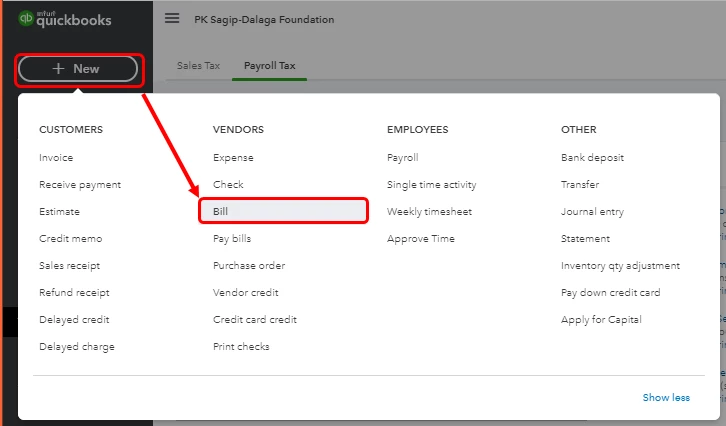
  1. Click + New in the left panel and choose Bills.
  2. Choose the Vendor's name. This opens a window with their open purchase orders.
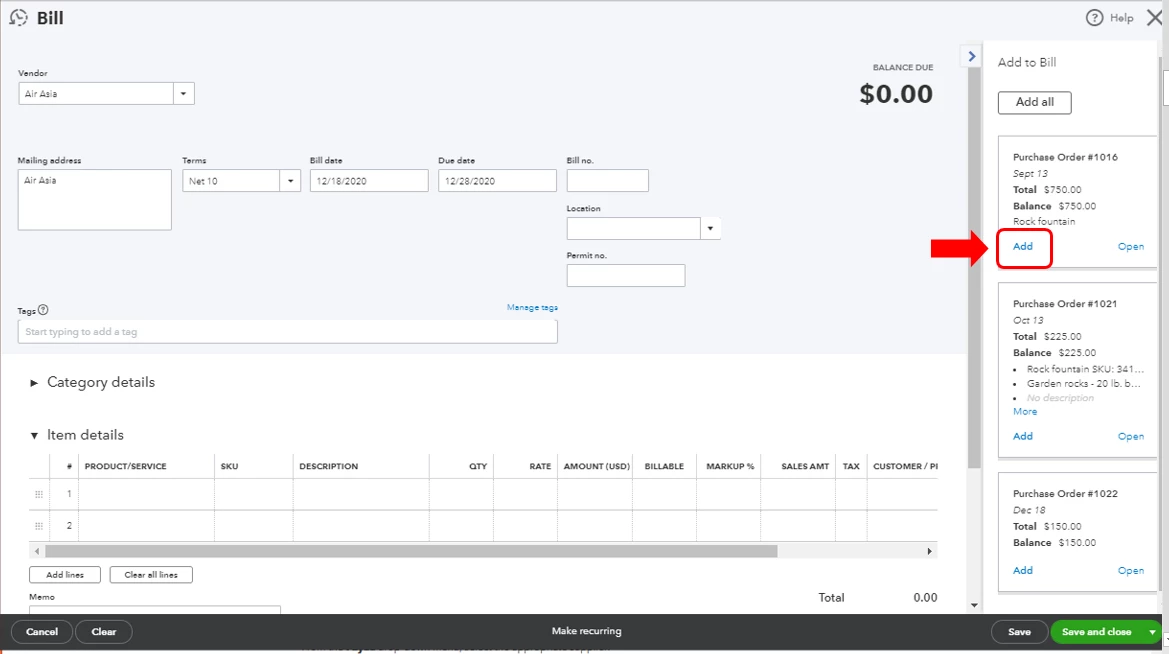
  3. Tap Add for the correct purchase order.
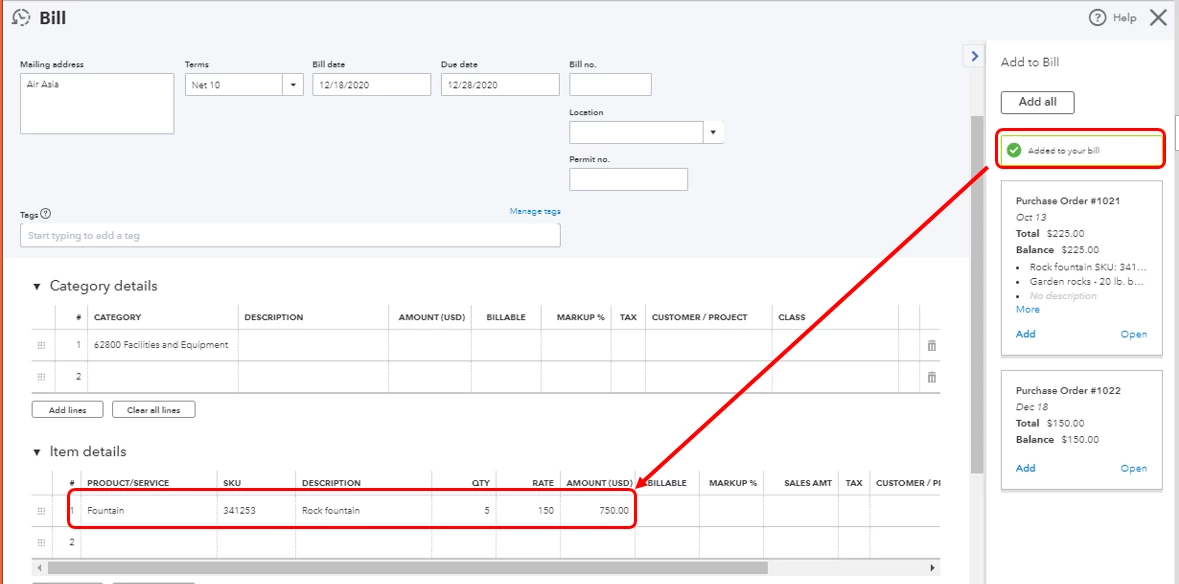
  4. This adds the items from the purchase order and will appear in the Item details section.
  5. Hit Save and close.

If you need to unlink a PO, check out this article for the detailed steps: Add purchase orders to expenses, bills, or checks in QuickBooks Online. On the same link, you'll find a write-up about when to use expenses or bills in QuickBooks Online.


You can always count on me if you need additional assistance or if you have any other questions about purchase orders. I'm just a post away. Have a great rest of your day!


1 reply

Rose-A
Rose-AAnswer
December 17, 2020

I'd be happy to provide some details on how the purchase order works in QuickBooks Online, charles91.


A Purchase Order (PO) is a non-posting transaction, so it does nothing to the accounting and will not duplicate any of your expenses. Only bills and expense transactions can be recorded as expenses in QuickBooks Online. 


In case you want to link the purchase order to your bills, here's how:


  1. Click + New in the left panel and choose Bills.
  2. Choose the Vendor's name. This opens a window with their open purchase orders.
  3. Tap Add for the correct purchase order.
  4. This adds the items from the purchase order and will appear in the Item details section.
  5. Hit Save and close.

If you need to unlink a PO, check out this article for the detailed steps: Add purchase orders to expenses, bills, or checks in QuickBooks Online. On the same link, you'll find a write-up about when to use expenses or bills in QuickBooks Online.


You can always count on me if you need additional assistance or if you have any other questions about purchase orders. I'm just a post away. Have a great rest of your day!