

November 27, 2024
Solved

Batch Transactions crashing when saving CSV upload

  • November 27, 2024
  • 2 replies
  • 0 views

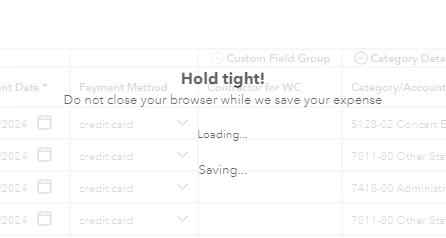
Batch transaction frequently crashing when importing CSV files. Data will upload, but then the saving function gets stuck a screen that says "Hold Tight!  Do not close your browser while we save your expense.  Loading... Saving..."

When creating the CSV my Excel file error checks the Accounts, Classes and Vendors. They are correct. The process works more frequently than not, but the crashes are inexplicable. 

Please no canned responses from the Intuit bots. Thanks.


    Best answer by FrustratedIntuser

    The solution was to wait for Intuit to fix the sources of the problem on their side. No idea what is was. Three days later, everything started working again and has been smooth ever since. No doubt in my mind that Intuit is always mucking in the code and making unannounced changes, usually poorly tested, that can result in decreased functionality. The lack of communication when problems arise is appalling.

    2 replies

    November 28, 2024

    Try opening your QBO account on any private/incognito browser.

    November 28, 2024

    Hello there.


    We always aim to provide the best experience when navigating QuickBooks Online to perform different tasks. I'll provide relevant troubleshooting to isolate issues that prevent you from importing transactions by batch. Let me walk you through the process.


    I agree with @Chrea. You can access your company file using a private window, as this will avoid interruptions from corrupted cache files. Outdated data can cause the software to crash, get stuck on a particular page, or other unexpected behaviors.


    You can proceed to these keyboard shortcuts:


    • Google Chrome: Ctrl + Shift + N
    • Safari 11 or newer: ⌘ + Shift + N
    • Mozilla Firefox: Shift + Ctrl + P
    • Microsoft Edge: Ctrl + Shift + N


    Once it works, switch to your regular browser and clear its cache to update the website's preferences. We also recommend using an updated and supported browser to maximize your navigation experience.


    Moreover, you'll want to generate custom fields to monitor specific information about your vendors and expenses that are most important to you. For more information, refer to this article: Use custom fields for vendors and expenses in QuickBooks Online Advanced.


    We're a few posts away if you require additional assistance regarding importing transactions by batch in QuickBooks Online. Please keep us updated by tagging us in your response in this thread.

    December 2, 2024

    I use plenty of other SaaS products, including Salesforce and Microsoft web products, but only Intuit trots out "clear the cache" with such regularity as a solution to the myriad functional problems in QBO. It's tiresome. No doubt a result of poor product design and testing. 

    But just out of curiosity, which cache would I clear for the QBO desktop app?

    FrustratedIntuserAuthorAnswer
    January 22, 2025

    The solution was to wait for Intuit to fix the sources of the problem on their side. No idea what is was. Three days later, everything started working again and has been smooth ever since. No doubt in my mind that Intuit is always mucking in the code and making unannounced changes, usually poorly tested, that can result in decreased functionality. The lack of communication when problems arise is appalling.