Thanks for your reply... I do already know how to use "Track billable expenses and items as income"... I've been using that for a while, but with a single account.
I posted this question because, when I changed my setting from "Single Account" to "Multiple Accounts", I can't find the way to set accounts as billable expense accounts.
In your explanation, you noted that "the account specified in the Account information page for Lumber is increased by $200" ... this is the problem... when I edit an account, there is no setting on the expense account information page to choose a corresponding income account.
Here's what the billable settings page says (see the tooltip)...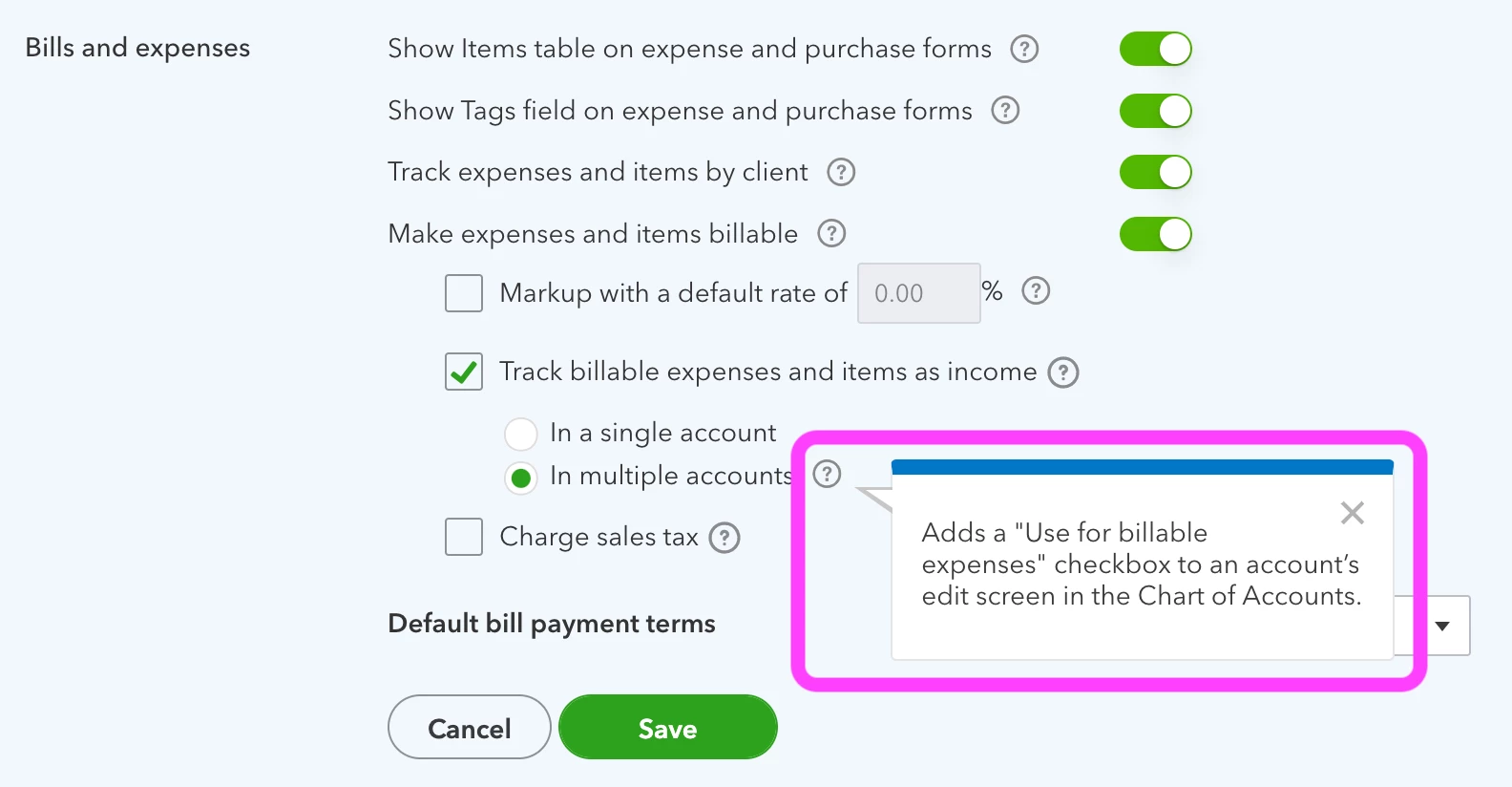
And here's what my edit account dialog looks like...
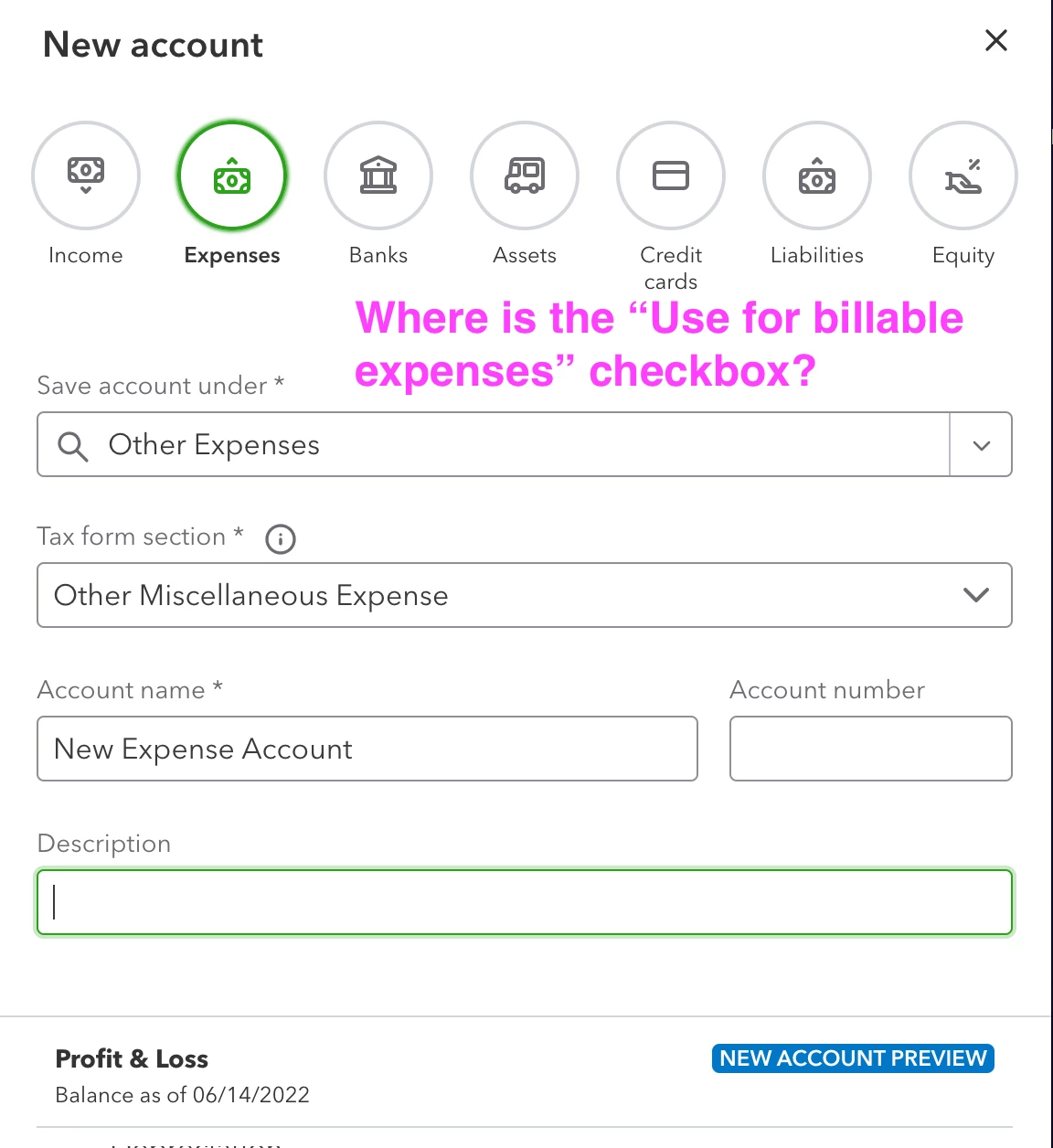
Am I looking in the wrong place for the "Use for billable expenses" option?
Hi there, @dishllc. I'd be happy to share some details about your concern and help you utilize the "Use for billable expenses" checkbox in your QuickBooks Online (QBO).
One possible reason you can't see the checkbox for Use for billable expenses when creating a new expense account in your Chart of Accounts is that you're currently in an Accountant view. In QuickBooks, you can view your company in two ways, the Accountant view for your accountant and the Business view for the owner. You'll want to switch to Business View to see the changes you've made in your company settings. Here's how:
- Access your QuickBooks Online company.
- Go to the Gear icon.
- Below the Profile column, click the Switch to Business view hyperlink.
You'll then want to create a new expense account in your COA, refer to this article for further guidelines: Add an account to your chart of accounts in QuickBooks Online.
You can refer on the screenshot below to see the changes after you've switched to Business view.
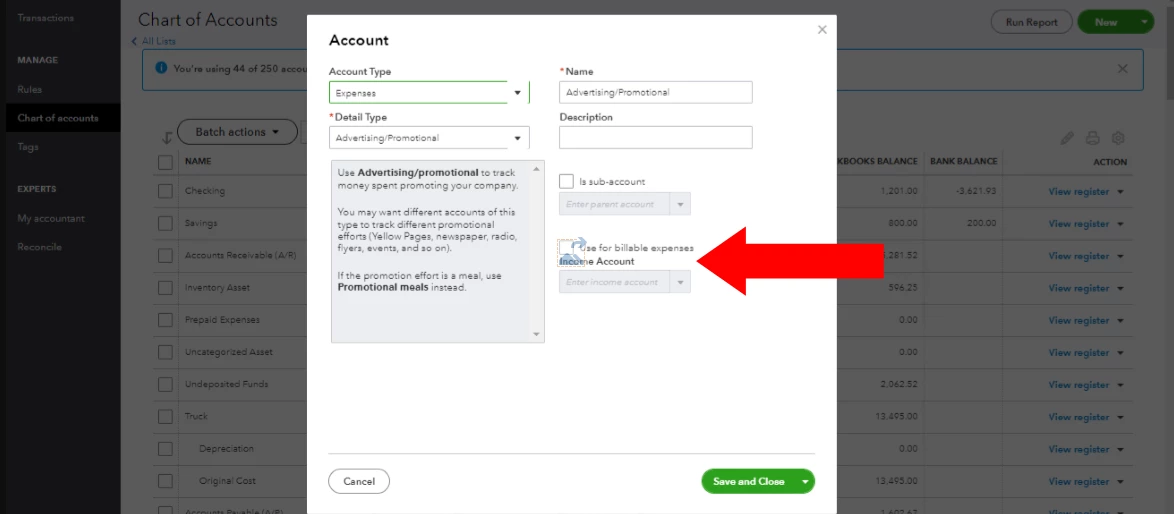
In addition, I've got you this article in case you'd like to manually add transactions to your account registers in QBO: Manually add transactions to account registers in QuickBooks Online.
I'll be here in the Community if you have any additional QuickBooks-related concerns. It's my pleasure to have you here, @dishllc. Thanks for choosing QuickBooks. Take care, and have a nice day!

