December 7, 2020
Solved

Budgets

  • December 7, 2020
  • 1 reply
  • 0 views

I have set up budgets and several of the accounts have default 0's in them (in previous years, they've had an amount, but this year, we've added new accounts and no longer need them).  I have deleted the 0's, saved the budget and exited but when I go back in, the 0's are back.  And when I run the budget overview report, they show up as 0's.  Any ideas how to make them go away?  I have to end up downloading the report to Excel and then hide the rows.

Best answer by Mark_R

Your issues with setting up budgets end here, @PamB-SMA.


The accounts with a zero amount can never be removed upon setting up a budget since QuickBooks wanting you to fill in the data or not. You may want to customize the Budget Overview report to remove all the zero amount. Here's how:


  1. Open and run the Budget Overview report.
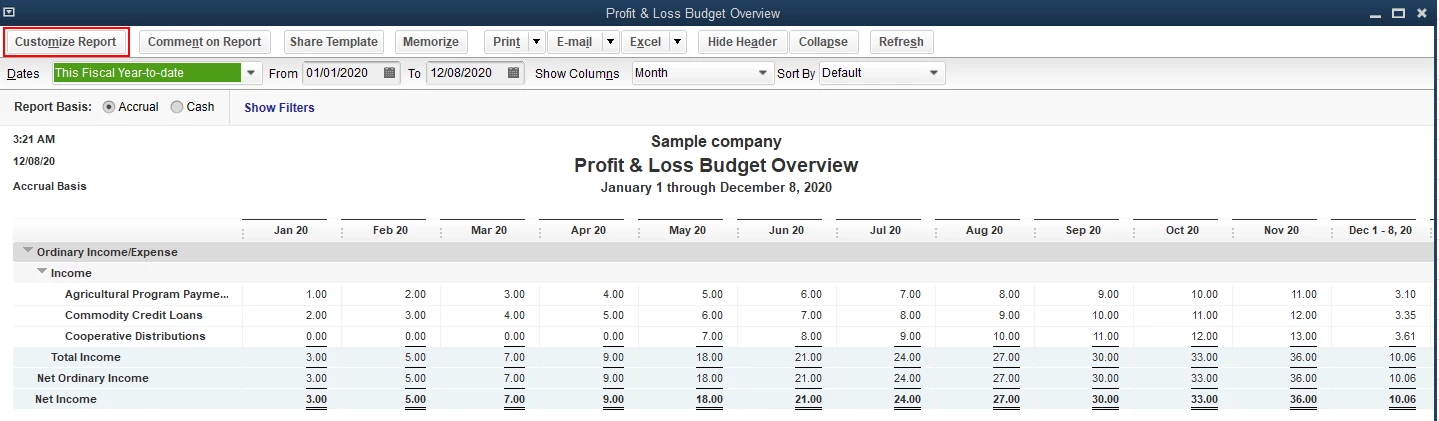
  2. In the report window, click the Customize Report button.
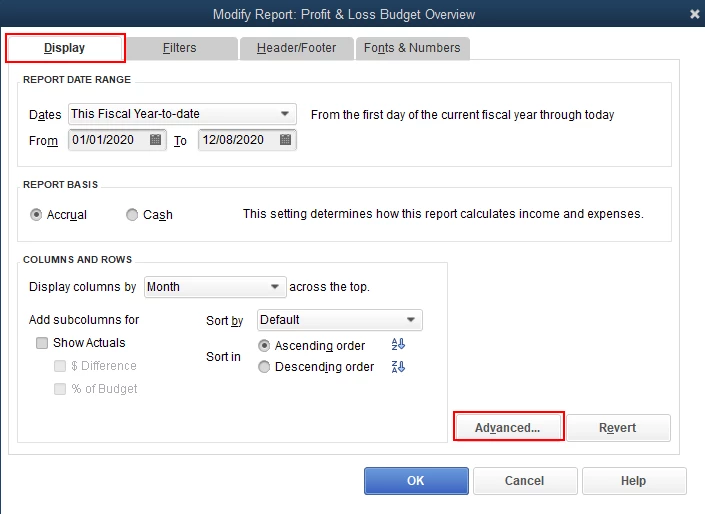
  3. From the Display tab, select Advanced.
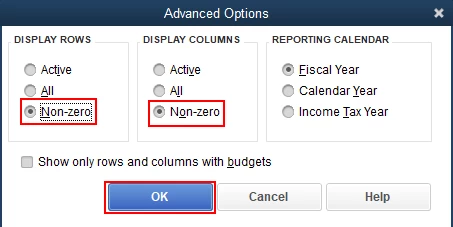
  4. In the Advanced Options window, select the Non-zero option from the Display Rows and Display Columns section.
  5. Click OK twice.

Once done, the report will only show you the accounts with amounts.


I'm adding this article for more details: Customize reports in QuickBooks Desktop.


Just in case you need to know more about setting up budgets in QuickBooks Desktop, feel free to check out this article for detailed information: Create a budget or forecast in QuickBooks Desktop.


Please know that I'm just a reply away if you need any further assistance setting up the budget. Wishing you and your business continued success.


1 reply

Mark_RAnswer
December 7, 2020

Your issues with setting up budgets end here, @PamB-SMA.


The accounts with a zero amount can never be removed upon setting up a budget since QuickBooks wanting you to fill in the data or not. You may want to customize the Budget Overview report to remove all the zero amount. Here's how:


  1. Open and run the Budget Overview report.
  2. In the report window, click the Customize Report button.
  3. From the Display tab, select Advanced.
  4. In the Advanced Options window, select the Non-zero option from the Display Rows and Display Columns section.
  5. Click OK twice.

Once done, the report will only show you the accounts with amounts.


I'm adding this article for more details: Customize reports in QuickBooks Desktop.


Just in case you need to know more about setting up budgets in QuickBooks Desktop, feel free to check out this article for detailed information: Create a budget or forecast in QuickBooks Desktop.


Please know that I'm just a reply away if you need any further assistance setting up the budget. Wishing you and your business continued success.

December 8, 2020

Greetings, @PamB-SMA.


I'm back to check if you were able to remove all the zero amount from the Budget Overview report after following the steps I shared. I can provide further assistance if you need more help.


Have a great day and take care always!

PamB-SMAAuthor
December 9, 2020

Sorry for delay in replying ... got sidetracked on other projects!   That answer was exactly what I needed.  I have saved budget reports and so went in and adjusted them with the Non-Zero and it worked perfect!!! THANK YOU THANK YOU THANK YOU!