Solved
Can i charge the processing fee to the customer
wanting to charge the customer for the processing fee rather than myself


Let me show you some options to charge your customers for the credit card processing fee in QuickBooks Online (QBO).
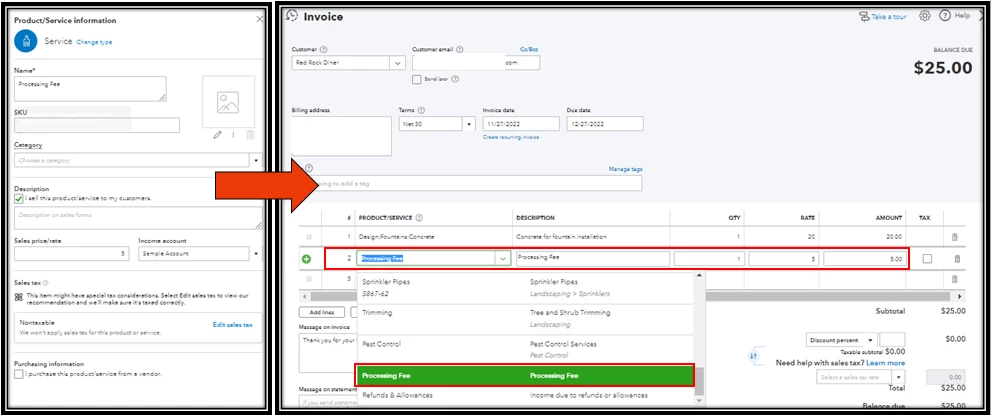
As stated by Fiat Lux Asia above, QuickBooks Payments doesn't have this feature. As a workaround, you'll want to create a service item for the fees and manually add it to your invoice. Follow these steps to proceed:
Once completed, add the processing fee as an additional item to your invoice to charge your customers.
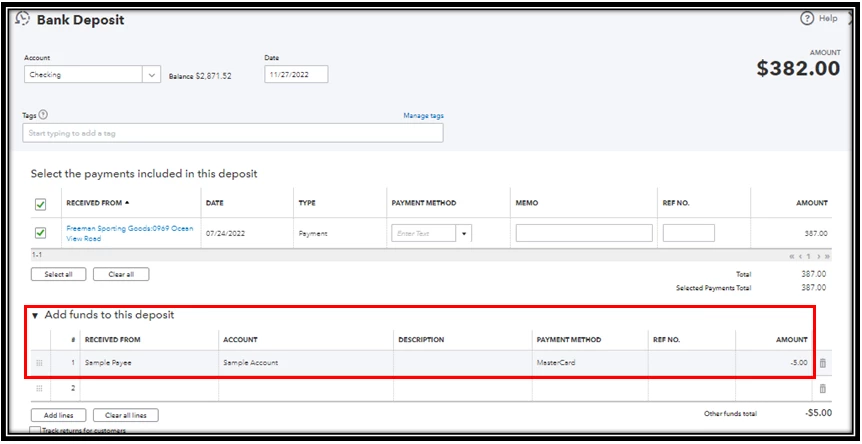
Another option is to add negative amounts for the fee together with your transactions when generating the deposit. Here's how:
On the other hand, here's a resource that you can follow when your customer has overpaid you: Handle a customer credit or overpayment in QuickBooks Online. You can use the credit toward an invoice, refund the customer, or enter the overpayment as a tip in QuickBooks.
Feel free to post again if you have other QuickBooks concerns. The Community forum is always open to answer your questions. Have a great day!
Enter your E-mail address. We'll send you an e-mail with instructions to reset your password.