November 19, 2020
Solved

Can I hide/ unhide journal entries on reports?

  • November 19, 2020
  • 2 replies
  • 0 views

Is there a way to flip journal entries on and off? I want to compare what the balance sheet would look like if I did, or did not make certain entries. Is there a simple way to do this other than deleting out the numbers in the journal entry, and adding them back in?

Best answer by MadelynC

It depends on the type of report, @kkat.


Can you tell me what exact report in QuickBooks Online you’re running?


QuickBooks is designed based on the most needed functions and features to make sure your preferred settings, customization, and other components are provided. However, it varies depends on the type of reports you’ve chosen.


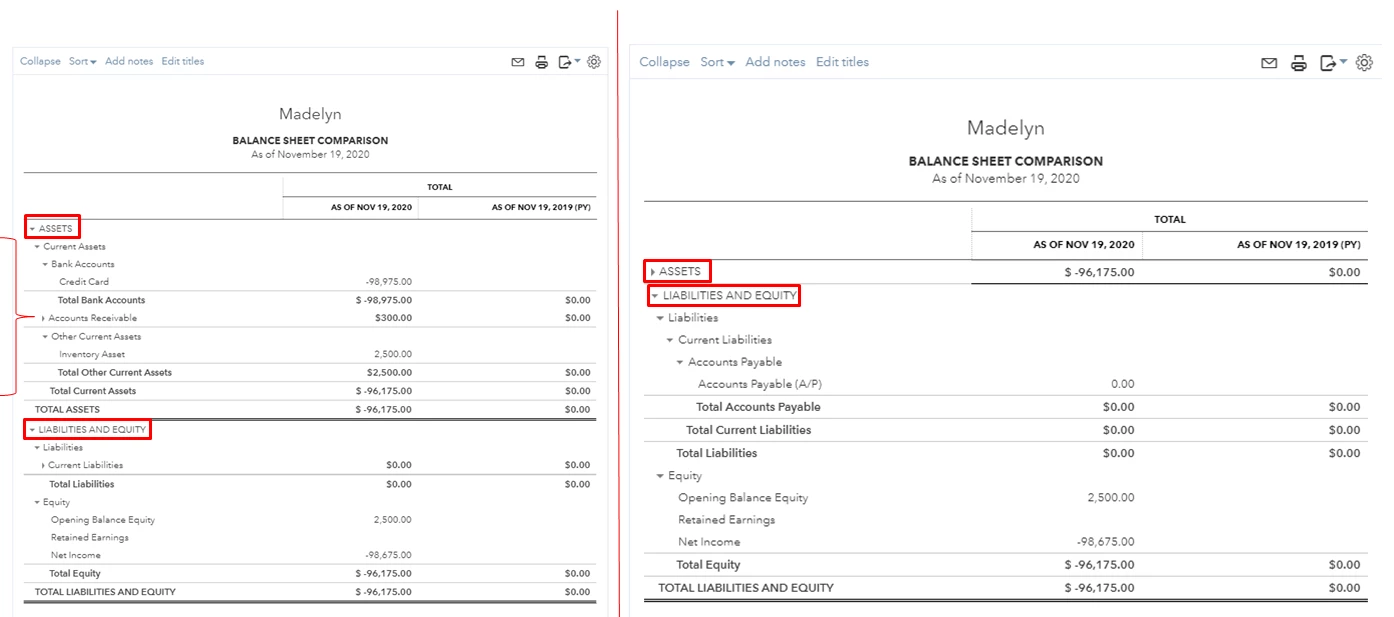
When running them, sorting and some filters might be similar, but they have their own differences. If you’re generating a Balance Sheet, we’re unable to control specific entries but only the accounts. Meaning,  the ability to hide/unhide the Journal Entries (JE's) is unavailable.

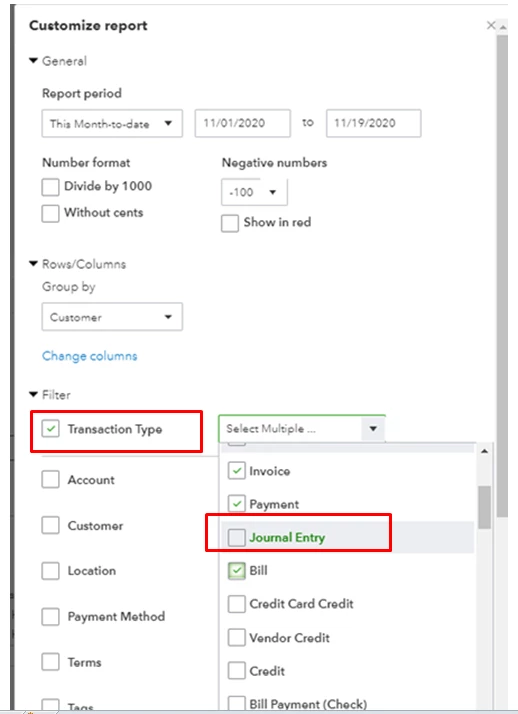
On the other hand, we can use the Transaction Type to hide your journal entries for a while. Just uncheck it under Filter so it won’t appear on the report page. Then mark again if you want to retrieve it. Let me show you how:


  1. On the Report page, click the Customize button.
  2. Under Filter, go to the Transaction Type.
  3. Put a checkmark on those events you want to show and leave the box for JE uncheck.
  4. Press Run report.


I've got an article here that provides ways to customize your reports. This is where you can manage the details, including the layout, so preferred data will show up in the right place.


Get back to me here if you have other concerns about reports. I’ll be here anytime. Take care.

2 replies

MadelynCAnswer
November 19, 2020

It depends on the type of report, @kkat.


Can you tell me what exact report in QuickBooks Online you’re running?


QuickBooks is designed based on the most needed functions and features to make sure your preferred settings, customization, and other components are provided. However, it varies depends on the type of reports you’ve chosen.


When running them, sorting and some filters might be similar, but they have their own differences. If you’re generating a Balance Sheet, we’re unable to control specific entries but only the accounts. Meaning,  the ability to hide/unhide the Journal Entries (JE's) is unavailable.


On the other hand, we can use the Transaction Type to hide your journal entries for a while. Just uncheck it under Filter so it won’t appear on the report page. Then mark again if you want to retrieve it. Let me show you how:


  1. On the Report page, click the Customize button.
  2. Under Filter, go to the Transaction Type.
  3. Put a checkmark on those events you want to show and leave the box for JE uncheck.
  4. Press Run report.


I've got an article here that provides ways to customize your reports. This is where you can manage the details, including the layout, so preferred data will show up in the right place.


Get back to me here if you have other concerns about reports. I’ll be here anytime. Take care.

July 5, 2023

Hi, I am a similar issue. I want to use one of the "who owes you" reports but I have journal entries that have opening balances from our previous software that I do not want to show. I cannot find where in the customize section of those reports I can exclude those entries?


Thanks

July 5, 2023

Hi Sarah_T,


Thanks for posting in the Community! 


Can you verify the exact report name you're trying to generate in Who owes you section? That would be helpful for me to check and provide you the steps on how to customise the report without showing the journal entries with opening balances. Thanks. 


MJoy_D
July 5, 2023

Thank you for getting back to us, @Sarah_T


I'm here to help you with generating the report that you need. 


When running your Transaction List by Customer report, click on Switch to classic view to have the option to set the A/R Paid filter. Check the screenshot below:


Here's more information about running and adding filters to your reports to add all the information that you need: Customise reports in QuickBooks Online


From here, you can save it with its current customisation settings to easily find and run the report the next time: Memorise reports in QuickBooks Online


Let me know if you need further help running your report. I'm always here to assist. Have a great rest of the day!