

February 16, 2023
Solved

Can I modify my invoices to show both my company physical address and a different mailing address? Or can I add a "remit payment to:" address?

  • February 16, 2023
  • 1 reply
  • 0 views
When I change my company address on my invoices to the physical location of the business, they send payments there regardless of what I tell them - I have no postal service at the business though.  When I change the address to the mailing address, inevitably someone shows up at my house to pick up a product.  I really need both addresses printed on my invoices!  The old desktop versions could easily be modified - I cannot find any way to do this in the online version though.
Best answer by Mich_S

We hear your suggestions and recognize your need for the feature, @cfmtna. I'll give you some information about it.


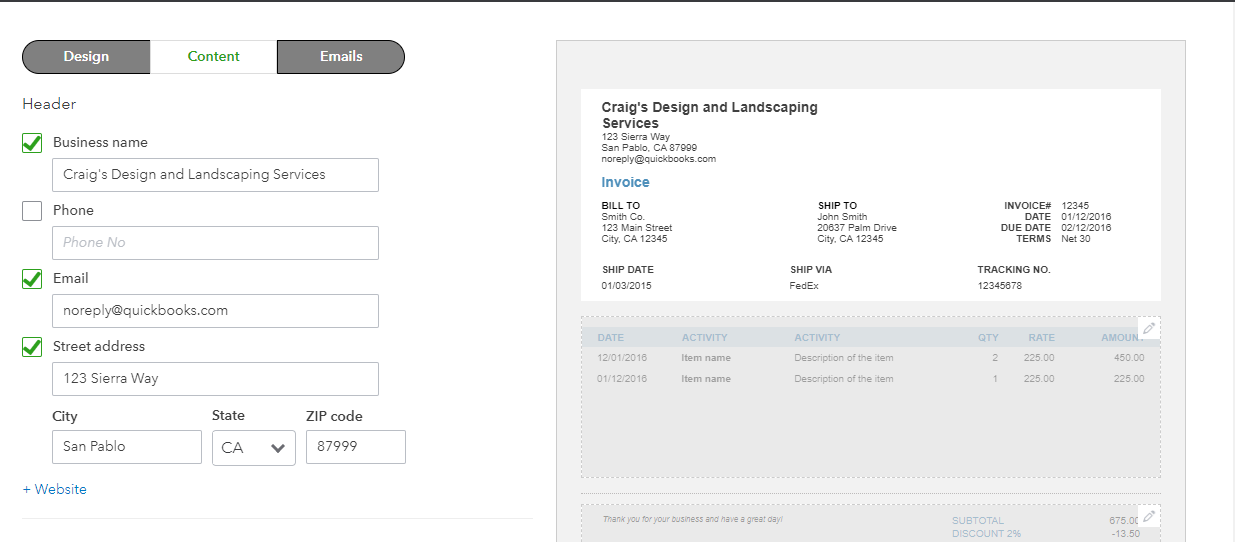
Currently, only one business address can be added to the invoice in QuickBooks Online.


I suggest sending us feedback about this. This will notify our product developers about the feature you desire. I'll walk you through submitting feedback:


  1. Click on the Gear icon at the top, 
  2. Select the Feedback option.
  3. Fill in your comments or product suggestions. 
  4. Once done, click on Next to submit feedback.


You can also visit our website to review feature request updates in the future: Customer Feedback for QuickBooks Online.


Furthermore, here are some helpful links about personalizing invoices and other sales forms. This also includes steps on how to manage invoice payments in QBO.


Don't hesitate to click on the Reply button if you need anything else regarding invoices or QuickBooks. We'll make sure to respond as soon as we can. Take the best care!

1 reply

Mich_SAnswer
February 16, 2023

We hear your suggestions and recognize your need for the feature, @cfmtna. I'll give you some information about it.


Currently, only one business address can be added to the invoice in QuickBooks Online.


I suggest sending us feedback about this. This will notify our product developers about the feature you desire. I'll walk you through submitting feedback:


  1. Click on the Gear icon at the top, 
  2. Select the Feedback option.
  3. Fill in your comments or product suggestions. 
  4. Once done, click on Next to submit feedback.


You can also visit our website to review feature request updates in the future: Customer Feedback for QuickBooks Online.


Furthermore, here are some helpful links about personalizing invoices and other sales forms. This also includes steps on how to manage invoice payments in QBO.


Don't hesitate to click on the Reply button if you need anything else regarding invoices or QuickBooks. We'll make sure to respond as soon as we can. Take the best care!