December 22, 2020
Solved

Can you add customer specific pricing on a service? Each customer is on different pricing and entering each one is time consuming.

  • December 22, 2020
  • 2 replies
  • 0 views
On weekly service clients can I set a price specific to each customer? Service is "Weekly Lawn Cut" - each invoice I have to manually enter their pricing - it would be nice to set the price before and just select the service and bill. Thanks.
Best answer by jamespaul

Hello, info1114.


It's definitely time consuming to manually enter the pricing every time you create a sale. You can save time by using the Price rules feature. I'll show you how to turn it on and use it. 


Note: This feature is only available in the Plus or Advanced version. 


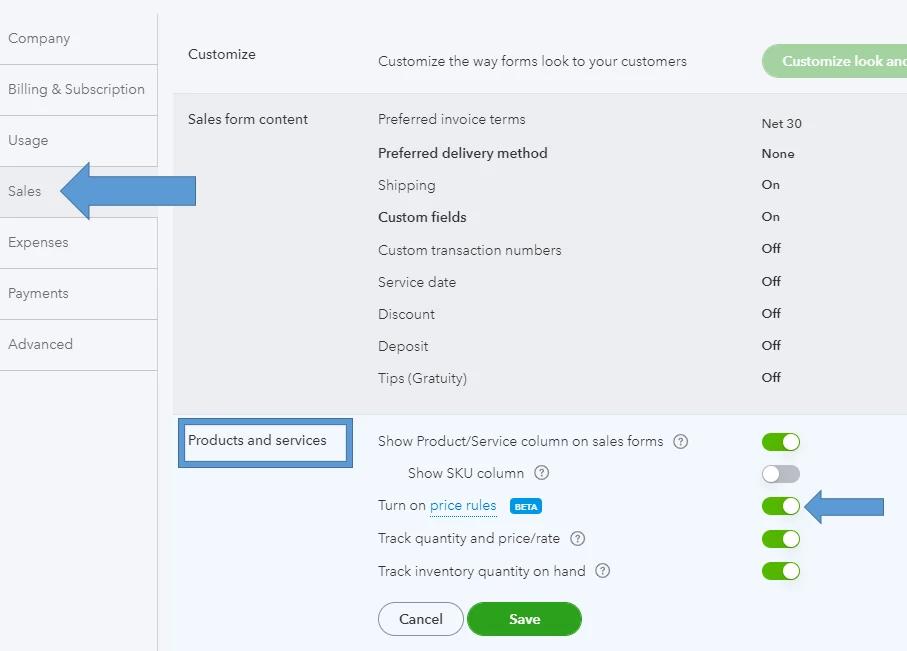
First, let's turn the feature on by going to the Account and settings: 


  1. Click the Gear icon, then choose Account and settings.
  2. Go to Sales.
  3. Expand the Products and Services section.
  4. Toggle the Price rules feature to on.
  5. Click Save then Done


Next, set a price rule for your weekly clients or customers and the specific service: 


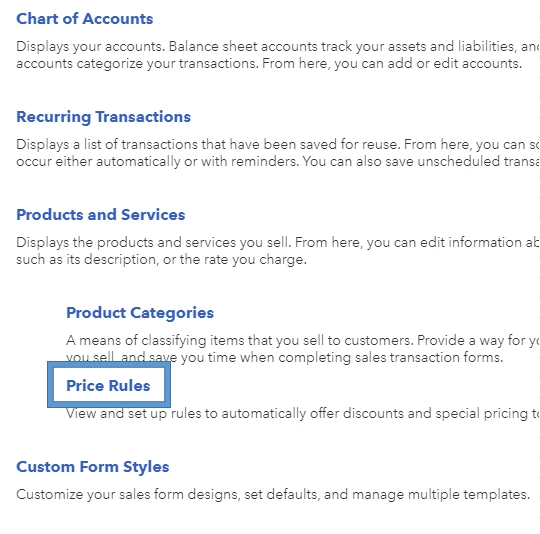
  1. Click the Gear icon again, then choose All lists.
  2. Select the Prices Rules option.
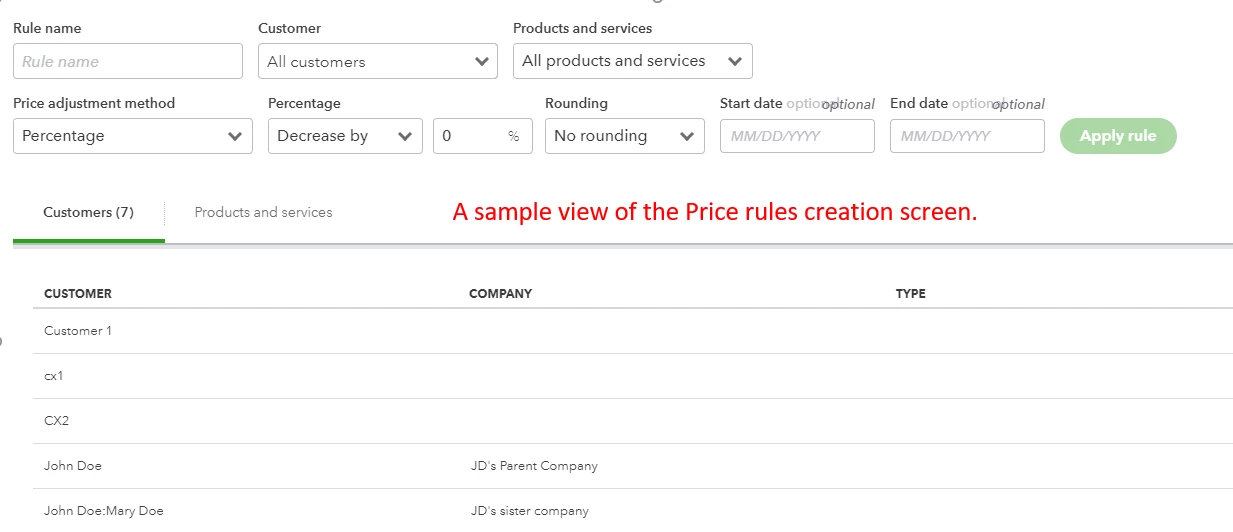
  3. Click the New price rule button.
  4. Set a rule name.
  5. Choose a customer or a set of customers, then a specific product or service.
  6. Adjust the price rule settings, then set a specific price.
  7. Once done, click Save and close


If you're looking to learn more about the feature, this article has all the details you need: Set price rules in QuickBooks Online.


Our sales and customers topic can also help you create and customize sales forms, manage your clients' profiles, and more. Browse the articles here


Do you need help managing other lists, transactions or tasks in QuickBooks Online? Do let me know in the comments below. I'm here to assist. 

2 replies

jamespaulAnswer
December 22, 2020

Hello, info1114.


It's definitely time consuming to manually enter the pricing every time you create a sale. You can save time by using the Price rules feature. I'll show you how to turn it on and use it. 


Note: This feature is only available in the Plus or Advanced version. 


First, let's turn the feature on by going to the Account and settings: 


  1. Click the Gear icon, then choose Account and settings.
  2. Go to Sales.
  3. Expand the Products and Services section.
  4. Toggle the Price rules feature to on.
  5. Click Save then Done


Next, set a price rule for your weekly clients or customers and the specific service: 


  1. Click the Gear icon again, then choose All lists.
  2. Select the Prices Rules option.
  3. Click the New price rule button.
  4. Set a rule name.
  5. Choose a customer or a set of customers, then a specific product or service.
  6. Adjust the price rule settings, then set a specific price.
  7. Once done, click Save and close


If you're looking to learn more about the feature, this article has all the details you need: Set price rules in QuickBooks Online.


Our sales and customers topic can also help you create and customize sales forms, manage your clients' profiles, and more. Browse the articles here


Do you need help managing other lists, transactions or tasks in QuickBooks Online? Do let me know in the comments below. I'm here to assist. 

info1114Author
December 22, 2020

Sound good I appreciate the help.  I will however have to keep doing it the way I have been, going to Plus or Advanced is way more than I need.


Thanks again.

June 21, 2022

Seriously annoying this isn't available to UK customers. I'm willing to pay to upgrade to the more advanced version, but it's not even available. Why exclude an entire country from using such a useful feature which already exists!??!

JasroV
June 21, 2022

I hear your sentiments, @JohnnyDMonic.


I understand how the price rule feature can help you run your business more smoothly.


In the meantime, you'll want to manually apply a discount to your invoice. I'll show you how.


  1. Go to the Gear icon and select Account and settings.
  2. Select the Sales tab.
  3. In the Sales form content section, select the pencil icon.
  4. Turn on the Discount setting.
  5. Click Save and then Done.


To add the discount to your invoice:


  1. Go to the + New.
  2. Select Invoice, Estimate, or Sales receipt.
  3. Add your products or services in the Product/Service column. Then fill out the rest of the sales form.
  4. To record a discount, select Discount percent to enter the discount as a percentage. Or select Discount value to enter the discount as a specific amount.
  5. Enter the percentage or amount you want to discount in the discount field.
  6. When you're finished, select Save and send or Save and close.


You can also refer to this article for more details: Add a discount to an invoice or sales receipt in QuickBooks Online.


Additionally, you can also utilize a third-party app that lets you set price rules for your customer. Simply hover to the Apps menu inside your QBO and look for an app from there.


I'd also recommend sending your feedback to our Development team. They will review your suggestion and may consider including it in the next update.


Once you're ready, I've included an article that will help you manage your customer payments easily: Record invoice payments in QuickBooks Online.


If you have any further questions about your invoices or QBO, please let me know. I'll be there to help you. Take care!