

July 5, 2022
Solved

Cash Basis Expense Report Missing Transactions

  • July 5, 2022
  • 5 replies
  • 0 views

Hello


I'm running into problems with cash basis expense reports not including transactions that should be shown with the selected date range. It only shows cash basis expenses if both the bill and the bill payment are within the date range. The expected behavior is that a cash basis report should show a payment regardless of when the bill was received or whether or not the bill is also in the filtered date range.


The specific report I'm trying to work with is: Reports > Job Costing > Job Costs By Vendor And Job Summary in Quickbooks Desktop Premier Contractor Edition 2020.


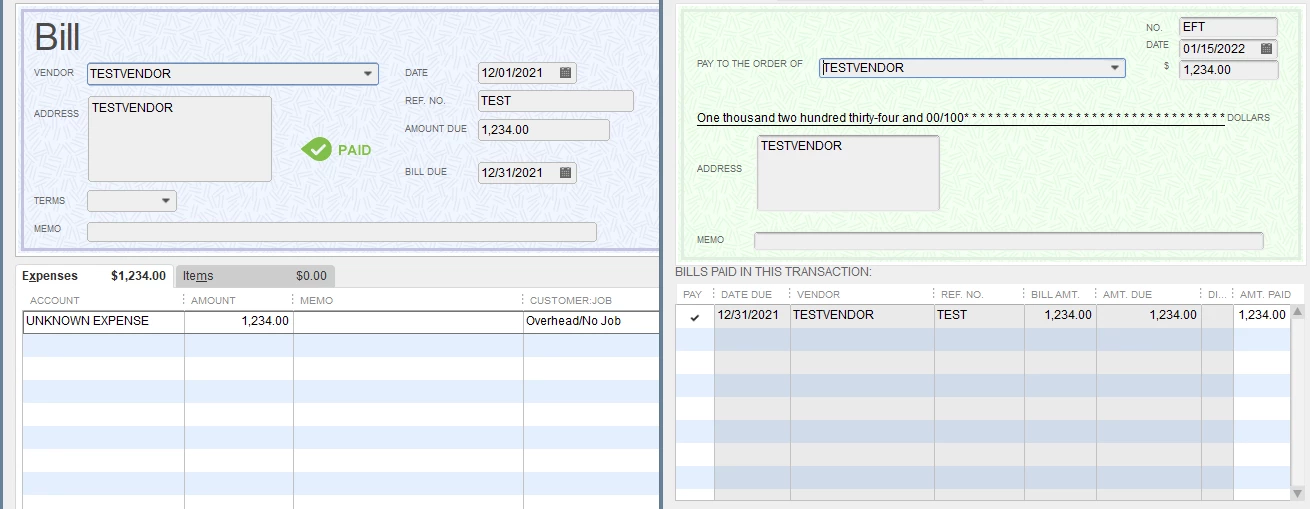
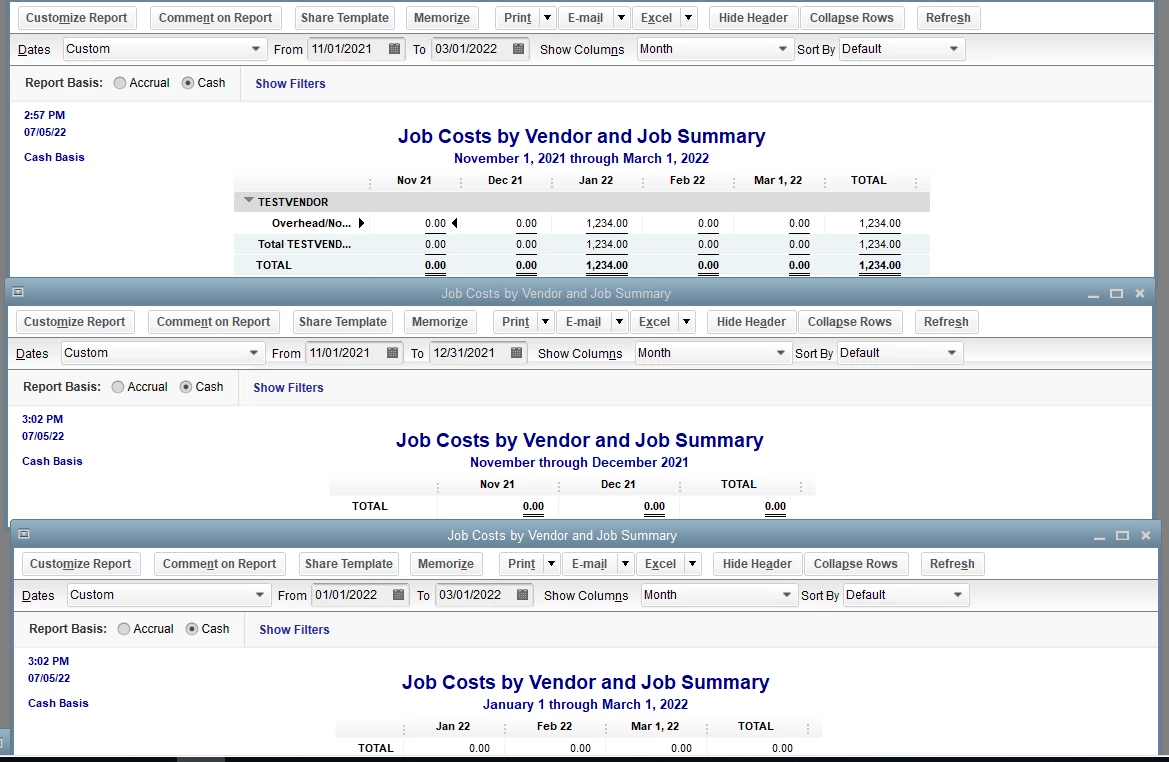
Here's an example: Bill entered on 12/1/21 but paid on 1/15/22. I would expect a cash basis report for January 2022 to include this bill payment, but it does not. A cash basis report for December 2021 also does not show this bill payment. Only a cash basis report that includes BOTH December 2021 AND January 2022 shows the expense correctly in January 2022.


See the below example bill, bill payment, and reports. The 3 reports are filtered exactly the same except for date ranges.
 

Here's why it matters: I need to show expenses per Vendor and per Customer/Job within a specific date range for insurance purposes. If my insurance period is 5/1/21 - 5/1/22, I need to show the exact amounts actually paid within that range to each Vendor AND broken down by Customer/Job. The bill date is irrelevant. What I actually need is to filter by Job Type, but that does not appear to be an option so I'm filtering by Customer/Job as a compromise.
Best answer by BigRedConsulting

@JABUIL 

RE: Yes and yes, they both show as linked to each other in transaction history


If you'd like I can look at it for you. We offer a data-fixing service, though I doubt that's needed in your case. There's something else weird going on, and I'm curious to figure it out. I'll probably get farther than support...


If interested, see my website link on my profile and then send a support request to get started. It'll come to me and I'll reply with instructions.


So, on review, by actually testing QuickBooks I figured out the bug in the report. It was not that hard.


The issue is:

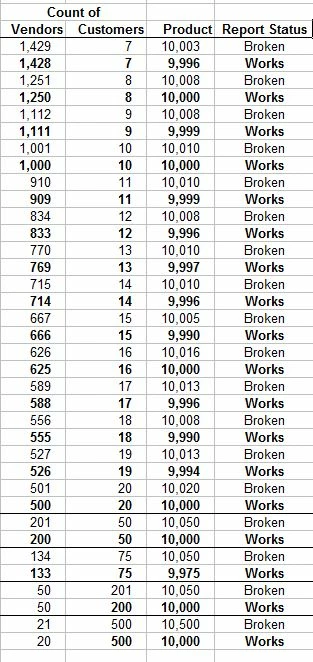
If the product of the customer list count and the vendor list count is more than 10,000, then the report breaks and does not include bills from outside of the report period even if they are paid during the report period.


This is why the report works when testing the a tiny sample company, but not in real company files.


Here are the results I found in a test company, set up from scratch (and not corrupted), when adding and deleting Vendors and Customers and checking the report as I went:


All of the "Job costs by..." reports are broken in the same way, probably because they're all based on the same buggy internal report structure.


So, if you're having problems with these reports on a cash basis, use the F2 dialog to determine if your customer list count * vendor list count is > 10,000. If so, then that's why.


5 replies

BigRedConsulting
July 5, 2022

Where do you access that report? I'd like to try it, but I can't find it anywhere on my Reports menu. I tried using multiple QB versions, up to 2022...

JABUILAuthor
July 6, 2022

Using the Reports dropdown menu at the top, it's at Reports > Job Costing > Job Costs By Vendor And Job Summary. Perhaps it's exclusive to contractor edition? It's not a custom report I saved or anything.


However if you know a different report that would serve the purpose I mentioned at the end of my post, I'd gladly use something else.

July 6, 2022

Thanks for getting back here in the thread, @JABUIL. I'll be pleased to share the steps so you can get through this and show the needed data in your report in QuickBooks Desktop (QBDT).


You can consider running a Profit & Loss by Job report, and filter it to show the data that you need. To begin, here's how:


  1. Go to Reports on the top menu.
  2. Choose Company & Financial, and then select Profit & Loss by Job.
  3. Click Customize Report tab.
  4. Choose Customer: Job in the Display columns by section, then tick Filters.
  5. Enter the Job status in the Choose Filter field.
  6. Select All in the Job Status field.
  7. Enter Transaction Type in the Choose Filter field.
  8. Choose the transaction in the Transaction Type field.
  9. Press OK and OK.


Additionally, I've got you this article in case you'd like to set up and modify scheduled reports in QBDT: Set up and modify Scheduled Reports.


You may also check this article in case  you'd like to export reports as Excel workbooks in QBDT: Export reports as Excel workbooks in QuickBooks Desktop.


If you need assistance performing specific tasks in QuickBooks Desktop, feel free to post here in the Community space. Our dedicated QuickBooks Team is always ready to help you. Take care, and stay hydrated!

Rainflurry
July 6, 2022

@JABUIL 


How about running a Transaction List by Vendor report? (Reports > Vendors & Payables > Transaction List by Vendor).


You can filter that report by Vendor, Job Type, Customer:Job, and Paid Status over any timeframe.  Those are all of the filter criteria you mentioned.


JABUILAuthor
July 6, 2022

No, that doesn't work correctly. Vendor and Customer:Job are both filtered by "Name", not separately. So for example, if I choose names "Vendor A" and "Customer Z", it does not show me only those payments to Vendor A for Customer Z, it instead shows me ALL Vendor A transactions. Picking a Customer:Job in the Name filter doesn't affect the report at all.


Same for filtering on Job Type. If I pick a Job Type to filter by, no transactions are shown at all.

BigRedConsulting
July 7, 2022

I finally found the report.  When I try it, it seems to work as expected: When the bill precedes the payment and is before the date range of the report, and the payment is within the date range, the expenses are included as expected.


What type of account is your "UNKNOWN EXPENSE" account, as viewed on your chart of accounts? Perhaps that matters.

JABUILAuthor
July 7, 2022

It's an "Other Expense" since it's just an example account. However I tried changing the bill to both Expense and Cost of Goods Sold and nothing changed, it's still broken. The actual accounts that I am trying to work with in reality are COGS, and they too don't function correctly.

BigRedConsulting
July 7, 2022

@JABUIL

Well, not sure. It works as expected when I try it.


RE: So clearly there's an issue specific to my company file. How can I diagnose and fix that if the verify data utility found nothing wrong?

Are you sure the bill payment is currently applied to the bill?  If you open the bill payment, is the bill selected as paid?


Here's a screenshot showing the report - on a cash basis, the bill from before the report period, and the payment in the the report period:


I used QuickBooks 2020 and 2022 and got the same (good) results. What version of QuickBooks are you using?

JABUILAuthor
July 7, 2022

Update: I used the QB support chat as suggested by GebelAlainaM. They were unable to replicate the problem and directed me to verify data and then try a clean re-install of QB.


The verify data found no issues, so I did the clean re-install. The issue still occurs in my company file after re-install and update.


However, I tried the sample contract company file and the report functions correctly there.


So clearly there's an issue specific to my company file. How can I diagnose and fix that if the verify data utility found nothing wrong?

KlentB
July 7, 2022

I'll make sure that you'll get accurate reports, EBFinancials.


Running the Verify and Rebuild utilities scans your company file for potential data issues and fixes them right away. However, there are certain errors and damages that won't be detected and rectified during the process.


When this happens, you can install QuickBooks Tool Hub and then QuickBooks File Doctor to resolve this issue. This program is a collection of tools that can help resolve major issues that a user might face while working in QuickBooks Desktop. For the best experience, we recommend using this on Windows 10, 64-bit. 


Here's how to install it:
 

  1. Close QuickBooks.
  2. Download the most recent version (1.4.0.0) of the QuickBooks Tool Hub.
  3. Open the file you downloaded (QuickBooksToolHub.exe).
  4. Follow the on-screen steps to install, then agree to the terms and conditions.
  5. When the install finishes, double-click the icon on your Windows desktop to open the tool hub.

Once done, run the Quick Fix my File tool:
 

  1. From the tool hub, select the Company File Issues tab.
  2. Select Quick Fix my File.
  3. Once the process is completed, click OK.
  4. Open QuickBooks again, then pull up and filter the report.

If there the same thing happens, you'll have to use QuickBooks File Doctor:
 

  1. From the tool hub, go to the Company File Issues tab.
  2. Select Run QuickBooks File Doctor.
  3. Choose your company file from the drop-down menu.
  4. Select Check your file (middle option only), then click Continue.
  5. Enter your QuickBooks admin password, then hit Next.

Once the scan finishes, open QuickBooks and your company file. Take note that your issue may have been resolved even if the scan says it was unsuccessful.


Lastly, I recommend reading this article to help track your vendor and expenses transactions: Customize vendor reports.


Keep me posted if you need additional assistance in running your other reports. I'll always have your back.

JABUILAuthor
July 8, 2022

The tools hub quick fix and QB file doctor did not detect any issues and the problem is still occurring. No change.

July 8, 2022

Thanks for getting back to this thread, @JABUIL.


Since you're still getting the same result after performing the suggested steps, I'd recommend reaching out again to our QuickBooks Desktop Customer Support Team. That way, they can perform a further investigation and isolate the issue.


You can follow these steps to connect with them:


  1. Go to the Help icon and select QuickBooks Desktop Help.
  2. Click Contact Us.
  3. Write your concerns in the description box, then select Continue.
  4. Select which one of the support options you'd like to use.


Please check out our support hours to ensure that we address your concerns on time.


Also, our Help articles might have something that can help you with your other QuickBooks concerns, too. Just make sure that the topic is set as "QuickBooks Desktop" to browse for related posts.


Let me know if you have further questions or concerns. I'll be here to help you every step of the way. You can always reach out to the Community or me anytime you need assistance. Stay safe.