

November 22, 2024
Question

Categorizing Credit Card Refund Transactions in QuickBooks

  • November 22, 2024
  • 1 reply
  • 0 views

I have a situation where I purchased an airline ticket for $173 using a credit card. However, the transaction did not go through, and the amount was refunded back to my credit card. Now in QuickBooks and my bank account, I see two entries:
1. A $173.99 expense for the purchase. Initial charge. 


2. Later, I received a $173.99 refund labeled as “Credit Card Credit.” It should be "Expense" even it's a refund, right? 
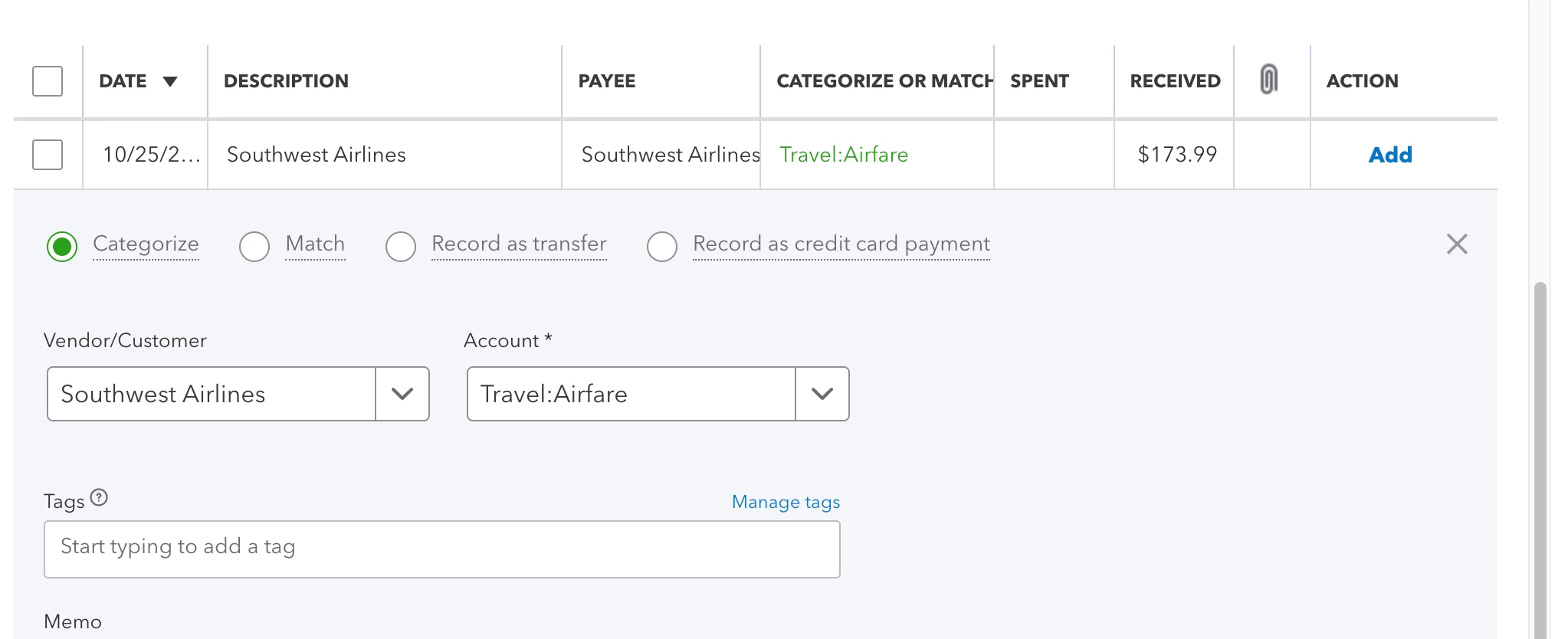

When reviewing these transactions in QuickBooks, the only option for the refund is to “Categorize.” Once I categorize it, it shows as a“Credit Card Credit.”


My understanding is that this should be treated as a refund and still considered part of expenses, but I’m unsure if I need to adjust anything. Could you confirm the correct way to handle and categorize this type of transaction to ensure accurate bookkeeping? 


I’ve attached screenshots of the transactions for reference.


Thank you!

1 reply

November 22, 2024

To add the second screenshot - After I categorized it shows as credit card card.


November 22, 2024


Hi, Heppy.


I am here to support you and would happily assist in properly recording your transactions to enhance your experience.
 

A credit card credit happens when you get a refund from your vendor, putting some money back in your pocket. That's why it appears in credit card credit. Thank you for providing a screenshot; it greatly clarifies the situation and enhances our understanding.

That is the correct method for processing vendor refunds and categorizing these transactions.

To record a refund, follow these steps:
 

  1. Select + New.
  2. Choose Credit card credit.
  3. In the Payee field, select the appropriate vendor.
  4. From the Bank/Credit account ▼dropdown, select the credit card where you received the refund to.
  5. Enter the Payment date, refund AmountTax and Category. Please note that the category used here is the original expense account on the original bill.
  6. Select Save and close.


When categorizing, use the same expense account as the original transactions.


Now, let's categorize this in your banking section. For detailed instructions, please refer to this article: Categorize and match online bank transactions in QuickBooks Online.


Additionally, I'm providing this link to assist you with reconciling your accounts to ensure they consistently align with your bank and credit card statements.


Feel free to reply anytime with questions or concerns about recording your transactions. I'll be here to assist you further. Take care and have a good one.