September 20, 2023
Solved

Create a weekly report for specific accounts from CoA

  • September 20, 2023
  • 1 reply
  • 0 views

I have multiple CoGs accounts in my CoA's separated out by various categories relative to my business. I want to create a weekly report that only includes the accounts (from the chart of accounts) that I select and run it over a 7 day window that starts on Wednesday and ends on Tuesday. How do I do that? 

Best answer by Rasa-LilaM

Thanks for dropping by the Community today, Akervin.


Let's open the Transaction Detail by Account and customize it to show the accounts you wish to show on the report. I'm here to help and guide you through the steps. 


Here's how:


  1. In QuickBooks Online (QBO), head to the Reports menu on the left panel and type Transaction Detail by Account in the search bar. 
  2. This action will open a page that shows the list of accounts. 
  3. Click the Report period drop-down to select Custom and set the correct days in the appropriate fields. 
  4. Tap the Customize button to display the Customize report screen.
  5. Press the Filter link and click the Distribution Account drop-down to select the categories you're working on. 
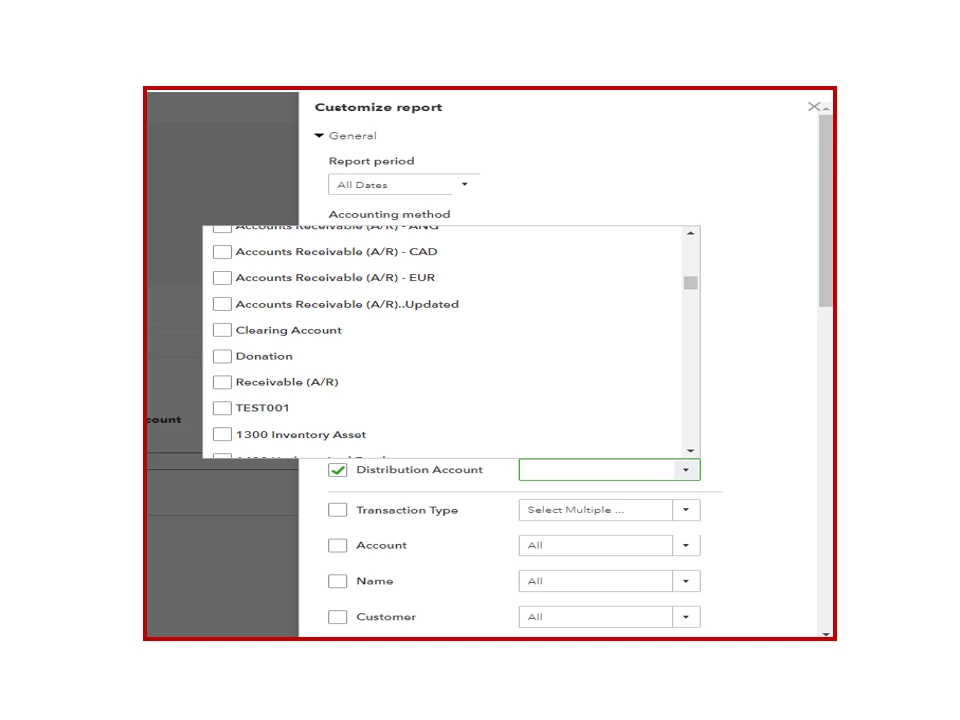
  6. Click the Run report button to apply the changes. 


You can also utilize the Save customization function to keep the current setup of the report. Additionally, these resources outline the complete steps on how to sort or filter the data on statements:


Feel free to visit the Community again if you have further questions about building reports and other QuickBooks-related tasks. I'll get back to make sure you're taken care of.


1 reply

September 20, 2023

Thanks for dropping by the Community today, Akervin.


Let's open the Transaction Detail by Account and customize it to show the accounts you wish to show on the report. I'm here to help and guide you through the steps. 


Here's how:


  1. In QuickBooks Online (QBO), head to the Reports menu on the left panel and type Transaction Detail by Account in the search bar. 
  2. This action will open a page that shows the list of accounts. 
  3. Click the Report period drop-down to select Custom and set the correct days in the appropriate fields. 
  4. Tap the Customize button to display the Customize report screen.
  5. Press the Filter link and click the Distribution Account drop-down to select the categories you're working on. 
  6. Click the Run report button to apply the changes. 


You can also utilize the Save customization function to keep the current setup of the report. Additionally, these resources outline the complete steps on how to sort or filter the data on statements:


Feel free to visit the Community again if you have further questions about building reports and other QuickBooks-related tasks. I'll get back to make sure you're taken care of.