June 28, 2021
Solved

Customer start date report

  • June 28, 2021
  • 1 reply
  • 0 views

I want to be able to run a report that sorts our customers by start date, i.e. the date of their first transaction (sales order or sales receipt). I need to be able to filter that report by customer type and by date. Can this be done? I know that QB has that information because the customer snapshot can tell us exactly how long anyone has been a customer.

Best answer by BigRedConsulting

Rubielyn,


Thank you for your response but it's truly disappointing. In trying to find a solution for this online we've found requests for this report that go back ten years. I have little hope that sending a feedback request will suddenly motivate your developers to make this available. And holding out the possibility that it might show up in a future update does nothing to solve my problem now. 


I'm still open to work-around suggestions, though none of the reports I've been offered so far will get me the information we want.


Unfortunately QuickBooks won't create the report you need.


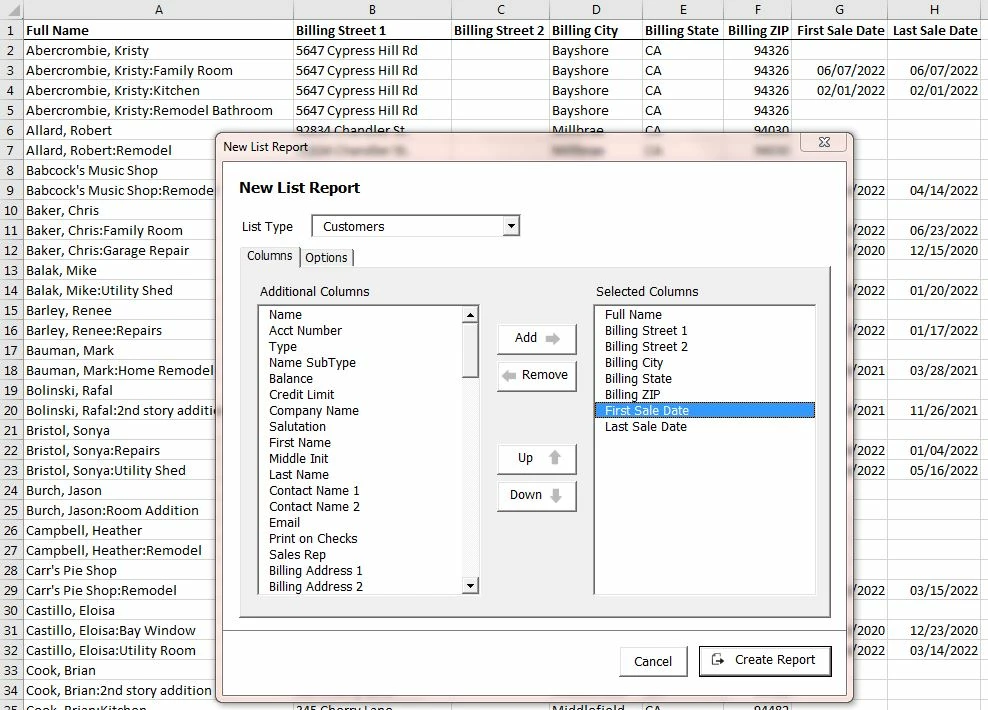
However, you can use our BRC List Reporter to create the report. It will create a customer list report where you can include most fields from customer records and also some special fields including first and last sale date:

 

1 reply

JessT
June 28, 2021

Hi suzy8!


Thank you for visiting the QuickBooks Community. We'll be able to achieve this report by customizing the Transaction List by Customer and exporting it to Excel. I'll guide you through it.


In QuickBooks:

  1. Open the Transaction List by Customer report.
  2. Set the Dates to All.
  3. In the Sort by droplist, select Date, and beside it should be A to Z.
  4. Click Excel and choose Create New Worksheet.
  5. Click Export.
     

In Excel:

  1. Only retain the first or oldest transaction per customer.
  2. Place the customer's name within the transaction line.
  3. Remove the empty columns.
  4. Sort the transactions by date.

You can also check about customizing reports for your reference in the future.


If you have other concerns, please don't hesitate to go back to this thread. I'll be more than happy to assist you again. Take care!

suzy8Author
June 28, 2021

Thanks so much for your response, Jess. I had thought of using the transaction list, but we have more than 30,000 customers so going through an Excel sheet to put the customer and their oldest transaction on a single line isn't very practical. Is there a way to extract the information from the customer snapshots or any other way to get it?

Angelyn_T
June 28, 2021

You can customize the names on your report to filter the information, Suzy. I'll guide you on how.


  1. Click on Customize Report from the report's page.
  2. Go to the Filter section, then select Name.
  3. Tap on Multiple names, then choose the customers you want to add to the report.
  4. Hit OK twice.


From there, only those selected names will appear on the report.


For more tips about handling your reports in QuickBooks Desktop, you can open this article: Understand reports.


I'm also adding this article for more resources about tracking your customers' transactions: Get started with customer transaction workflows in QuickBooks Desktop.


If you have any other questions, please let me know by adding a comment below. I'm more than happy to help. Keep safe!
