March 3, 2025
Solved

Desktop Export with Customer Account #

  • March 3, 2025
  • 2 replies
  • 0 views

I am a QB novice. I'm trying to export customer contact info along with their specific customer account #. I'm told this is called a customer ID if using Online. But we're still in desktop mode. I need this export in order to match clients so that they sync with our new company software. 


Thank you. 

Best answer by BigRedConsulting

I'm sorry. My original reply did not post. 

I've been told that customer account numbers or IDs exist. However I have not been able to view or display them.

Quick scenario summary. We exported about 7k customers from old software A to new software B. Since software A never synced with QB it did not matter if customer names did not match exactly. Now we are preparing to sync software B with QB and need the customer names to match exactly. Software B is requesting our QB company file in order to match customers and clean up the many that do not. For this they require a specific identifier (Customer acct #/QB ID) as opposed to matching a John Doe with a Johnathan Doe by address or phone/email. 

My company is hesitant to share our company file, so I was hoping to create an export with Customer Account #/QB ID, Customer Name, Address, Phone, Email. I just need to find a way to find and include the customer #/QB ID part. 


OK, that makes sense.


There is no visible unique number assigned to customers by QuickBooks. There is the Account # field, where you can enter nothing or any text you want, and it can be a duplicated on different customers. So, neither required nor unique.


However, there is a ID assigned to each name as it's created - which will never change for that name.  You can't see it within QuickBooks, but you can see it if you export the customers to an IIF file, which is a tab-delimited file you can open in Excel.  The IDs are in the REFNUM column:
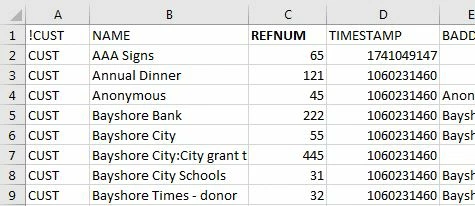
 

All of the other data fields you mentioned are in the IIF file as well.



2 replies

March 3, 2025

I appreciate you for reaching out today, @KHutch1. The option to export a customer's contact information is in the Customer menu. I'll walk you through the process and provide a screenshot for seamless navigation.

Before anything else, when you download the customer's data outside of QBDT, it also exports the data they have in their profile. Thus, exporting the customer account number alone isn't possible. To begin, these are the steps:

  1. Access your QuickBooks Desktop company.
  2. Go to the Customer menu.
  3. Select Customer Center and click the Customers & Jobs tab.
  4. Click Excel and choose Export Customer List.
  5. Select the Export button and choose a location where you want to save the file.
  6. Once done, click the Save button. After exporting, access the folder where you save the exported file.


For visual reference, see the image below.


On the other hand, here's an article to help you generate a report that help monitor customer transactions or sales reports in QBDT: Customize customer, job, and sales reports in QuickBooks Desktop.

I'm always ready to collaborate if you have other QuickBooks inquiries. I encourage you to utilize the comment section so I can respond promptly and lend a helping hand. Keep safe.

KHutch1Author
March 3, 2025

Thanks Kurt. I should have been more specific. I am able to export basic customer data just fine. What I'm having trouble with is getting that exported data to also include their specific customer account #. This is the identifier that I will need in order to match customers in QB and new software. 

March 3, 2025

Hello KHutch1,


Thanks for sharing this update! Just to verify some information here, could you share a screenshot of where you view the specific customer account information number? Please remember to remove or cover any sensitive information. 


I am looking forward to your response! See you in a few. 

March 15, 2025

You can export customer contact information by following these steps in QBD:


1. Go to Reports -> Customers and Receivables -> Customer Contact List.
2. Click Customize Report and add the Customer Account # field
3. Click Excel -> Create New Worksheet or Export to save it as a CSV.


If you need an automated solution to sync QuickBooks Desktop data with your new company software, you can use Skyvia (https://skyvia.com/connectors/quickbooksdesktop). It provides a no-code way to export and integrate customer data efficiently.
