

July 9, 2020
Solved

Detailed Open Sales Order Report has negative Qty and Amounts

  • July 9, 2020
  • 3 replies
  • 0 views

When I print out a Open Sales Order Report it shows correctly.


But When I make the report for Detailed Open Sales Orders it gives me Negative Numbers for Quantity and Amounts


Any ideas what I am doing wrong?


I get the Details by: Reports - Sales - Open Sales By Customer

Then: Customize Report: Filters Detail Level = All or all but summary.


Actually Quickbooks Premier Plus Mfg and Wholesale edition
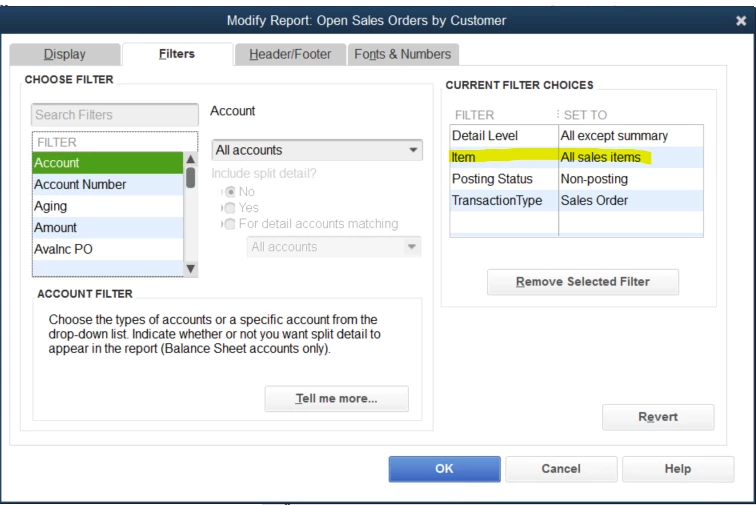


Best answer by piecake

Realize this issue is 2 years old, and not sure if you've found the solution. I was having the same issue and here's what worked for me:


On the Filters tab, add an "Item" filter for "All Sales Items."

3 replies

July 9, 2020

Hello there, @W8WCA.


It's possible that your QuickBooks Desktop (QBDT) data might have been damaged. Thus, causes a negative quantity and amounts on your sales order.


To fix this, I have some few steps to recommend to that can verify if that's the case and resolve this as well.


Here's how:

  1. Let's ensure that your QuickBooks is updated to its latest maintenance release. You can download the update from here: Update QuickBooks Desktop to the latest release.
  2. Then Run the Verify and Rebuild Tool that can resolve common data issues in QuickBooks. Check out the steps here: Verify and Rebuild Data in QuickBooks Desktop.

Once done, let's go back to review your sales order report again on what transaction type will show because the posting in the quantity will depend on the type of the transactions.


You can also check this reference on how to fix data damage on your QuickBooks Desktop company file for more information. 


Also, I've attached this article, to learn more about customizing reports in QuickBooks Desktop: Customize reports in QuickBooks Desktop.


 Keep me posted if there's anything else you need or if you have an additional concern. Just leave a comment below.

W8WCAAuthor
July 9, 2020

Thank you


July 9, 2020

Hi W8WCA. I'm glad Grace was able to get you back on track. Be sure to let us know if you need anything else. I would be glad to further assist you. 

November 9, 2021

Hey W8WCA,


Thank you for reaching back out and rebuilding and updating your database. You're not doing anything wrong. The report was designed to show the full details of a certain amount of sales order. When running the full detail report, I advise adding a debit and credit column or account column for clarification purposes. I do recommend using the Summary Detail Report instead of having to customize the filters to All.


You can refer to this article that goes into how to more details on customizing reports.


If you have any questions, please let me know. I will be happy to help! 

W8WCAAuthor
November 9, 2021

Sorry but I must be too tired or something


How do you create a Summary Detail Report?


I want a Open Sales Order list that Details each line item on a Sales Order

AlexV
November 9, 2021

Hello W8WCA! Thanks for the reply!


The summary report mentioned by my colleague is the Open Sales By Customer itself without changing the Detail Level to All except summary. Adding the Credit, Debit, and Account columns can also help so you'll understand more how these transactions affect your data.


Also, I have a different report you can pull up and this will show exactly what you need.

  1. From the Reports menu, hover over Sales and select Sales by Customer Detail.
  2. Click the Customize Report button. On the Display tab, under the Columns section, make sure to search and select Item, Amount, Qty, and other columns you'll want to add to the report such as Credit, Debit, and Account.
  3. Go to the Filters tab. In the Choose Filters section, search the following: 
    • Detail Level and set it to All except summary
    • Transaction Type and select Sales Order
    • Posting Status and set it to Non-posting.
  4. Tap OK.


You can also check these articles to learn more about how to customize the reports in QuickBooks Desktop:


Leave a comment again below and we'll answer it as soon as we can. Thanks!

piecakeAnswer
April 9, 2022

Realize this issue is 2 years old, and not sure if you've found the solution. I was having the same issue and here's what worked for me:


On the Filters tab, add an "Item" filter for "All Sales Items."

August 6, 2024

piecake ... you just resolved my issue and I've been trying to fix it for months!!  QBs support wasn't any help, even our Accountant was stumped.  Thank you!!!