Welcome to the Community. Let me help you verify where the budget numbers are coming from when running the Budget report, JoanneGuild.
The option to edit the prior year's budget is unavailable in QuickBooks Desktop. With this said, I'd recommend sending this request straight to our product engineers through feedback. Sharing features and options that you would like implemented is how our engineers look for new product updates. Here's how:
- At the top menu bar, go to Help, then click Send Feedback Online.
- Enter your request/product suggestion, then tap Next.
- Choose Skip and send a message and select Feedback as the Category.
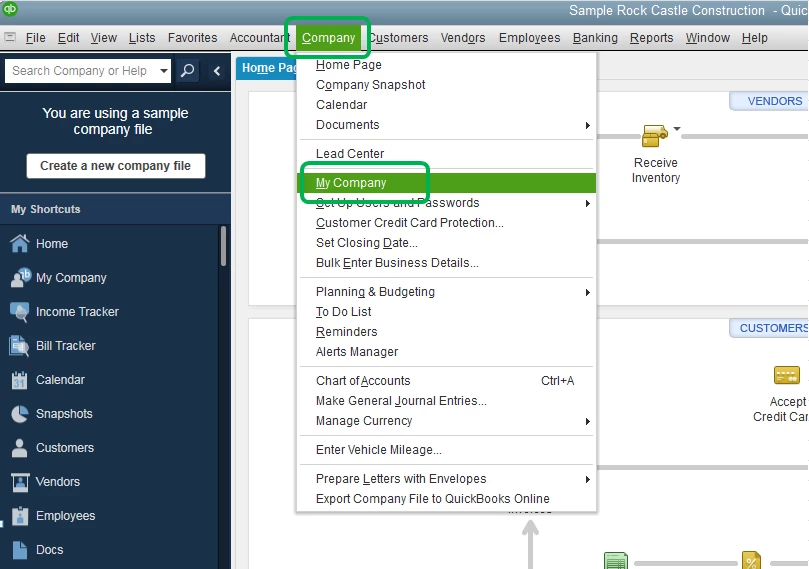
To verify where the amounts are coming from, let's review the fiscal year setting within the company file and verify how the budget is being set up in QuickBooks Desktop. To verify if the fiscal year setting is correct, follow the steps below:
- Go to Company at the top menu.
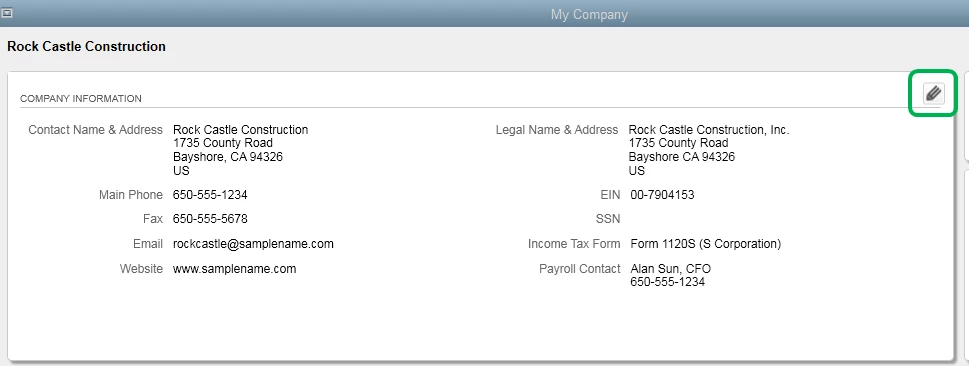
- Select My Company.
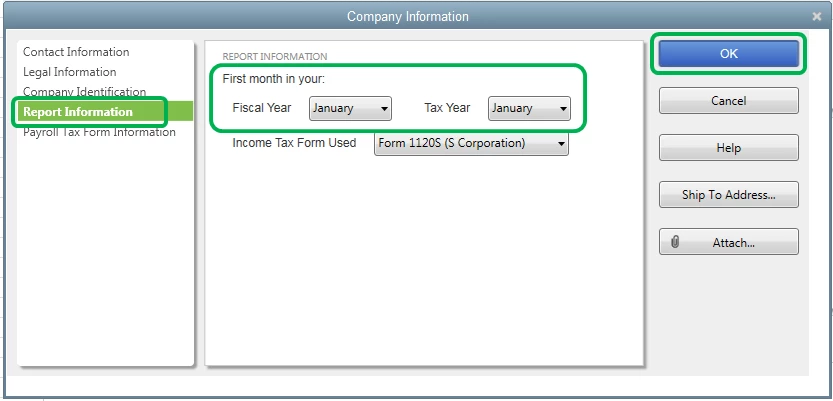
- Click the Pencil icon and choose Report Information.
- Go to the First month in your fiscal year field to see the month and update if necessary.
- Press OK to save the changes.
I've attached screenshots for your reference.
Now, determine how the budget is set up. Here’s how:
- Go to Company at the top menu and select Planning & Budgeting.
- Choose Set Up Budgets. If you’ve set up one before, the most recent budget will be displayed in the Set Up Budgets window.
- Tap Create New Budget.
- Specify the budget year, and then choose between Profit and Loss and Balance Sheet.
- For the Profit and Loss Budget, specify additional criteria of either Customer: Job or Class, if class tracking is turned on.
- Select whether you want to Create a budget from scratch or Create a budget from the previous year’s actual data for Profit and Loss Budget.
- Hit Finish.
Here's an article you can refer to for more details about creating a budget or forecast in QuickBooks Desktop. Feel free to refer to these articles on how to customize any report that you generate and then save it using the same settings:
That’s it. I want to ensure this concern gets taken care of, so please feel free to let me know how it goes by leaving a comment below. Looking forward to hearing from you soon. Take care!

