July 26, 2023
Solved

Expenses not showing on dashboard or P&L

  • July 26, 2023
  • 2 replies
  • 0 views

I am have input several expenses and none of them are showing on the dashboard or the profit and loss report. Its like they are not being taken into account for profit/loss purposes but they are showing on the transactions report and are having an impact on the bank account total.

Best answer by Kevin_C

Hi there, @Thunderbug. I'll share some details with you on how to show the expenses in your dashboard or the profit and loss report in QuickBooks Online (QBO).


In QBO, you can see the Expenses widget in the Dashboard window if you are one of the following types of users: Primary admins, Company admins, Reports-only users, Accountant users, Standard users with access to vendors and purchases.


Meanwhile, the Standard users without access to vendors and purchases and Time tracking only users can't see this widget.


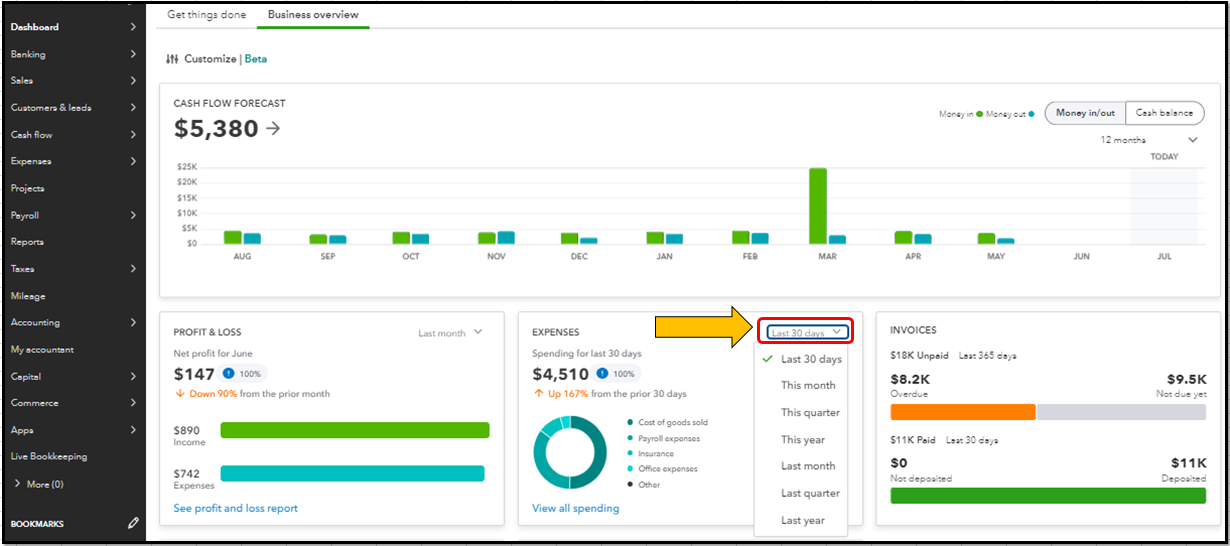
If you have the necessary access, you'll want to double-check your time frame first. We automatically show expenses from the last 30 days. To change it, click the Last 30 days ▼ dropdown and select your desired time frame.


Then, categorize all your imported bank transactions so the widget has the most up-to-date expense info. Uncategorized transactions don’t show up in the expense chart. You can also review your company’s accounting method. You might see more or fewer costs than expected, depending on your method.


See this screenshot for an example:
 

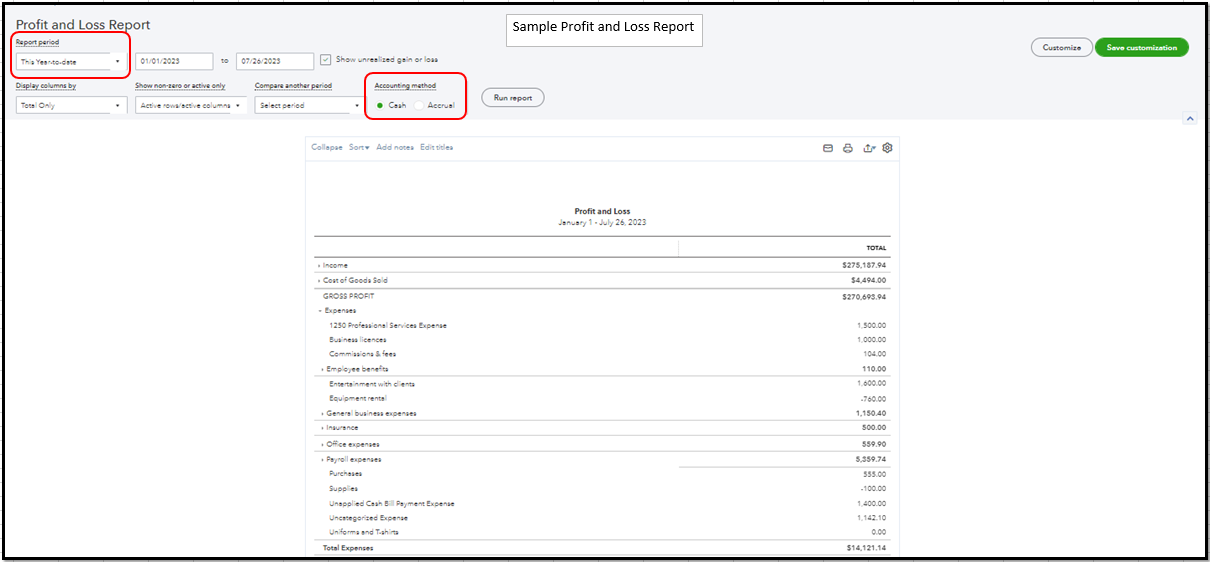
Regarding your Profit and Loss report, please make sure to select the correct Report periodAccounting method, and other filter customizations within the report to show the correct expense amounts.
 

Additionally, you can customize your reports in QuickBooks to show the correct data for each company. Then, you can use this resource for your reference in case you want to export your reports to Excel: Export your reports to Excel from QuickBooks Online.


If you still have questions or concerns about managing your expenses in QBO. I'll be here to lend a helping hand. Have a great day ahead!


2 replies

Kevin_CAnswer
July 26, 2023

Hi there, @Thunderbug. I'll share some details with you on how to show the expenses in your dashboard or the profit and loss report in QuickBooks Online (QBO).


In QBO, you can see the Expenses widget in the Dashboard window if you are one of the following types of users: Primary admins, Company admins, Reports-only users, Accountant users, Standard users with access to vendors and purchases.


Meanwhile, the Standard users without access to vendors and purchases and Time tracking only users can't see this widget.


If you have the necessary access, you'll want to double-check your time frame first. We automatically show expenses from the last 30 days. To change it, click the Last 30 days ▼ dropdown and select your desired time frame.


Then, categorize all your imported bank transactions so the widget has the most up-to-date expense info. Uncategorized transactions don’t show up in the expense chart. You can also review your company’s accounting method. You might see more or fewer costs than expected, depending on your method.


See this screenshot for an example:


Regarding your Profit and Loss report, please make sure to select the correct Report periodAccounting method, and other filter customizations within the report to show the correct expense amounts.


Additionally, you can customize your reports in QuickBooks to show the correct data for each company. Then, you can use this resource for your reference in case you want to export your reports to Excel: Export your reports to Excel from QuickBooks Online.


If you still have questions or concerns about managing your expenses in QBO. I'll be here to lend a helping hand. Have a great day ahead!

July 28, 2023

Thanks very much, it worked like a charm 🙂

July 28, 2023

Hello, Thunderbug.


I'm glad to hear that my colleagues were able to provide a solution to resolve this. It's always helpful to have a supportive and knowledgeable team to work with. Thank you for sharing this update.  


Here are a few articles that might be helpful for you in the future. These articles can guide you through the process of modifying your reports to suit your preferences and reconciling your account with ease.


If you need any more assistance with managing your books, please don't hesitate to reach out to us. We are always happy to help with any questions or concerns you may have. Have a great day!