Good day, @Scribo. Thanks for sharing your concern on the QuickBooks Community page.
Upon checking on the higher version of QuickBooks Desktop such as 2023, the item names on the invoices and statements charges also reflect when creating statements.
Let's make sure that the Item column is checked in your statement template. This way, the item names will display on the statement window. Here's how:
- Simply go to List and select Templates.
- Double-click the statement template you're currently using.
- Click Additional Customization.
- Check the Item box in the Columns section.
- Select OK and click OK again to save your changes.
In addition, let's ensure that the Show invoice item details on statements box was checked before creating statement. This way, the details of your invoices will display when printing or previewing the transaction.
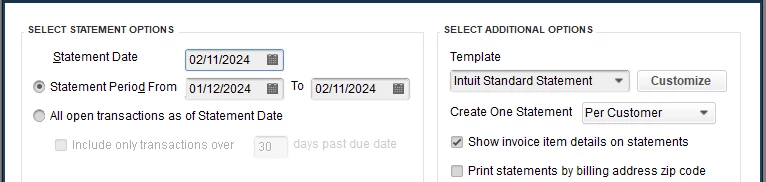
If the details aren't still showing, let's perform some troubleshooting steps to see if the problem is related to program issue. Let's start by running the Verify and Rebuild Data tools. Here's how to verify your company data:
- Go to Window then select Close All.
- Click File and select Utilities.
- Select Verify Data. If you see:
- QuickBooks detected no problems with your data—your data is clean, and you don’t need to do anything else.
- An error message—search for it on our QuickBooks Desktop support site for how to fix it.
- Your data has lost integrity—Data damage was found in the file. Rebuild your data to fix it.
If you're still getting the same results, this may be how the program works for your current version. In that case, I'd suggest using the workaround you're using right now to show the item names of your statement charges when printing your statements.
Creating billing statements is part of your usual A/R workflow in QuickBooks Desktop. To learn the different ways of tracking customer transactions in the program, refer to our Accounts Receivable workflows in QBDT.
Please let me know if you have additional questions about creating statements in QuickBooks. I'll be here to help you out. Have a good one.

